
Obfuscating LDAP Bind Password for Zeppelin
Migrate the Zeppelin LDAP bind password from plain-text configuration to the Hadoop Credential Store (JCEKS) to comply with security best practices.
Scope
- Zeppelin integrated with LDAP authentication
- Ambari-managed Zeppelin
- Hadoop Credential Provider (JCEKS)
- Applies to clusters with LDAP-enabled Zeppelin UI
Prerequisites
- Ambari LDAP must already be configured and obfuscated
- Refer: ODP-5149 | Obfuscating LDAP password in Ambari
- LDAP authentication validated for Ambari
- Hadoop CLI available on Zeppelin host
- Zeppelin service stopped/restarted as required
Step 1: Configure LDAP for Zeppelin (Baseline Setup)
Update the following configuration in Ambari UI:
Zeppelin → Configs → Advanced zeppelin-shiro-ini
[main]
ldapRealm = org.apache.zeppelin.realm.LdapRealm
ldapRealm.contextFactory.url = ldaps://10.100.11.29:1636
ldapRealm.contextFactory.systemUsername = cn=admin,dc=acceldata,dc=ce
ldapRealm.contextFactory.systemPassword = passw0rd
ldapRealm.userDnTemplate = uid={0},ou=users,dc=acceldata,dc=ce
ldapRealm.contextFactory.environment[ldap.searchBase] = dc=acceldata,dc=ce
ldapRealm.contextFactory.authenticationMechanism = SIMPLE
ldapRealm.contextFactory.environment[java.naming.security.protocol] = ssl
ldapRealm.contextFactory.environment[java.naming.referral] = follow

securityManager.realms = $ldapRealm
sessionManager = org.apache.shiro.web.session.mgt.DefaultWebSessionManager

cacheManager = org.apache.shiro.cache.MemoryConstrainedCacheManager
securityManager.cacheManager = $cacheManager

cookie = org.apache.shiro.web.servlet.SimpleCookie
cookie.name = JSESSIONID
cookie.httpOnly = true
sessionManager.sessionIdCookie = $cookie
securityManager.sessionManager = $sessionManager

securityManager.sessionManager.globalSessionTimeout = 86400000
shiro.loginUrl = /api/login

[urls]
/api/version = anon
/** = authc
Restart Zeppelin and validate LDAP login using an LDAP user.
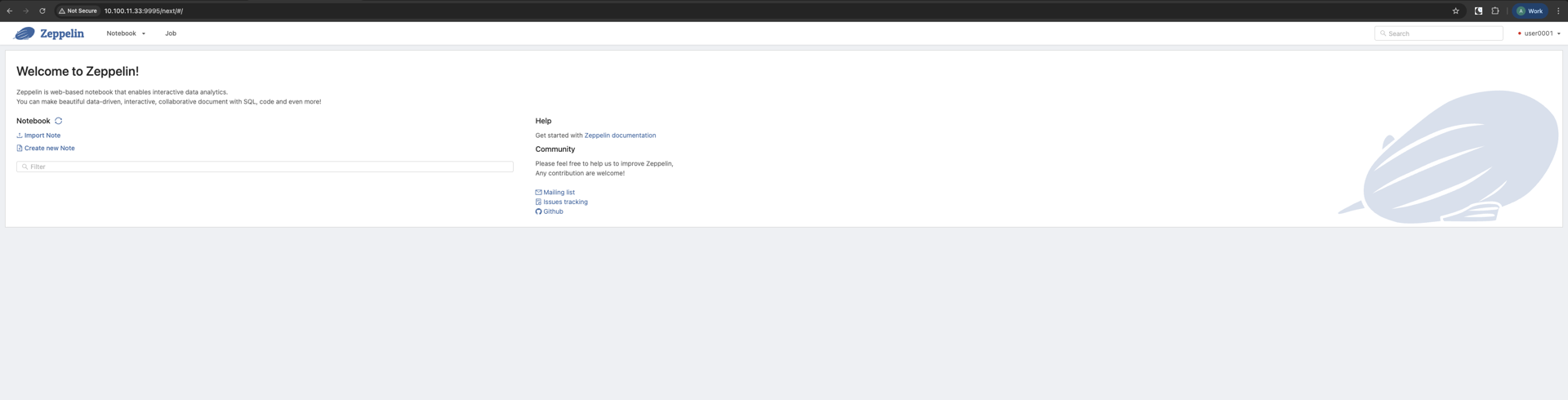
All LDAP users can log in to Zeppelin UI.
Since you added the password in plain text, you need to obfuscate this using Hadoop credentials.
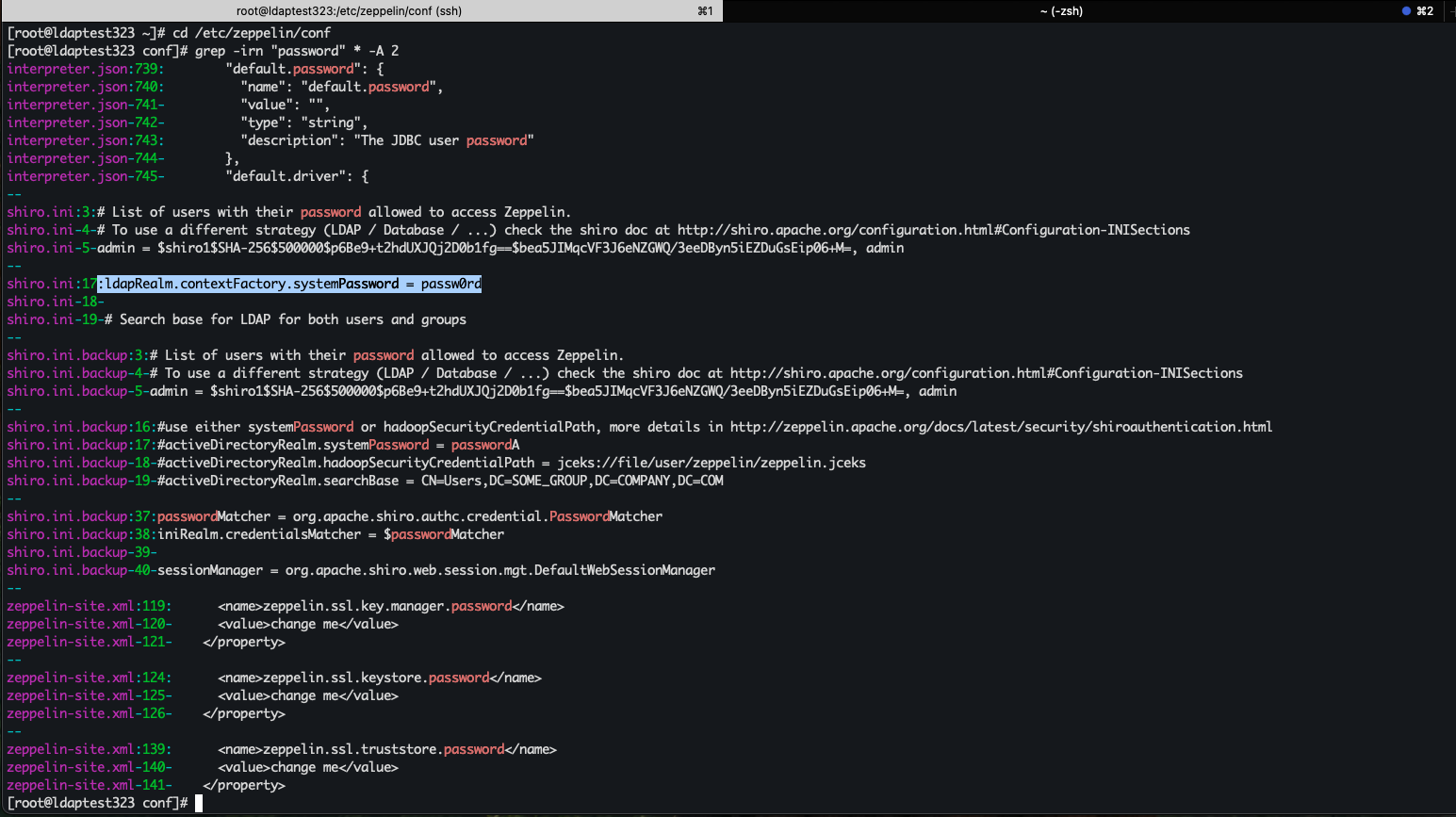
Step 2: Obfuscate Zeppelin LDAP Bind Password
Step 2.1: Move Plain-text Password to JCEKS
Run the following commands on the Zeppelin host:
# Extract LDAP bind password from shiro.ini
LDAP_PASSWORD=$(grep "ldapRealm.contextFactory.systemPassword" /etc/zeppelin/conf/shiro.ini | grep -v "^#" | sed 's/.*= *//')

# Create credential in JCEKS
hadoop credential create zeppelin_ldap_pass \
 -provider jceks://file/var/lib/zeppelin/zeppelin.jceks \
 -value "$LDAP_PASSWORD"

# Secure the keystore
chown zeppelin:zeppelin /var/lib/zeppelin/zeppelin.jceks
chmod 600 /var/lib/zeppelin/zeppelin.jceks

# Verify alias creation
hadoop credential list -provider jceks://file/var/lib/zeppelin/zeppelin.jceks
Step 2.2: Reference JCEKS in Zeppelin Configuration
2.2.1 Set Credential Provider Path
Ambari → Zeppelin → Configs → Advanced zeppelin-env
Add at the end:
export HADOOP_CREDENTIAL_PROVIDER_PATH="jceks://file/var/lib/zeppelin/zeppelin.jceks"
2.2.2 Update zeppelin-shiro-ini
Replace the plain-text password with the credential alias:
ldapRealm.contextFactory.systemPassword = #{zeppelin_ldap_pass}
Step 3: Restart & Validation
ambari-server restart
(or restart Zeppelin service via Ambari UI)
Validation Steps
- Log in to Zeppelin UI using LDAP users
- Ensure no authentication errors in:
/var/log/zeppelin/zeppelin-server.log
- Confirm no plain-text password exists in
shiro.ini
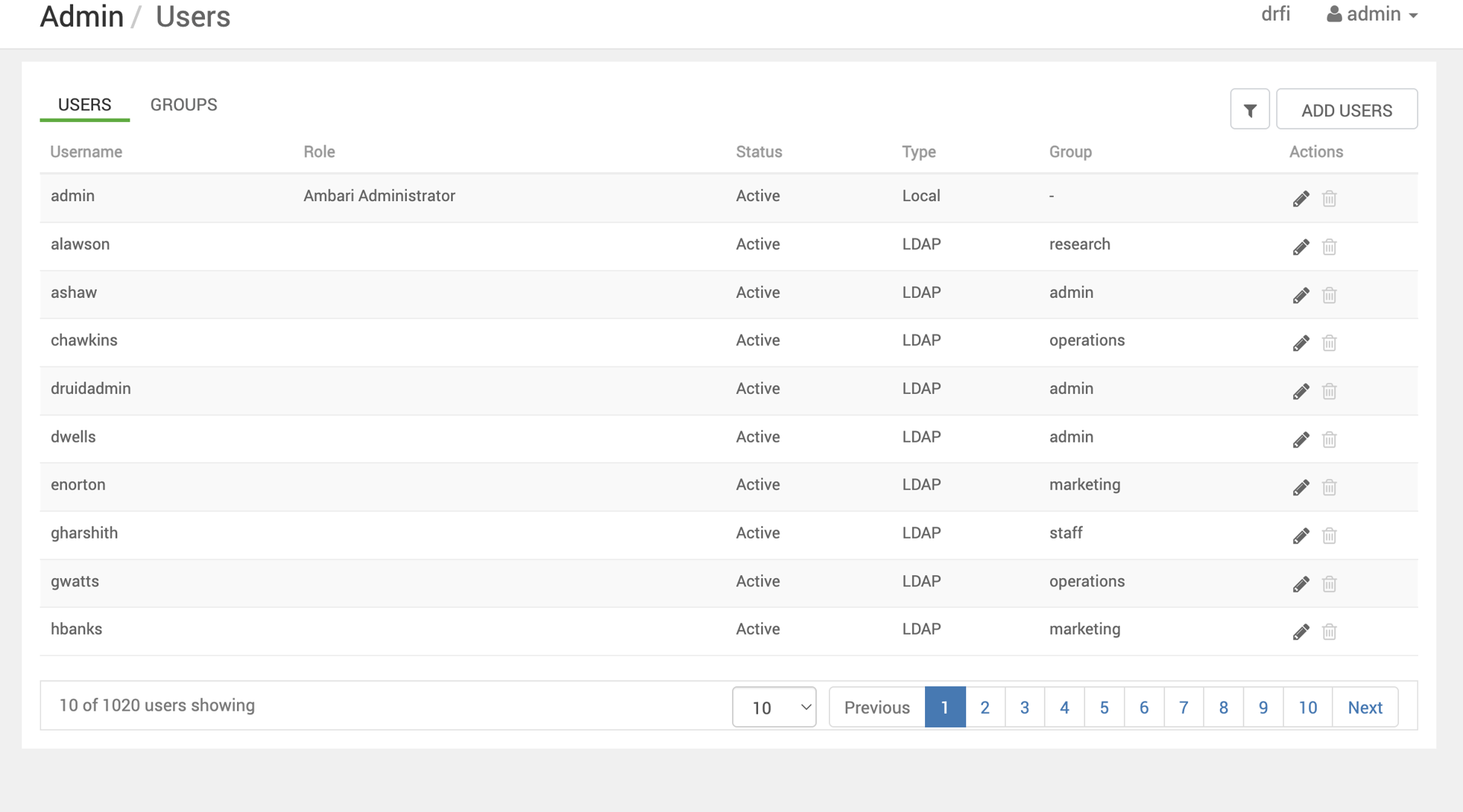
The screenshot below is a reference to the users available to Zeppelin.
Outcome
- LDAP bind password removed from plain-text configuration
- Password securely stored in Hadoop Credential Store (JCEKS)
- Zeppelin authentication continues to function as expected
- Compliant with MSTP security hardening standards
Have a suggestion?