
Installing Flink and Usage
Overview
Apache Flink v1.19.1 is an open-source stream-processing framework for distributed, high-performing, always-available, and accurate data streaming applications. It provides both stream and batch processing capabilities in a single runtime.
The following versions are supported on Flink:
- Python Support 3.11 onwards with pyflink
- JDK Supports up to Java 17
- Supported on ODP-3.2.3.3-2, ODP-3.2.3.3-3, and 3.3.6.x release onwards.
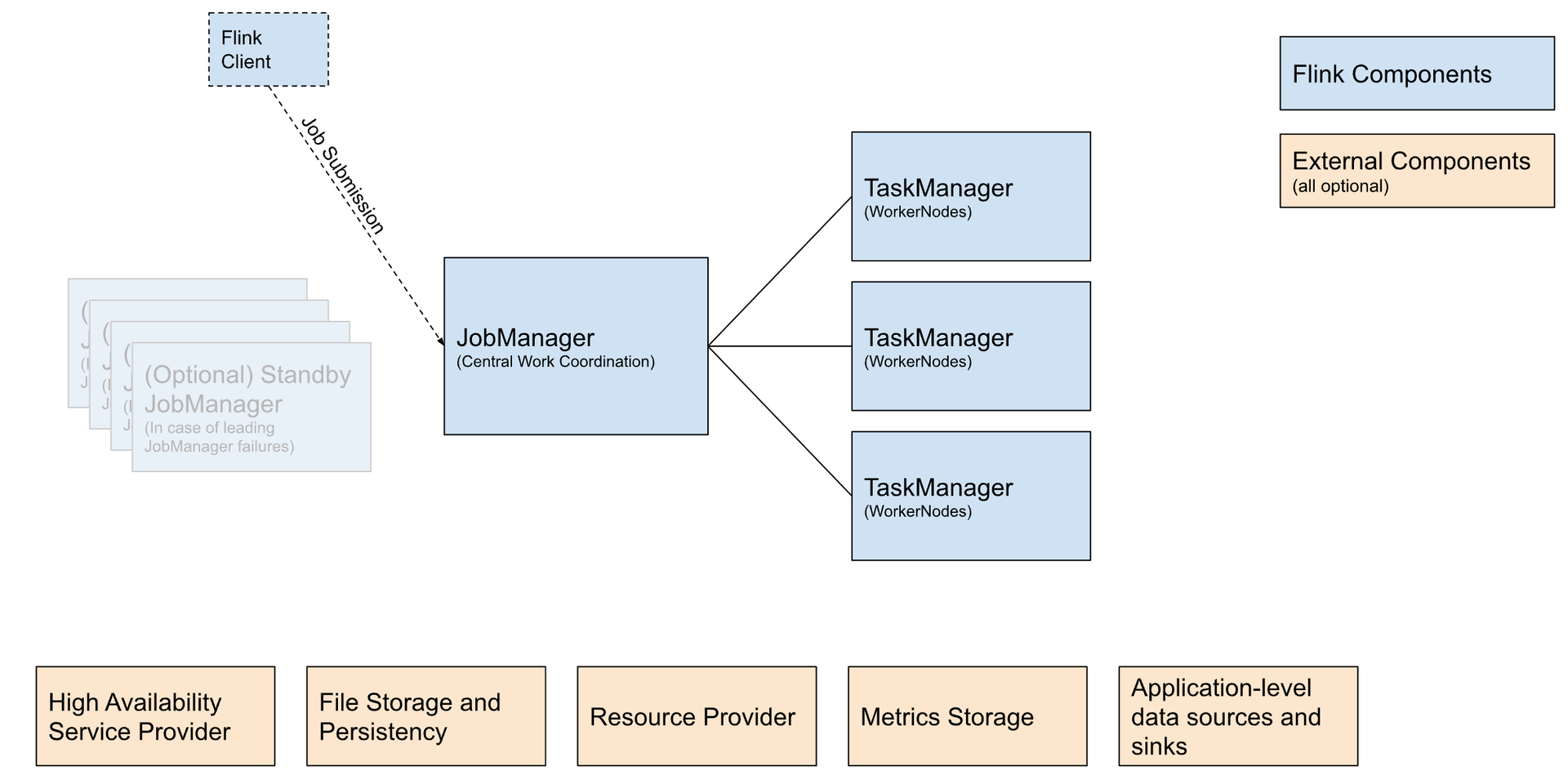
The following illustration shows the Apache Flink Deployment.
Component | Purpose | Implications |
|---|---|---|
Flink Client | Compiles batch or streaming applications into a dataflow graph, which it then submits to the JobManager. | |
JobManager | JobManager is the name of the central work coordination component of Flink. It has implementations for different resource providers, which differ in high availability, resource allocation behavior, and supported job submission modes. The available JobManager modes for job submissions: | |
TaskManager | TaskManagers are the services performing the work of a Flink job. |
External Components (optional)
Component | Purpose | Implications |
|---|---|---|
High Availability Service Provider | Flink's JobManager can be run in high availability mode, which allows Flink to recover from JobManager faults. To failover faster, multiple standby JobManagers can be started to act as backups. | |
File Storage and Persistence | For checkpointing (recovery mechanism for streaming jobs), Flink relies on external file storage systems. | See FileSystems page. |
Resource Provider | Flink can be deployed through different Resource Provider Frameworks, such as Kubernetes or YARN. | See JobManager implementations above. |
Metrics Storage | Flink components report internal metrics and Flink jobs can report additional, job-specific metrics as well. | See the Metrics Reporter page. |
Metrics Storage | Flink components report internal metrics and Flink jobs can report additional, job-specific metrics as well. | See the Metrics Reporter page. |
Application-level data sources and sinks | While application-level data sources and sinks are not technically part of the deployment of Flink cluster components, they must be considered when planning a new Flink production deployment. Colocating frequently used data with Flink can have significant performance benefits. | For example: See the Connectors page. |
Installation via Ambari Mpack
To install Ambari Flink Mpack, perform the following steps:
- Download the Flink mpack from the Mpacks Link.
- Execute the following command to install the Mpack.
ambari-server install-mpack --mpack=ambari-mpacks-flink-1.19.1.tar.gz --verbose
After running above commands you can see this message.
INFO: Management pack flink-ambari-mpack-1.19.1 successfully installed! Please restart ambari-server.
INFO: Loading properties from /etc/ambari-server/conf/ambari.properties
Ambari Server 'install-mpack' completed successfully.
The Ambari server restarts.
#Restart Ambari server
ambari-server restart
- Log in to the Ambari UI and navigate to Add Flink service.
- Select hosts for the Flink History Server and client components.
- Start any stopped or required services to finalise the installation.
At the time of service configuration it automatically adds the HDFS file system implementation as default scheme as storage layer for jobmanager.archive.fs.dir, historyserver.archive.fs.dir.
For high availability it relies upon Zookeeper as default HA service and provides integration to K8s, at the time of configuration service advisor will set high-availability.zookeeper.quorum to available ZK quorum in cluster.
Custom configurations are allowed to be aded under Custom flink-conf section in Ambari.
Authorisation with Ranger must be provided to flink user for allowing submitting job in respective Yarn queue or accessing existing tables in HMS with Hive policies.
The Flink History server is up on port 8082 and actively reads the archive directory on HDFS to display completed or running job summary.
Uninstallation of Flink Mpack
To uninstall the Ambari Flink Mpack, perform the following steps:
- Log in to the Ambari service and navigate to the Flink section:
- Access the Ambari service web interface.
- Navigate to the Flink section in the Ambari dashboard.
- Stop the Flink service and delete it permanently:
- Locate the option to stop the Flink service in the Ambari dashboard.
- Stop the Flink service and confirm the action.
- Delete the Flink service permanently from the Ambari dashboard.
- Execute the Uninstallation command:
- Open a terminal or command prompt on the Ambari server.
- Run the following command to uninstall the Flink Mpack.
ambari-server uninstall-mpack --mpack-name=flink-ambari-mpack
- Restart the Ambari server:
- After uninstalling the Flink Mpack, restart the Ambari server to apply the changes.
ambari-server restart
These steps uninstall the Ambari Flink Mpack from your Ambari service.
Configuration Change and Restart
Any custom configuration that is not included in the Ambari Mpack but is available in Flink can be added under the custom sections. Currently, due to a limitation, Flink does not automatically prompt for a restart after configuration changes. Therefore, to apply the changes globally across the History Server and at the client level, it is necessary to manually click Restart to forcefully implement the respective changes.
Usage Guide
Flink is a versatile framework, supporting many different deployment scenarios in a mix and match fashion. It provides support to multiple connectors, file formats and file systems with programmable, REST API, REPL and CLI based implementations.
Deployment Modes
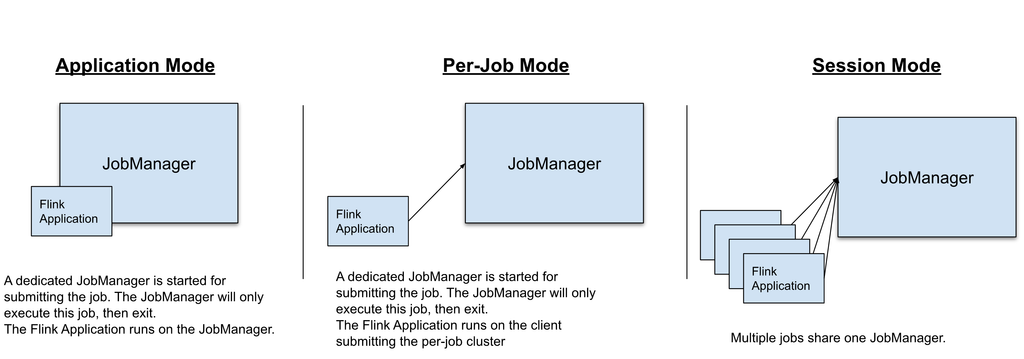
Flink can execute the applications in one of three ways:
- In Application Mode
- In Session Mode
- In a Per-Job Mode (deprecated)
The above modes differ in:
- the cluster lifecycle and resource isolation guarantees.
- whether the application’s main() method is executed on the client or on the cluster.
For more details, see Deployment Modes.
Resource Providers
Flink provides the following available support to host Job manager for a given submitted application:
- Standalone
- Native K8s
- YARN
This section provides guidance for options to launch the Flink applications in running YARN cluster using above mentioned deployment modes.
Important
Make sure that the HADOOP_CLASSPATH environment variable is set up (it can be checked by running echo $HADOOP_ CLASSPATH). If not, set it up using the below command.
export HADOOP_CLASSPATH=`hadoop classpath`
Starting a Flink Session on YARN
Once you’ve made sure that the HADOOP_CLASSPATH environment variable is set, you can launch a Flink on YARN session, and submit an example job:
# we assume to be in the root directory of
# the unzipped Flink distribution
# (0) export HADOOP_CLASSPATH
export HADOOP_CLASSPATH=`hadoop classpath`
# (1) Start YARN Session from Flink home directory under ODP stack version
./bin/yarn-session.sh --detached
# (2) You can now access the Flink Web Interface through the
# URL printed in the last lines of the command output, or through
# the YARN ResourceManager web UI.
# (3) Submit example job
./bin/flink run ./examples/streaming/TopSpeedWindowing.jar
# (4) Stop YARN session (replace the application id based
# on the output of the yarn-session.sh command)
echo "stop" | ./bin/yarn-session.sh -id application_XXXXX_XXX

Above shown is the Job Manager Flink Dashboard.
Deployment Modes Supported by Flink on YARN
Info
The Flink user (flink) is internal therefore it is not allowed to submit applications to YARN, use the other available services, or human users respectively.
Application Mode
Application Mode launches a Flink cluster on YARN, where the main() method of the application jar gets executed on the JobManager in YARN. The cluster shuts down as soon as the application has finished. You can manually stop the cluster using yarn application -kill <ApplicationId> or by cancelling the Flink job.
./bin/flink run-application -t yarn-application ./examples/streaming/TopSpeedWindowing.jar
Once an Application Mode cluster is deployed, you can interact with it for operations like cancelling or taking a savepoint.
# List running job on the cluster
./bin/flink list -t yarn-application -Dyarn.application.id=application_XXXX_YY
# Cancel running job
./bin/flink cancel -t yarn-application -Dyarn.application.id=application_XXXX_YY <jobId>
Note that cancelling your job on an Application Cluster stops the cluster.
To unlock the full potential of the application mode, consider using it with the yarn.provided.lib.dirs configuration option and pre-upload your application jar to a location accessible by all nodes in your cluster. In this case, the command might look like:
./bin/flink run-application -t yarn-application \
-Dyarn.provided.lib.dirs="hdfs://myhdfs/my-remote-flink-dist-dir" \
hdfs://myhdfs/jars/my-application.jar
The above command allows the job submission to be extra lightweight as the needed, Flink jars and the application jars are going to be picked up by the specified remote locations rather than be shipped to the cluster by the client.
Session Mode
The Session Mode has two operation modes:
- attached mode (default): The yarn-session.sh client submits the Flink cluster to YARN, but the client keeps running, tracking the state of the cluster. If the cluster fails, the client shows the error. If the client gets terminated, it signals the cluster to shut down as well.
- detached mode (-d or --detached): The yarn-session.sh client submits the Flink cluster to YARN, then the client returns. Another invocation of the client, or YARN tools is needed to stop the Flink cluster.
The session mode creates a hidden YARN properties file in /tmp/.yarn-properties-<username>, which picks up for cluster discovery by the command line interface when submitting a job.
You can also manually specify the target YARN cluster in the command line interface when submitting a Flink job. Here’s an example:
./bin/flink run -t yarn-session \
-Dyarn.application.id=application_XXXX_YY \
./examples/streaming/TopSpeedWindowing.jar
You can re-attach to a YARN session using the following command:
./bin/yarn-session.sh -id application_XXXX_YY
Besides passing configuration via the Flink configuration file, you can also pass any configuration at submission time to the ./bin/yarn-session.sh client using -Dkey=value arguments.
The YARN session client also has a few “shortcut arguments” for commonly used settings. They can be listed with ./bin/yarn-session.sh -h.
Memory Configuration and Tuning
The total process memory of Flink JVM processes consists of memory consumed by the Flink application (total Flink memory) and by the JVM to run the process. The total Flink memory consumption includes usage of JVM Heap and Off-heap (Direct or Native) memory.
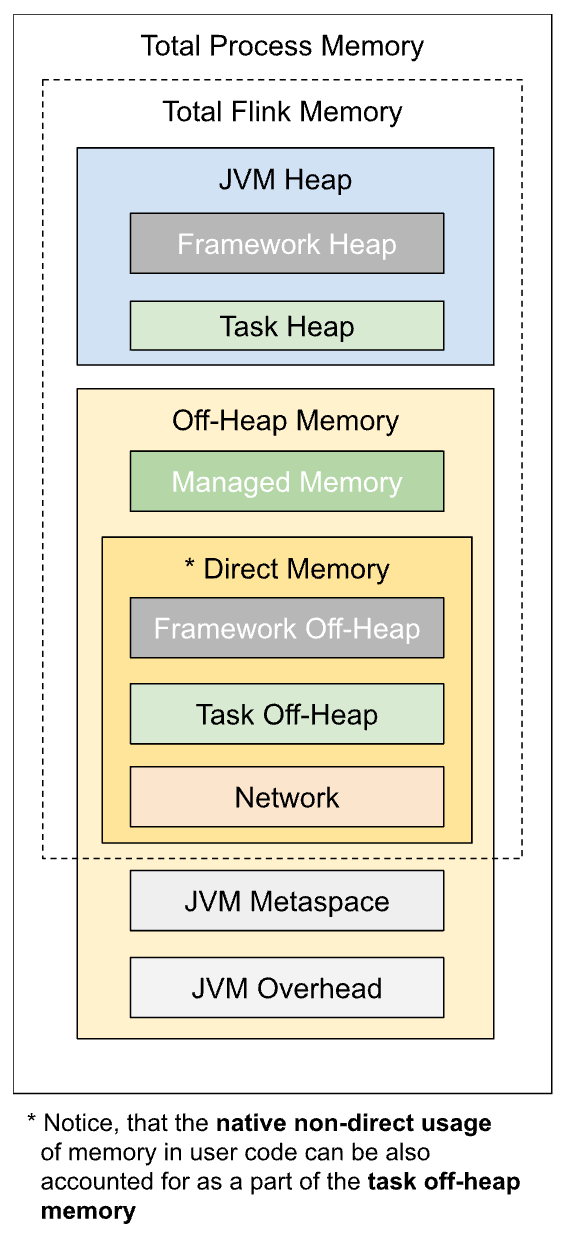
The above image shows the detailed Memory Model.
The simplest way to setup memory in Flink is to configure either of the two following options:
Component | Option for TaskManager | Option for JobManager |
|---|---|---|
Total Flink memory | taskmanager.memory.flink.size | jobmanager.memory.flink.size |
Total Process memory | taskmanager.memory.process.size | jobmanager.memory.process.size |
Flink explicitly adds the following memory related JVM arguments while starting its processes, based on the configured or derived memory component sizes:
JVM Arguments | Value for TaskManager | Value for Job Manager |
|---|---|---|
-Xmx and -Xms | Framework + Task Heap Memory | JVM Heap Memory (*) |
-XX:MaxDirectMemorySize (always added only for TaskManager, see note for JobManager) | Framework + Task Off-heap (**) + Network Memory | JVM Metaspace (), (*) |
XX:MaxMetaspaceSize | JVM Metaspace | JVM Metaspace |
- (*) Keep in mind that you might not be able to use the full amount of heap memory depending on the GC algorithm used. Some GC algorithms allocate a certain amount of heap memory for themselves. This leads to a different maximum being returned by the Heap metrics.
- (**) Notice, that the native non-direct usage of memory in user code can be also accounted for as a part of the off-heap memory.
- (***) The JVM Direct memory limit is added for JobManager process only if the corresponding option jobmanager.memory.enable-jvm-direct-memory-limit is set.
For details about memory troubleshooting, see Troubleshooting.
SQL Gateway
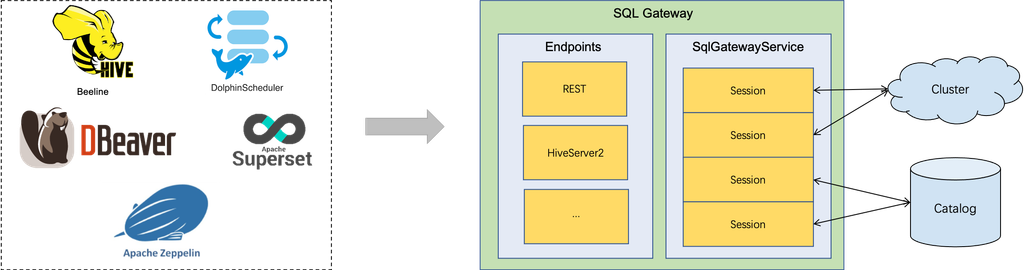
The SQL Gateway is a service that enables multiple clients from remote to execute SQL in concurrency. It provides an easy way to submit the Flink Job, look up the metadata, and analyze the data online.
The SQL Gateway is composed of pluggable endpoints and the SqlGatewayService. The SqlGatewayService is a processor that is reused by the endpoints to handle the requests. The endpoint is an entry point that allows users to connect. Depending on the type of the endpoints, users can use different utils to connect.
Starting the SQL Gateway
The SQL Gateway scripts are also located in the binary directory of Flink. Users can start by calling:
$ ./bin/sql-gateway.sh start -Dsql-gateway.endpoint.rest.address=localhost
The command starts the SQL Gateway with REST Endpoint that listens on range of available client port that can be checked in sql gateway.
INFO org.apache.flink.table.gateway.rest.SqlGatewayRestEndpoint [] - Rest endpoint listening at localhost:8080
You can use the curl command to check whether the REST Endpoint is available.
$ curl http://localhost:8080/v1/info
{"productName":"Apache Flink","version":"1.19.1"}
Supported Endpoints
Flink natively supports REST Endpoint and HiveServer2 Endpoint. The SQL Gateway is bundled with the REST Endpoint by default. With the flexible architecture, users are able to start the SQL Gateway with the specified endpoints by calling.
Set following configuration as per the path location values:
export HADOOP_HOME=${HADOOP_HOME:-/usr/odp/3.3.6.4-1/hadoop}
export HADOOP_CONF=${HADOOP_HOME}/conf
export HADOOP_CLASSPATH=`hadoop classpath`
export FLINK_HOME=${FLINK_HOME:-/usr/odp/3.3.6.4-1/flink}
export FLINK_CONF_DIR=${FLINK_CONF_DIR:-/etc/flink/conf}
export FLINK_LOG_DIR=${LOG_DIR:-/var/log/flink-cli}
Start SQL Gateway service
$ ./bin/sql-gateway.sh start -Dsql-gateway.endpoint.type=hiveserver2
Using below example to configure REST endpoint based SQL gateway to connect with deployed Flink cluster running with given application ID in yarn-session, this will start the service on the same host:
./bin/sql-gateway.sh start -Dsql-gateway.endpoint.type=rest \
-Dsql-gateway.endpoint.rest.address=localhost -Dexecution.target=yarn-session \
-Dyarn.application.id=application_1719348361319_0028
.....
...
..
Starting sql-gateway daemon on host flinkrl1.acceldata.ce.
Track separate SQL gateway related logs or any exceptions under /var/log/flink dir.
2024-07-17 02:22:56,391 INFO org.apache.flink.table.gateway.api.utils.ThreadUtils [] - Created thread pool sql-gateway-operation-pool with core size 5, max size 500 and keep alive time 300000ms.
2024-07-17 02:22:56,651 INFO org.apache.flink.table.gateway.rest.SqlGatewayRestEndpoint [] - Upload directory /tmp/flink-web-upload does not exist.
2024-07-17 02:22:56,651 INFO org.apache.flink.table.gateway.rest.SqlGatewayRestEndpoint [] - Created directory /tmp/flink-web-upload for file uploads.
2024-07-17 02:22:56,654 INFO org.apache.flink.table.gateway.rest.SqlGatewayRestEndpoint [] - Starting rest endpoint.
2024-07-17 02:22:56,850 INFO org.apache.flink.table.gateway.rest.SqlGatewayRestEndpoint [] - Rest endpoint listening at localhost:8081
The next step is to connect to the Gateway service using a SQL client. Please follow the steps below to do so.
Stop SQL Gateway service
./bin/sql-gateway.sh stop
SQL Client
Flink’s Table & SQL API makes it possible to work with queries written in the SQL language, but these queries need to be embedded within a table program that is written in either Java or Scala. Moreover, these programs need to be packaged with a build tool before being submitted to a cluster. This more or less limits the usage of Flink to Java/Scala programmers.
The SQL Client aims to provide an easy way of writing, debugging, and submitting table programs to a Flink cluster without a single line of Java or Scala code. The SQL Client CLI allows for retrieving and visualizing real-time results from the running distributed application on the command line.
Run the following command to connect to the gateway service. In this case, the gateway service was running on the same host. You can get the port details from the gateway logs.
./bin/sql-client.sh gateway --endpoint 0.0.0.0:8081

Flink SQL CLI
More options to configure Flink SQL Client is available here.
HiveServer Endpoint
Flink project officially supports Hive version upto 3.1.3 and currently Hive 4.0.0 full support is under progress, ODP engineering team has released initial support to execute read or aggregate queries on Hive tables using Flink engine.
Place the following jar files from Hive to current/flink/lib/.
hive-exec-4.0.0.3.3.6.4-1.jar
antlr-runtime-3.5.2.jar
libfb303-0.9.3.jar
libthrift-0.16.0.jar
hive-jdbc-4.0.0.3.3.6.4-1-standalone.jar
# Need to be downloaded from Acceldata nexus repo
flink-sql-connector-hive-4.0.0_2.12-1.19.1.3.3.6.4-1.jar
Start HiveServer2 Endpoint Gateway Service
./bin/sql-gateway.sh start -Dsql-gateway.endpoint.type=hiveserver2 \
-Dsql-gateway.endpoint.hiveserver2.catalog.hive-conf-dir=/etc/hive/conf \
-Dexecution.target=yarn-session \
-Dyarn.application.id=application_1725033139719_0003
Use Beeline to connect to the above gateway service:
beeline -u "jdbc:hive2://ce16.acceldata.dvl:10000/default;auth=noSasl"
[hive@ce16 flink]$ beeline -u "jdbc:hive2://ce16.acceldata.dvl:10000/default;auth=noSasl"
SLF4J: Class path contains multiple SLF4J bindings.
SLF4J: Found binding in [jar:file:/usr/odp/3.3.6.4-1/hive/lib/log4j-slf4j-impl-2.18.0.jar!/org/slf4j/impl/StaticLoggerBinder.class]
SLF4J: Found binding in [jar:file:/usr/odp/3.3.6.4-1/hadoop/lib/slf4j-reload4j-1.7.36.jar!/org/slf4j/impl/StaticLoggerBinder.class]
SLF4J: Found binding in [jar:file:/usr/odp/3.3.6.4-1/hadoop-hdfs/lib/logback-classic-1.2.13.jar!/org/slf4j/impl/StaticLoggerBinder.class]
SLF4J: Found binding in [jar:file:/usr/odp/3.3.6.4-1/tez/lib/logback-classic-1.2.13.jar!/org/slf4j/impl/StaticLoggerBinder.class]
SLF4J: See http://www.slf4j.org/codes.html#multiple_bindings for an explanation.
SLF4J: Actual binding is of type [org.apache.logging.slf4j.Log4jLoggerFactory]
Connecting to jdbc:hive2://ce16.acceldata.dvl:10000/default;auth=noSasl
Connected to: Apache Flink (version 1.19)
Driver: Hive JDBC (version 4.0.0.3.3.6.4-1)
Transaction isolation: TRANSACTION_REPEATABLE_READ
Beeline version 4.0.0.3.3.6.4-1 by Apache Hive
0: jdbc:hive2://ce16.acceldata.dvl:10000/defa> select count(distinct(a1)) from test2;
+---------+
| _o__c0 |
+---------+
| 1 |
+---------+
1 row selected (9.097 seconds)
File Systems
File systems such as S3, Ceph, NFS are allowed for the above storage directories. In case of cloud based integrations, shaded dependencies from flink are available on the installed distribution under opt/ dir and few file systems may require additional system dependencies and configuration changes. For more information, click here.
Security
Authorisation at service level such as HDFS/YARN can be configured via policy management as specified on Ranger.
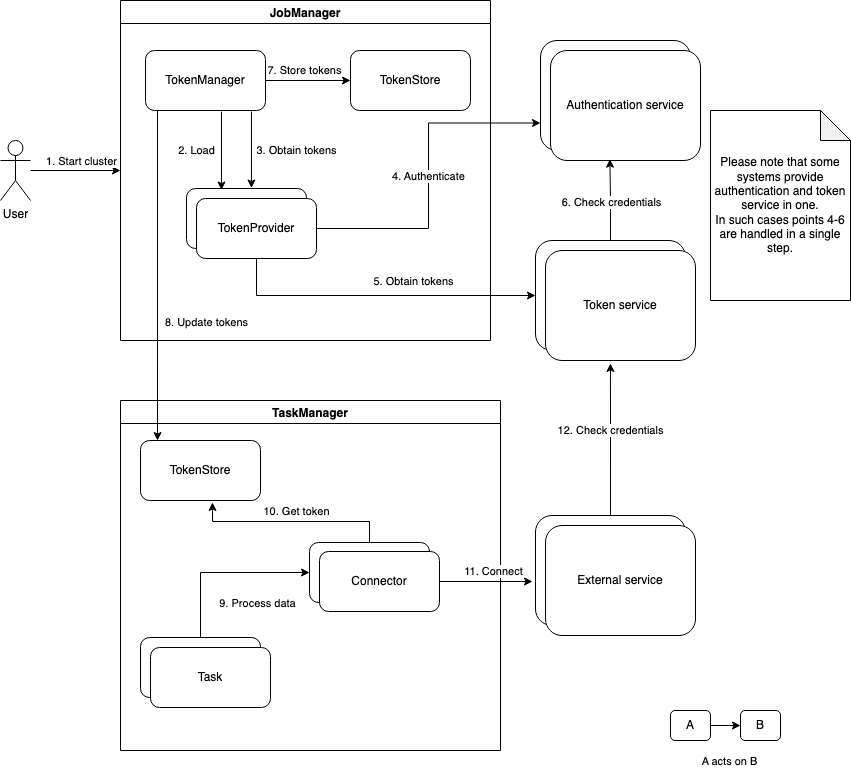
Token Delegation
To read about token delegation lifecycle, click here.
SSL Enablement
When securing network connections between machines processes through authentication and encryption, Apache Flink differentiates between internal and external connectivity. Internal Connectivity refers to all connections made between Flink processes. These connections run Flink custom protocols. Users never connect directly to internal connectivity endpoints. External / REST Connectivity endpoints refers to all connections made from the outside to Flink processes. This includes the web UI and REST commands to start and control running Flink jobs/applications, including the communication of the Flink CLI with the JobManager / Dispatcher.
For more flexibility, security for internal and external connectivity can be enabled and configured separately. More details available here.
Following properties are required to be updated for enabling ssl on REST endpoint externally and for internal communication.
Internal SSL Enablement
security.ssl.internal.enabled: true
security.ssl.internal.keystore: /path/to/flink/conf/internal.keystore
security.ssl.internal.truststore: /path/to/flink/conf/internal.keystore
security.ssl.internal.keystore-password: internal_store_password
security.ssl.internal.truststore-password: internal_store_password
security.ssl.internal.key-password: internal_store_password
REST/External SSL Enablement
security.ssl.rest.enabled: true
security.ssl.rest.keystore: /path/to/flink/conf/rest.keystore
security.ssl.rest.truststore: /path/to/flink/conf/rest.truststore
security.ssl.rest.keystore-password: rest_keystore_password
security.ssl.rest.truststore-password: rest_truststore_password
security.ssl.rest.key-password: rest_keystore_password
History Web Service SSL Enablement
historyserver.web.ssl.enabled
security.ssl.rest.enabled
# And other properties required for REST enablement as mentioned above
Additional Java options
The module-specific configuration can be set using the following properties:
env.java.opts.all
env.java.opts.client
env.java.opts.historyserver
env.java.opts.jobmanager
env.java.opts.sql-gateway
env.java.opts.taskmanager
Downloads
All the respective jars, drivers and bundles are available on Acceldata nexus repository for the provided version.