
Obfuscating LDAP Bind Password in Ambari
Migrate the LDAP bind/manager password from plain text / file-based storage to the Ambari Credential Store (JCEKS) to ensure secure password handling.
Scope
- Ambari with LDAP authentication enabled
- Applies to Ambari 3.x
- Backend DB: MySQL (applies similarly to other supported DBs)
- Covers JDK 17
Background
- Ambari stores LDAP configuration in the backend DB (ambari_configuration table).
- The LDAP bind password is stored in a plain-text file (e.g. /etc/ambari-server/conf/ldap-password.dat) and referenced directly in DB.
- This file is readable in plain text, which is a security risk.
- Ambari supports secure storage via Credential Store (JCEKS), which must be used instead.
Prerequisites
- Ambari Server access (root)
- Ambari Server stopped during security setup
- LDAP connectivity verified
- Master key decision made (persist or non-persist)
Step 1: LDAP Setup (Reference)
Example LDAP setup command:
ambari-server setup-ldap \
--ldap-primary-host=10.100.11.29 \
--ldap-primary-port=1636 \
--ldap-ssl=true \
--ldap-type=Generic \
--ldap-user-class=inetOrgPerson \
--ldap-user-attr=uid \
--ldap-group-class=posixGroup \
--ldap-group-attr=cn \
--ldap-member-attr=memberUid \
--ldap-dn=dn \
--ldap-base-dn=dc=acceldata,dc=ce \
--ldap-manager-dn="cn=admin,dc=acceldata,dc=ce" \
--ldap-manager-password=passw0rd \
--ldap-referral=follow \
--ldap-bind-anonym=false \
--ldap-save-settings \
--ambari-admin-username=admin \
--ambari-admin-password=admin
Step 2: Import LDAP SSL Certificate (If Using LDAPS)
2.1 Extract certificate
openssl s_client -connect 10.100.11.29:1636 -showcerts </dev/null
Copy the last certificate and save it as:
vi /etc/pki/tls/certs/custom-ldap.crt
2.2 Import into Java truststore
Java 8
# For java 8 (ambari 3.2.3)
keytool -import \
-trustcacerts \
-alias ambari-ldap-custom \
-file /etc/pki/tls/certs/custom-ldap.crt \
-keystore /usr/lib/jvm/java-1.8.0-openjdk-1.8.0.472.b08-1.el8.x86_64/jre/lib/security/cacerts \
-storepass changeit \
Java 11
# For java 11 (ambari 3.6.6)
keytool -import \
-trustcacerts \
-alias ambari-ldap-custom \
-file /etc/pki/tls/certs/custom-ldap.crt \
-keystore /usr/lib/jvm/java-11-openjdk-11.0.25.0.9-2.el8.x86_64/lib/security/cacerts \
-storepass changeit \
Cross-check the changes made: cat /etc/ambari-server/conf/ldap-password.dat
Step 3: Enable Ambari Credential Store
ambari-server stop
ambari-server setup-security
You might get options similar to the following snippet:
Using python  /usr/bin/python3.11
Security setup options...
===========================================================================
Choose one of the following options:
  [1] Enable HTTPS for Ambari server.
  [2] Encrypt passwords stored in ambari.properties file.
  [3] Setup Ambari kerberos JAAS configuration.
  [4] Setup truststore.
  [5] Import certificate to truststore.
===========================================================================
Enter choice, (1-5):
Choose option: [2] Encrypt passwords stored in ambari.properties file
You will then be prompted for aMaster key, it’s like setting up a password:
- If you haven’t set a Master key, create one (and remember it! You will need it in the future, and also during the setup).
- For the Persist Master Key, choose y (yes) otherwise you have to provide this password every time you restart ambari-server. Else you can choose not to persist the same.
Result
Credential store created:
/var/lib/ambari-server/keys/credentials.jceks
The passwords referenced in ambari.properties are obfuscated.
Step 4: Obfuscate LDAP Bind Password
You need to keep your Master key handy for this.
4.1 Import password into Credential Store
# Now import the new password
read -sp "Enter keystore password: " KEYSTORE_PASSWORD && echo && \
LDAP_PASSWORD=$(tr -d '\n' < /etc/ambari-server/conf/ldap-password.dat) && \
keytool -importpass -alias ambari.ldap.connectivity.bind_password \
-keystore /var/lib/ambari-server/keys/credentials.jceks \
-storetype JCEKS \
-storepass "$KEYSTORE_PASSWORD" \
-keypass "$KEYSTORE_PASSWORD" \
-noprompt <<EOF
$LDAP_PASSWORD
EOF
You are prompted to enter the Master key here.
Verify import:
keytool -list -v \
-keystore /var/lib/ambari-server/keys/credentials.jceks \
-storetype JCEKS | grep "Alias name"
Again, you need to give your storepass, i.e., Master key, when prompted
Step 5: Update Ambari DB Configuration
Log in to mysql shell on your node, and then run the following command:
USE ambari;
UPDATE ambari_configuration
SET property_value='${alias=ambari.ldap.connectivity.bind_password}'
WHERE category_name='ldap-configuration'
AND property_name='ambari.ldap.connectivity.bind_password';
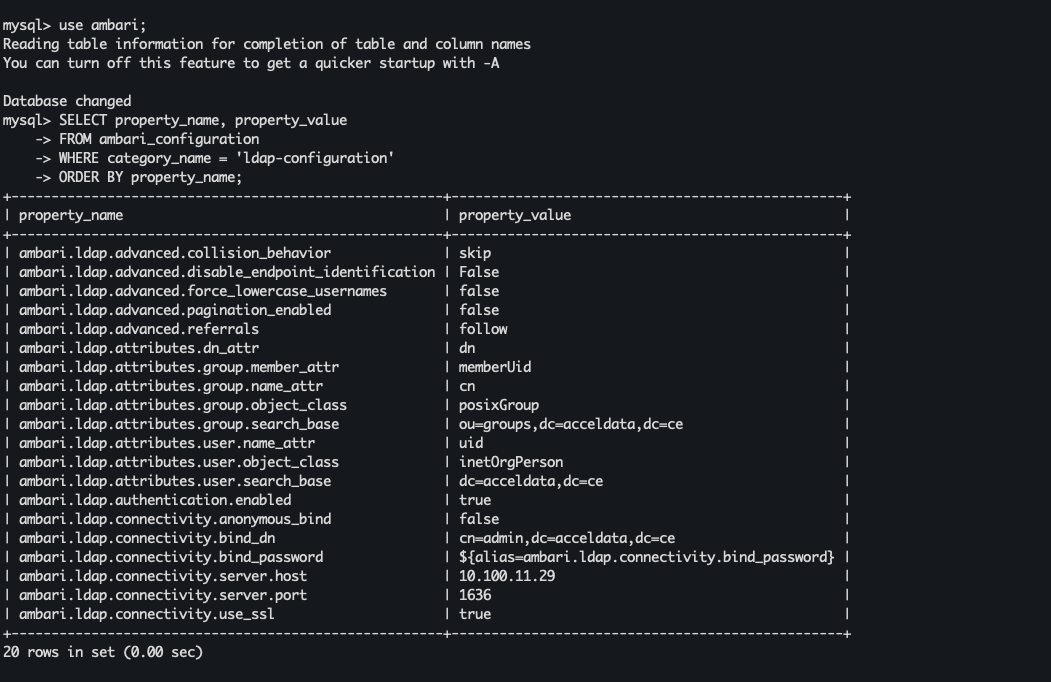
Result:
- Plain-text password reference replaced with credential alias
You can see an updated alias in the bind password value. Here is a similar overview of what your table might look like:
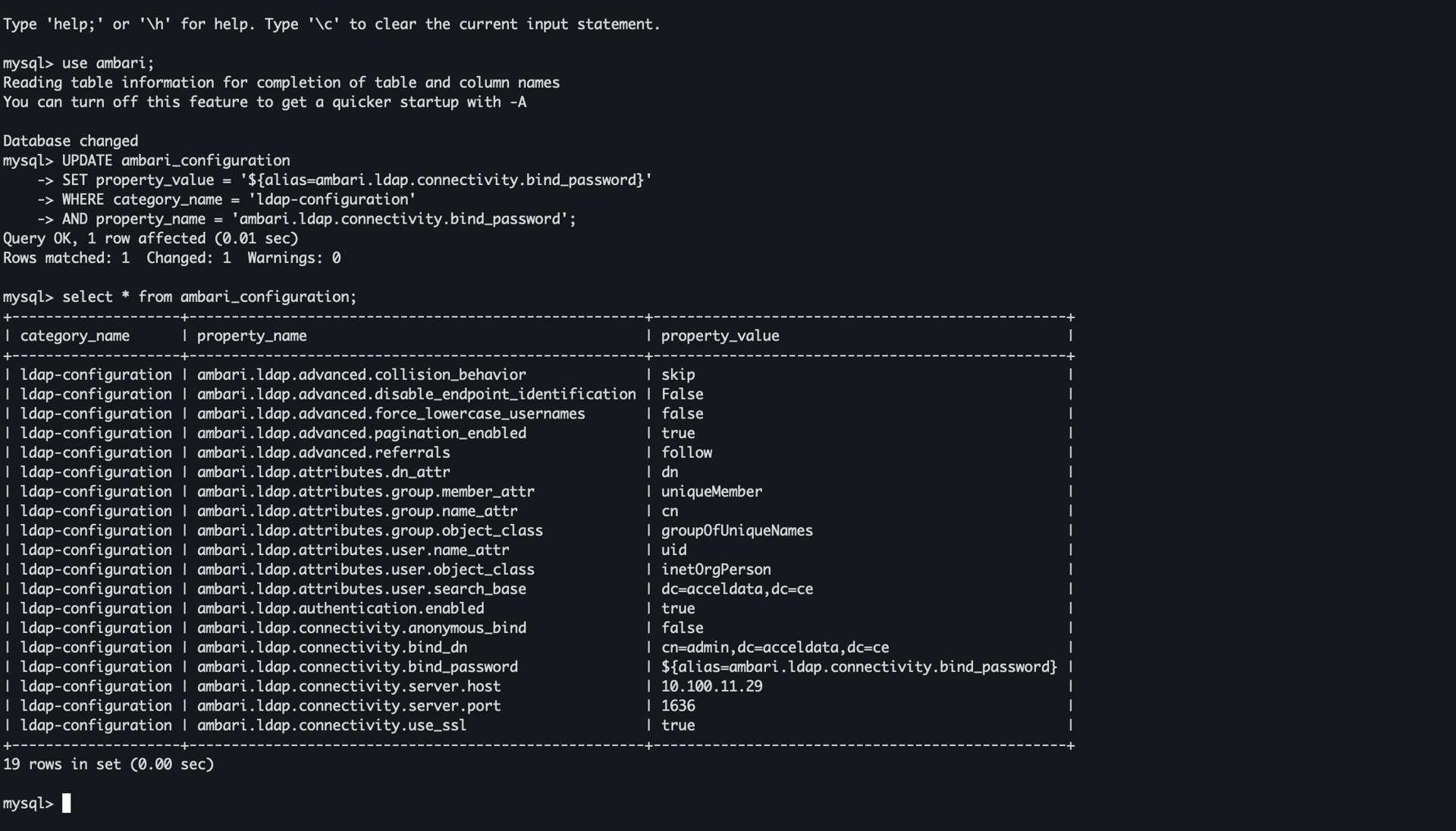
OR as below (depends on your setup, TLDR: your bind address' property_value is changed to an alias that references it from credentials.jceks file)
Step 6: Cleanup & Restart
Remove the plain text file, and restart the server.
rm /etc/ambari-server/conf/ldap-password.dat
ambari-server restart
Step 7: Validation
For validation, log in to the Ambari UI, followed by running the command on your host node:
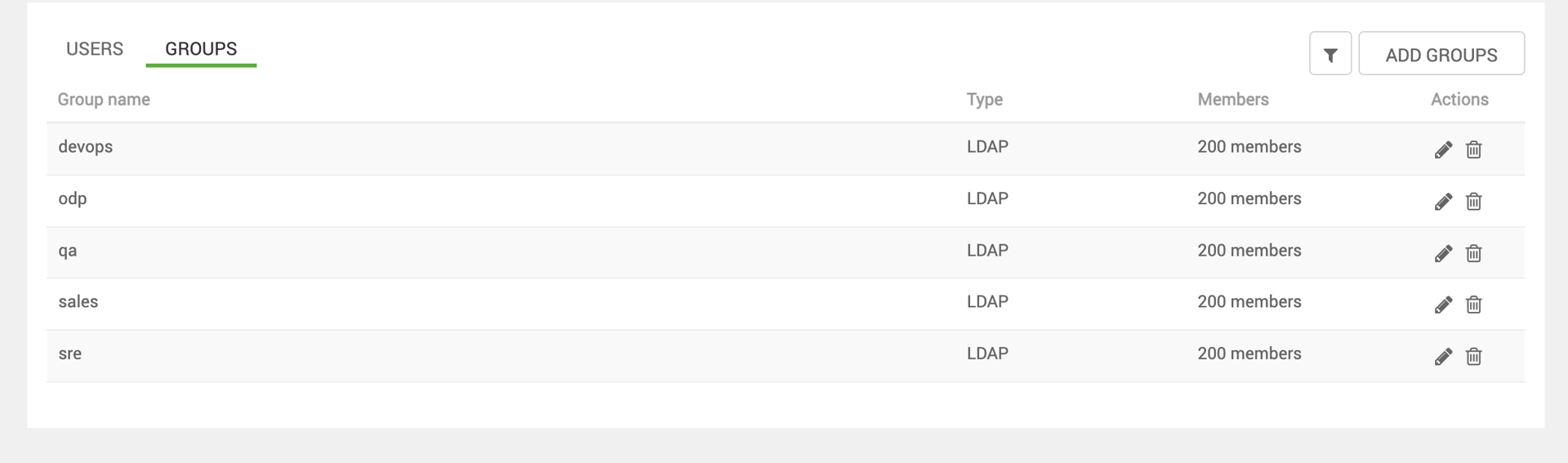
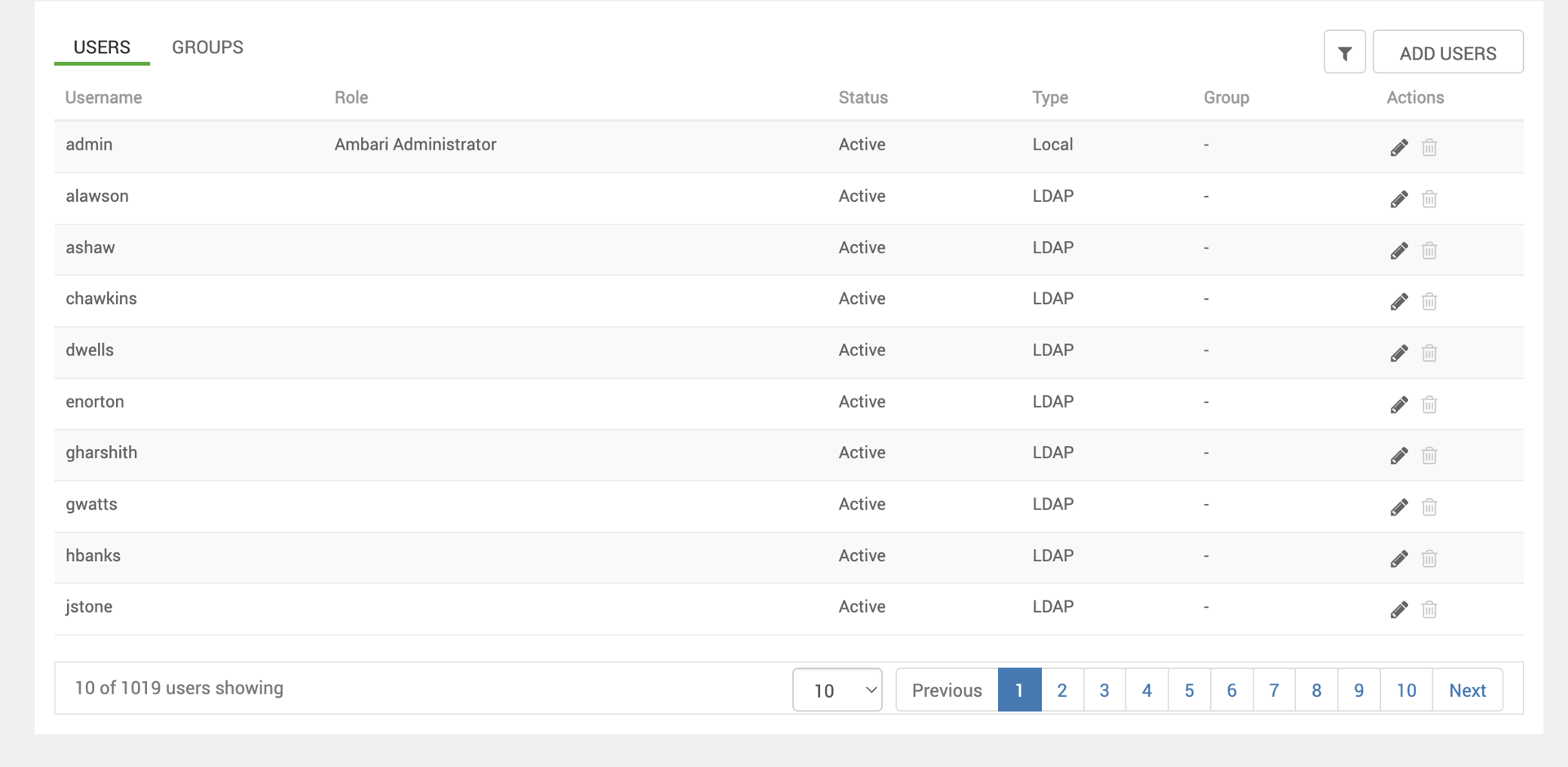
ambari-server sync-ldap --all
Verify:
- If you see no errors, and cross-check in /var/log/ambari-server/ambari-server.log for a successful sync. And check if your users/groups are synced
- Users and groups sync successfully in Ambari UI
Outcome
- LDAP bind password no longer stored in plain text
- Password securely managed via Ambari Credential Store (JCEKS)
- Fully aligned with Ambari security best practices