
Configure Notifications
This page describes configuring a channel to send notifications about the execution of the actions.
Steps:
- In Pulse UI, go to Actions > Actions.
- On the Actions page, click Create Action.
- On the Create Action page, go to the Notifications section.
- In Notifications, select the channel and enter the details as stated below to notify about the execution.
Configure Channels
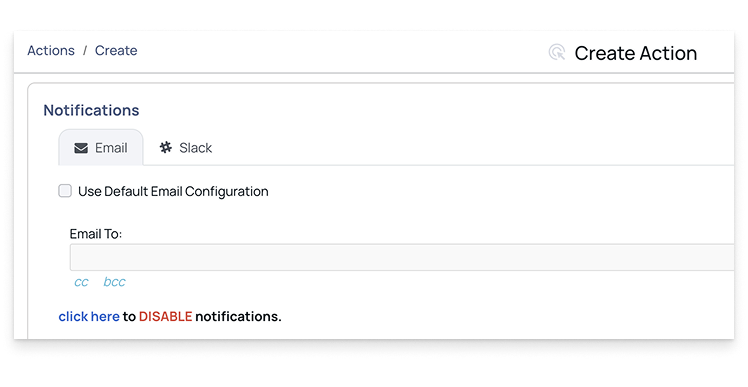
- Enable the Use Default Email Configuration option to use the default email configuration to send notifications.
- Type an Email address(es) in the Email To box.
- (Optional) You can CC and BCC the notifications to others as well.
Slack
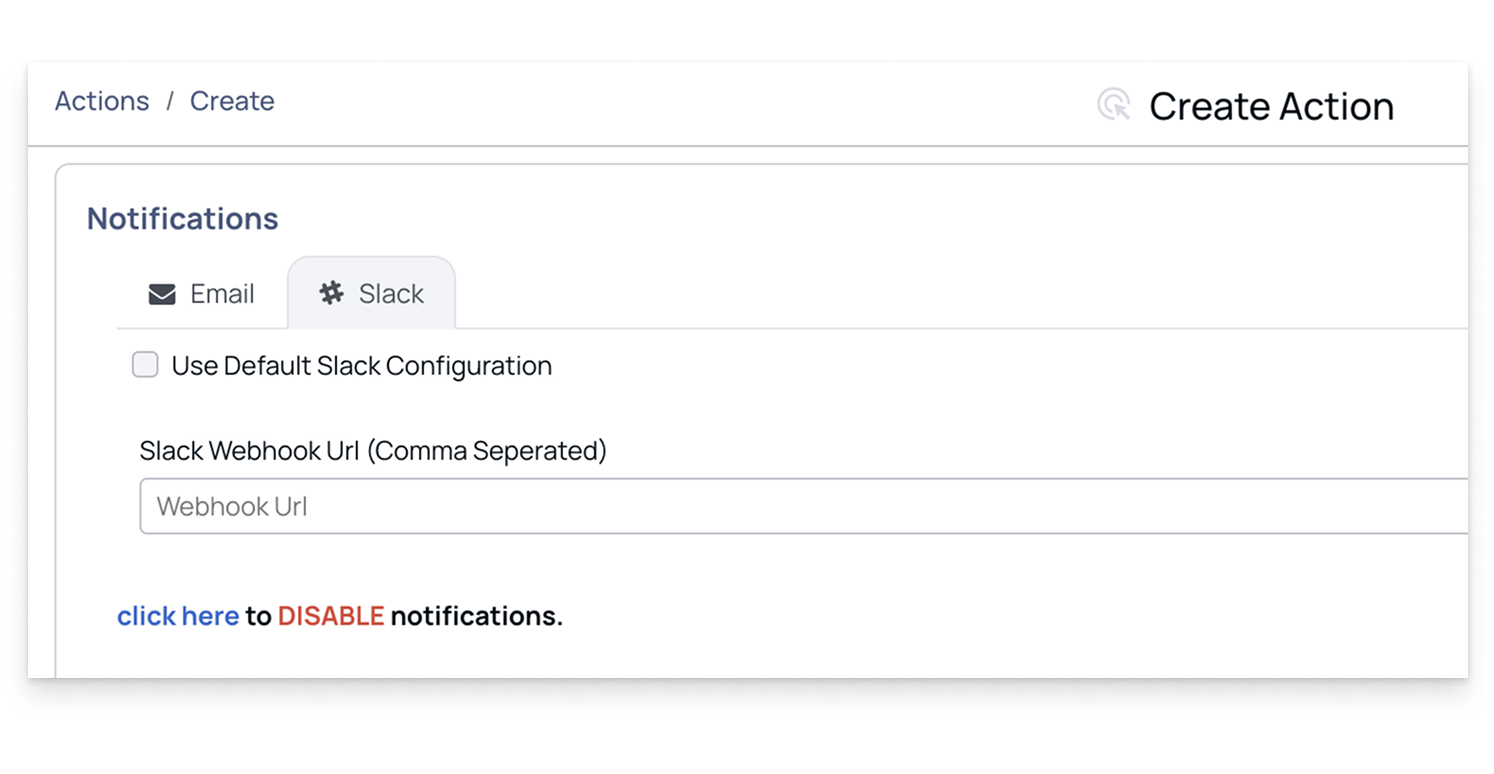
- Enable the Use Default Slack Configuration option to use the default Slack configuration to send notifications.
- Enter the Slack Webhook URL to get notifications on a Slack channel. You can specify multiple Slack Webhook URLs for different groups or channels by adding commas to separate them.
JIRA
- Enable the Use Default Slack Configuration option to use the default JIRA configuration to send notifications.
- Project Key: Enter the project key in which you want to create the JIRA.
- Issue Type: Enter the issue type for JIRA.
- Labels: Enter labels for the JIRA.
- Priority: Enter a priority for the JIRA.
Important
When configuring the default notifications for JIRA, you need to mention the REST API JIRA URL.