
Enabling SSL for JupyterHub
To secure communication on JupyterHub with SSL, follow these steps:
- Generate an SSL Certificate and Key: Run the following command to create an SSL certificate and private key.
openssl req \
 -newkey rsa:2048 -nodes -keyout domain.key \
 -x509 -days 365 -out jupyterhub.crt
domain.keyjupyterhub.crt
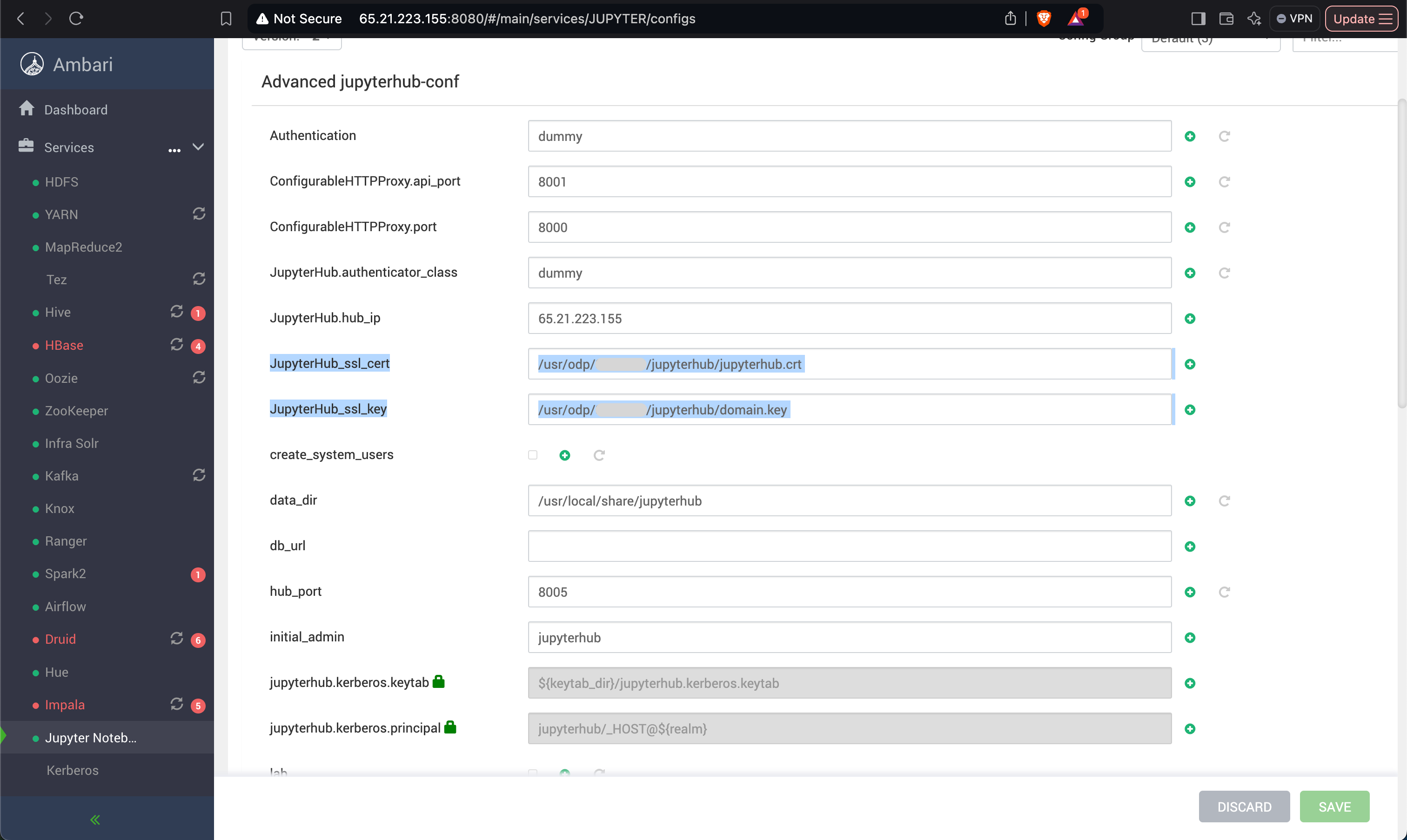
- Update the JupyterHub Configuration: Add the SSL certificate and key file paths to the JupyterHub configuration file.
c.JupyterHub.ssl_cert = '/usr/odp/3.3.6.2-1/jupyter/jupyterhub.crt'
c.JupyterHub.ssl_key = '/usr/odp/3.3.6.2-1/jupyter/domain.key'
If using Ambari to manage JupyterHub, add these properties in the JupyterHub configuration section of the Ambari UI, as shown in the screenshot.

- Save and Restart JupyterHub: After updating the configuration:
- Save the changes.
- Restart the JupyterHub service to apply the new SSL settings.
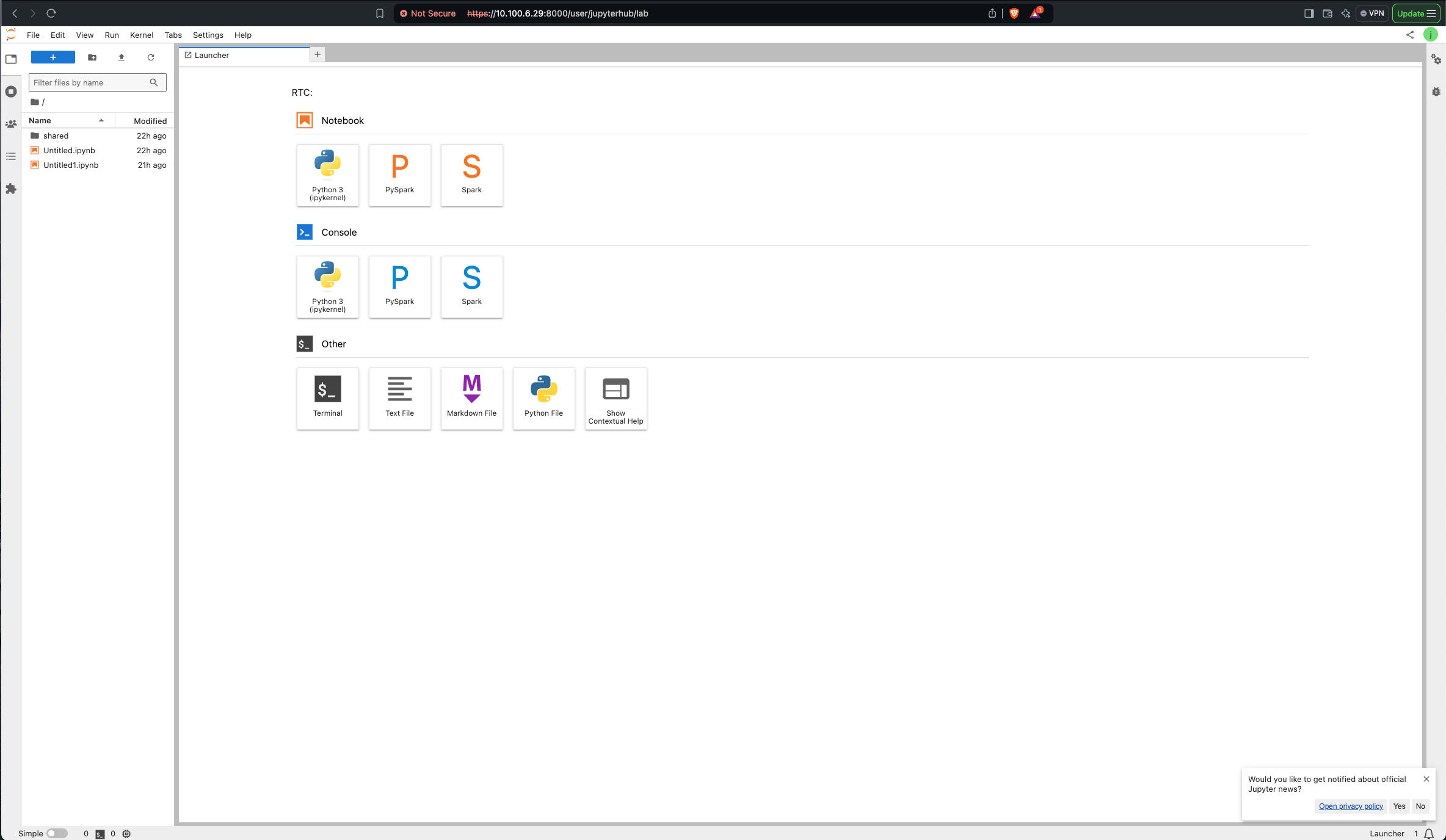
- Troubleshooting SSL Disabling: If you disable SSL and restart JupyterHub but encounter browser-related issues (e.g., connection errors), clear your browser cache to resolve the problem.

Have a suggestion?