
Workflows
Explanation (Core Concepts)
What are workflow alerts?
As a Data Engineer, you attach an alert to a workflow so a failed run reaches Slack, Microsoft Teams, or email. The channel group is the same one you use for jobs. The rule is different: it watches the workflow run, not a single job inside it.
xDP checks the rule on a schedule. When a workflow run ends Failed, xDP raises an alert and sends a message to every channel in the group. With the default settings, expect the message within about five minutes.
Key Concepts
- Channel group — Where the message goes. Turn on Slack, Teams, email, or any combination. Every enabled channel receives the alert.
- Workflow run failed — The event type for a workflow. It matches when the workflow run status is Failed.
- Evaluation window — How far back, in minutes, xDP looks for a failed run. The default is 5.
- Evaluation interval — How often, in minutes, xDP runs the check. The default is 5.
- Raised alert — The open item under Alerts after a match, including severity and an occurrence count.
Capabilities
- Notify when the workflow fails(monitoring) — Use Workflow run failed. This is the workflow event type.
- Fan out one rule(configuration) — Put Slack, Teams, and email in one channel group. You do not create a separate rule per channel.
- Keep job alerts on the job(monitoring) — A job task inside a workflow does not use this event type. If you care that a particular job failed, ran too long, or was cancelled, add that rule on the job. Those steps are on the Jobs page.
Note
There is no workflow event for a run that is still going, or for a cancelled workflow run. Those conditions exist for jobs.
Tutorial (Getting Started)
Prerequisites
- A workflow already exists on the cluster you are using.
- You can open that workflow and you can open Alerts.
- You have a channel group, or the destination you need to create one:
- Slack: an incoming webhook URL. The URL must be https.
- Email: the addresses that should receive the message.
- Teams: a standard channel, and a Workflow created in that channel with Send webhook alerts to a channel.
Note
Teams delivers the alert only after that Workflow exists in the channel. Classic Office 365 connector URLs no longer deliver. Private channels are not supported. Add a co-owner on the Teams Workflow so it keeps working if the person who created it leaves.
Note
Select the cluster in the header before you create the group or read raised alerts. The group and the alerts you see belong to that cluster.
Your first workflow alert
Create or reuse one channel group, attach Workflow run failed to one workflow, and confirm the raised alert.
Example: The nightly settlement workflow should email the on-call list and post to the data-engineering Slack channel when a run fails.
- Open Alerts, then Channel Groups.
- Select New channel group. Skip this if the group already exists.
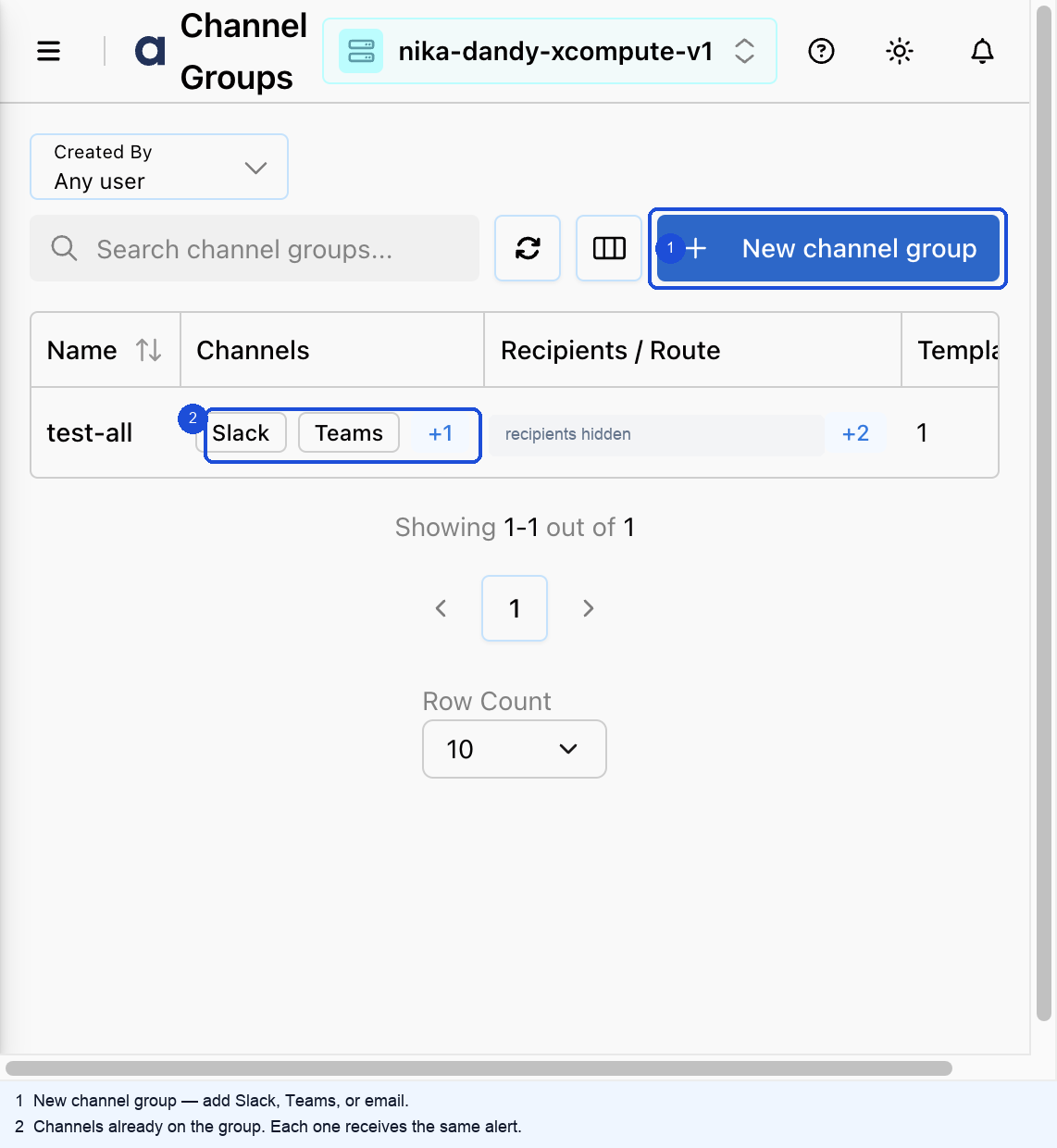 New channel group, and the channels already attached to an existing group
- Enter a group name, for example
Data engineering. A description is optional. - Turn on the channels you will use. At least one channel must be on.
- Slack: paste the webhook URL. Channel name is optional.
- Teams: paste the webhook URL from the Send webhook alerts to a channel Workflow.
- Email: turn the channel on and enter To. Separate extra addresses with commas. CC and BCC are optional.
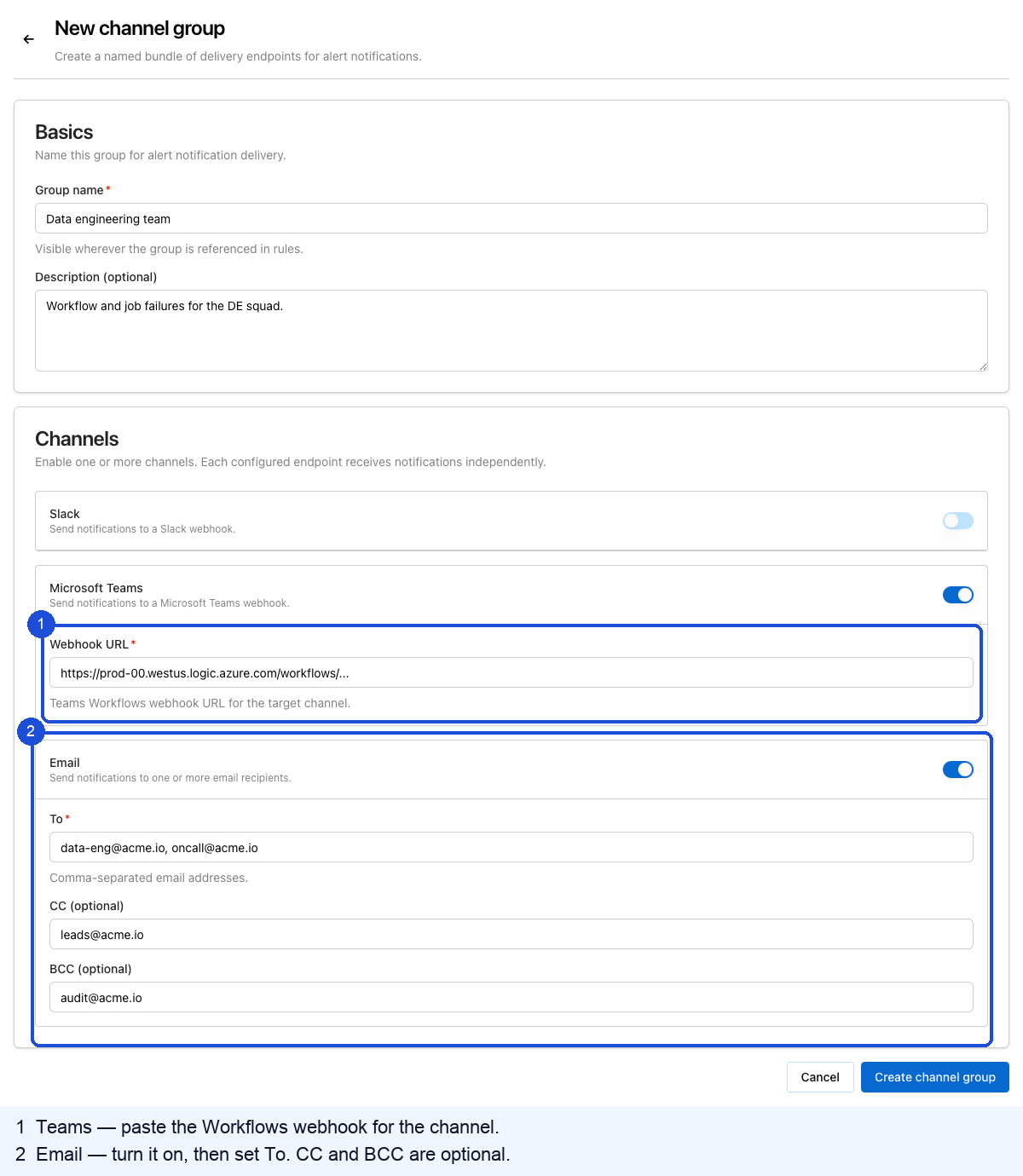 Teams webhook and the email addresses on a channel group
- Select Create channel group.
- Open the workflow. In the configuration panel, open Alerts.
- Select Add alert.
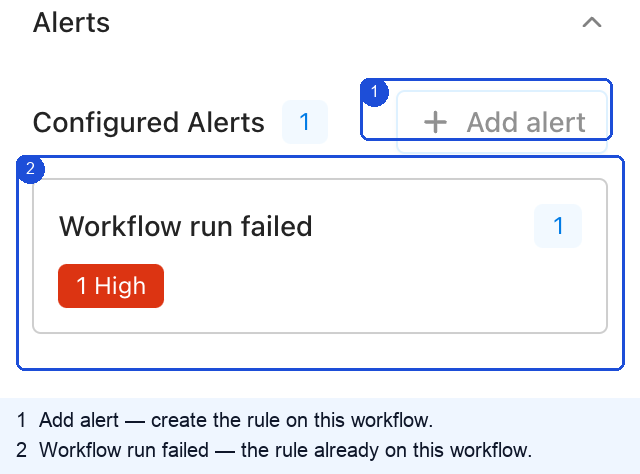 Where to add an alert on a workflow. 1 is Add alert. 2 is a Workflow run failed rule already on the workflow.
- Enter an alert name, for example
Settlement workflow failed. - Set Severity. Medium is the default. Use High or Critical when the workflow is on a production path.
- Set Event Type to Workflow run failed. The workflow is already selected. You do not pick a workflow id.
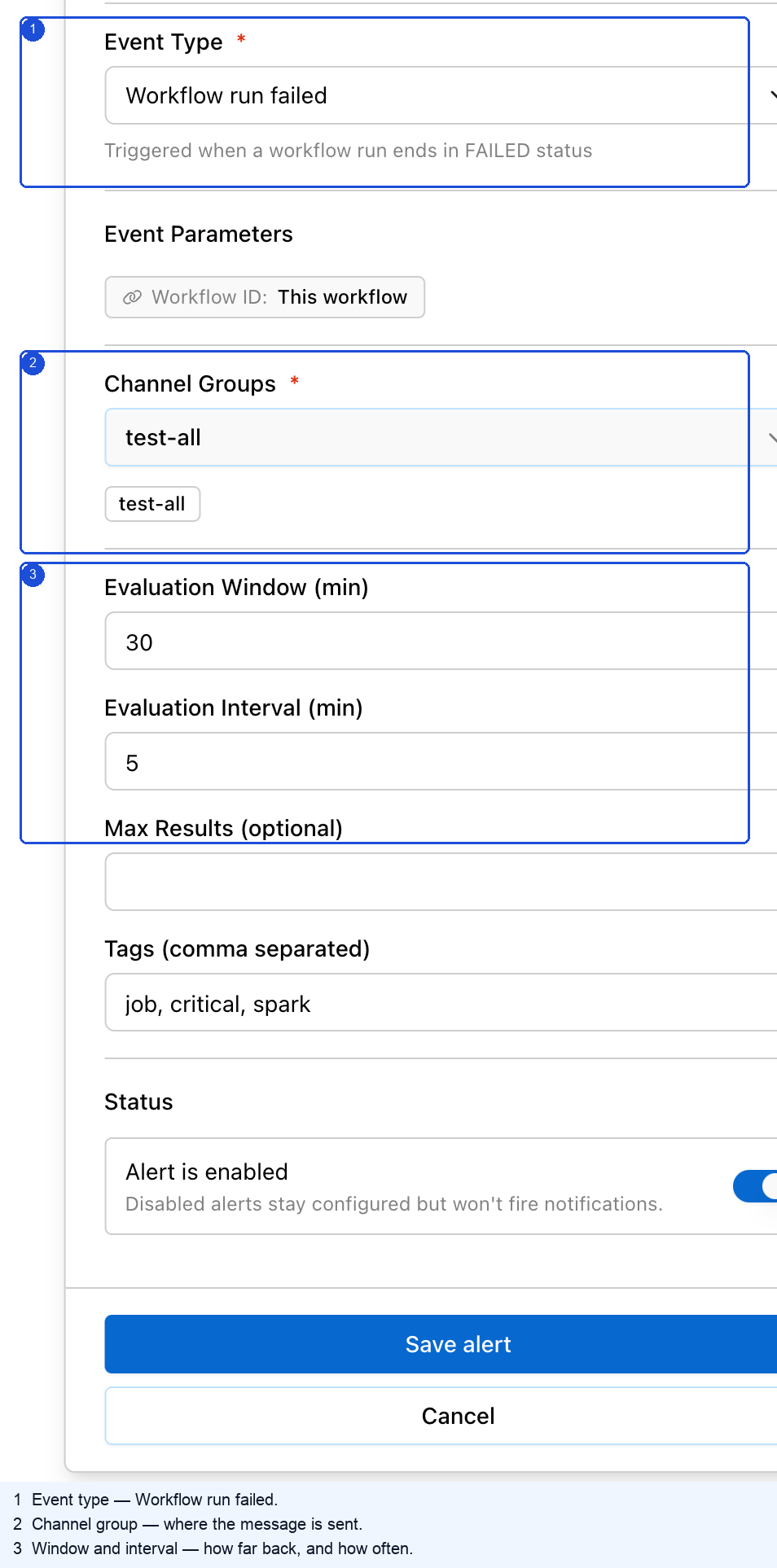 Event type, channel group, and the check schedule on a workflow alert
- Open Channel Groups and select the group from step 5.
- Leave Evaluation Window (min) and Evaluation Interval (min) at 5. Keep the window at or below the interval so the same run is not sent again on the next check.
- Leave Alert is enabled on, and select Save alert. The rule is listed under Configured Alerts.
Run the workflow so that it fails. Wait for the next check, about five minutes with the defaults. Times in the message are UTC.
- Open Alerts, then View Alerts. The rule is listed with status Open.
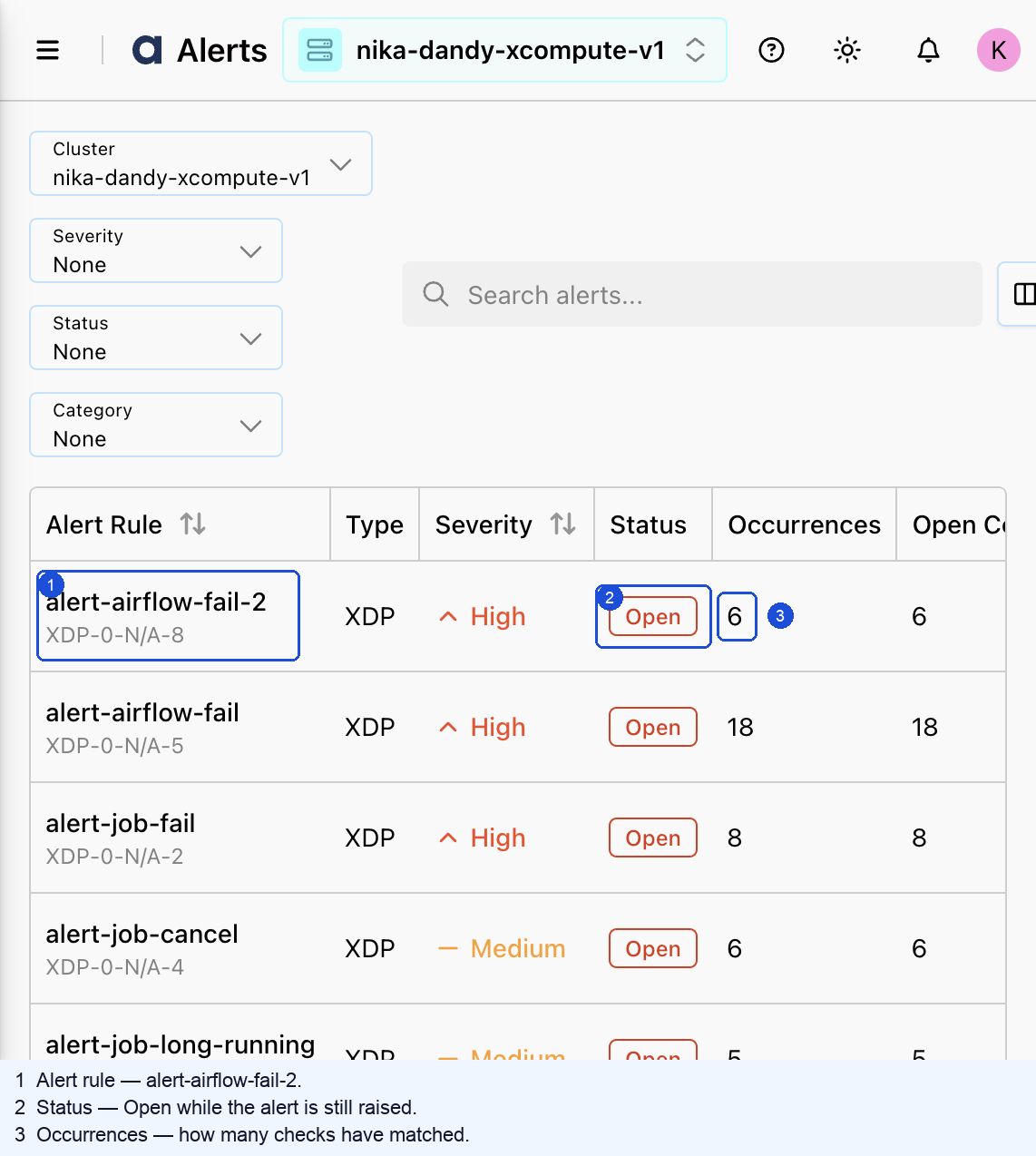 A raised workflow alert. 1 is the rule name, 2 is the open status, 3 is the occurrence count.
Note
The same open alert can gain occurrences. Each later check that still sees the failed run adds one and can send another message. That happens when the evaluation window is longer than the evaluation interval.
How-to Guides
When the message does not arrive
What you see | What to check |
|---|---|
Nothing in Teams, and email or Slack did arrive | The Teams webhook is missing, it is an old connector URL, the channel is private, the Workflow owner has left, or the organization has disabled Workflows. Use a standard channel, add a co-owner, and paste a new Send webhook alerts to a channel URL. |
The same run notifies again a few minutes later | The evaluation window is longer than the evaluation interval. Set the window at or below the interval. |
No alert under View Alerts | The rule is disabled, the channel group is not selected, or the workflow run did not fail. A successful run does not match Workflow run failed. |
The email is missing | Check junk, and confirm every address on To is valid. |
Alert on a job inside the workflow
Open the job and add a job alert. Use Job failed, Job long running, Job unsuccessful, or Job Long Duration. A workflow alert does not replace those. The steps are on the Jobs page.
Reference
Event type
Event type | Matches when | Extra field | Default |
|---|---|---|---|
Workflow run failed | The workflow run status is Failed | None. The workflow is the one you opened. | — |
Alert fields
Field | Description | Default | Required |
|---|---|---|---|
Alert name | Name shown on the raised alert and in the message | — | Yes |
Severity | Critical, High, Medium, or Low | Medium | No |
Description | Text stored with the rule | — | No |
Event type | Workflow run failed | — | Yes |
Channel groups | Where to send the message. One or more. | — | Yes |
Evaluation window (min) | How far back to look for a failed run | 5 | No |
Evaluation interval (min) | How often to check | 5 | No |
Max results | How many matching runs one check returns | 100 | No |
Tags | Comma-separated labels stored on the rule | — | No |
Alert is enabled | Off keeps the rule and does not notify | On | No |
Channel group fields
Field | Description | Required |
|---|---|---|
Group name | Name you pick when attaching the rule | Yes |
Description | Shown on the group | No |
Slack webhook URL | Slack incoming webhook. Must be https. | Yes, if Slack is on |
Slack channel | Channel name | No |
Teams webhook URL | Webhook from a Send webhook alerts to a channel Workflow in a standard channel. Must be https. | Yes, if Teams is on |
Email To | One or more addresses, separated by commas | Yes, if Email is on |
Email CC, BCC | Extra recipients | No |
At least one of Slack, Teams, or email must be turned on.
Best Practices
Tip
Reuse the channel group you already use for jobs. Do not create a second group with the same webhooks for workflows.
- Use Workflow run failed for the workflow run. Use a job alert when the condition is about one job in the workflow.
- Keep the evaluation window at or below the evaluation interval. A longer window sends the same failed run again on the next check. The defaults, 5 and 5, are the right starting point.
- Read occurrences as a count of checks, not a count of runs. One failed run can show several occurrences while it remains inside the window.
- Add a co-owner to the Teams Workflow. The workflow belongs to the person who created it.
- Turn the rule off instead of deleting it when you are debugging a noisy workflow. A disabled rule stays on the workflow and does not send.
Notification examples
A workflow alert uses the same message layout as a job alert. The title is the alert name. Times are UTC. On Teams the title colour follows severity: Critical and High are red, Medium is amber, and Low is green. You cannot change this wording yet.
Note
Teams posts the card only after Send webhook alerts to a channel exists in that channel and its webhook is on the channel group.
Slack
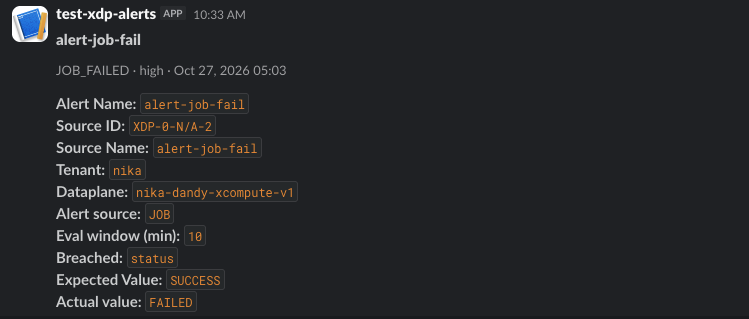 Slack message. A workflow alert uses this same layout. The title is the alert name.
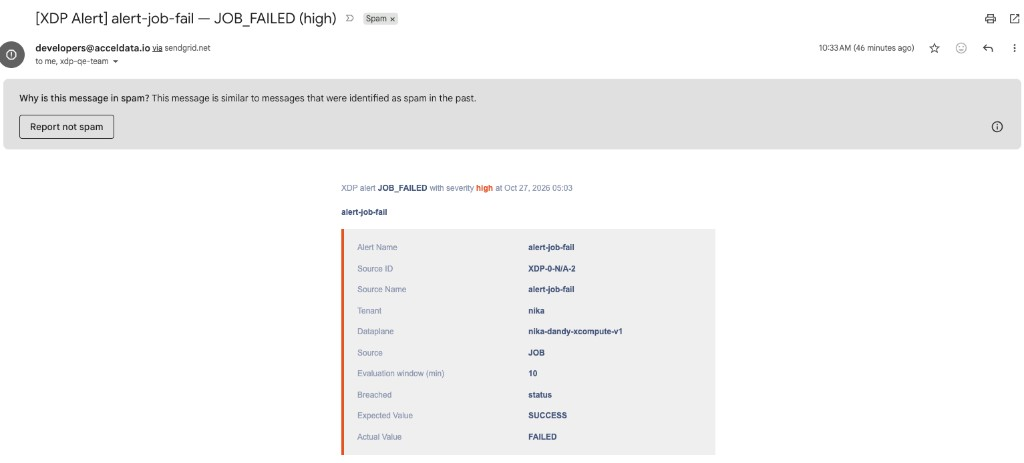 Email message. A workflow alert uses this same layout.
Microsoft Teams
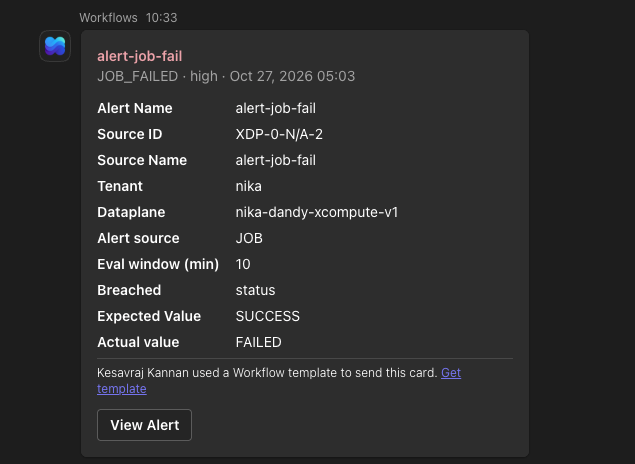 Teams message, sent by the channel Workflow. A workflow alert uses this same layout.
Have a suggestion?