
Import and Export Alerts
You can export alert definitions to a JSON file and import them into the same or another environment. This helps you:
- Back up alert configurations.
- Move alerts between environments, such as development and production.
- Share alert configurations across teams.
- Reuse standardized alert definitions.
Export Alerts
Export alerts to create a backup or share alert configurations.
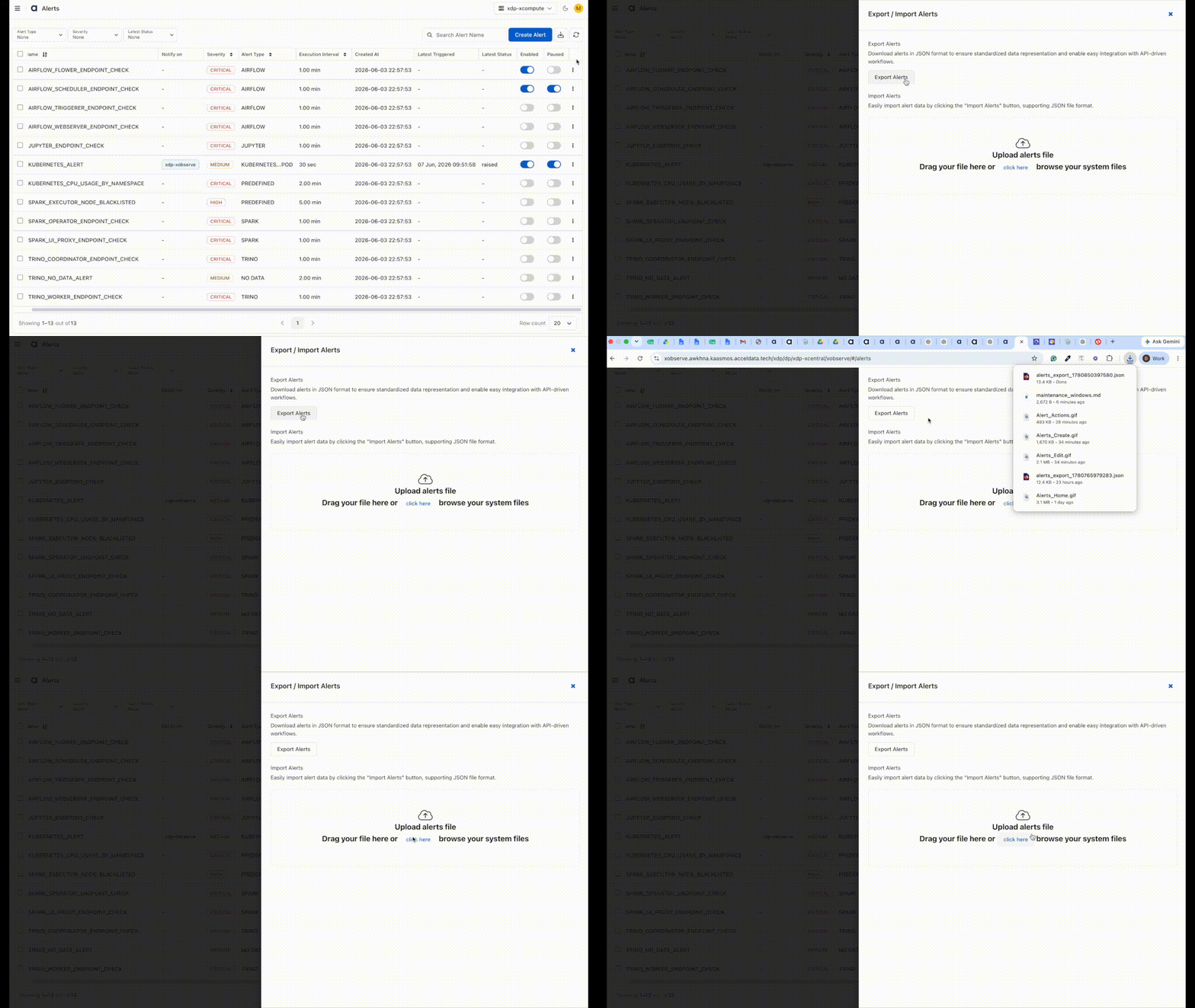
- Go to Alerts.
- Click Import/Export Alerts.
- Select Export Alerts.
The system downloads all alert definitions as a JSON file.
Import Alerts
Import alert definitions from a previously exported JSON file.
Import alerts
- Go to Alerts.
- Click Import/Export Alerts.
- Select Import Alerts.
- Upload a JSON file containing alert definitions.
- Click Import.
After the import completes, the imported alerts become available on the Alerts page.
Import Results
After an import operation, one of the following outcomes is displayed:
- Success – All alerts are imported successfully.
- Partial Success – Some alerts are imported, while others fail validation. Review the reported errors and update the source file if necessary.
- Failed – The import operation cannot be completed because of an invalid file or other processing error.