
Jupyter Hub Interactive Session
JupyterHub Interactive Session
JupyterHub Interactive Session provides a browser-based JupyterLab environment integrated with xDP, letting you interactively develop and run PySpark code against cluster resources and data stores without any local setup.
Launching a Session
- From the left navigation, select Notebooks and click Launch Notebook.
- Resource Configuration — Set CPU and Memory request/limits for the session. Accept defaults for a first session.
- Select Data Store — Click + Add data store dependency and choose a pre-configured Data Store (HDFS, S3, ADLS, ODP etc.). This securely injects the credentials and configuration needed to access the source.
- Advanced Settings — Expand to configure Spark dynamic allocation, a custom Docker image, environment variables, and Python paths.
- Click Launch Notebook. xDP provisions resources and opens JupyterLab in a new tab.
Running Your First Query
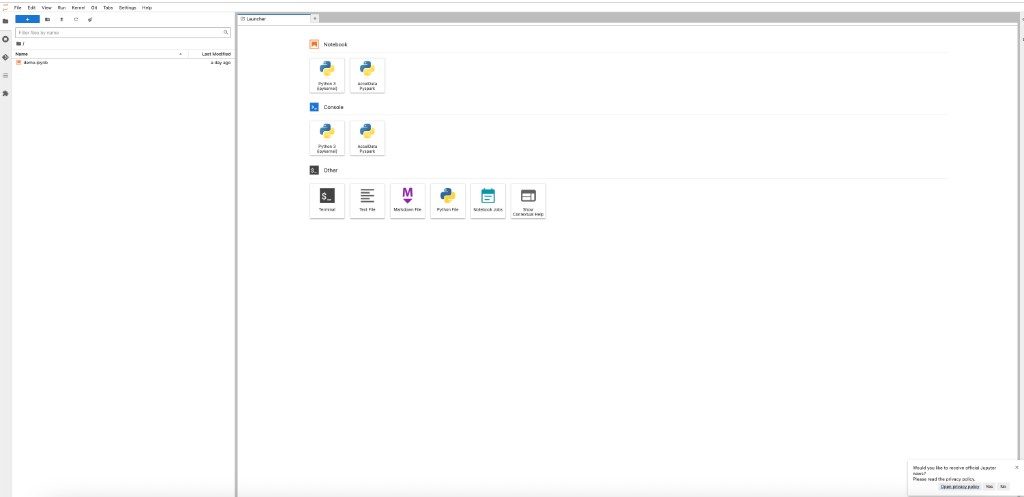
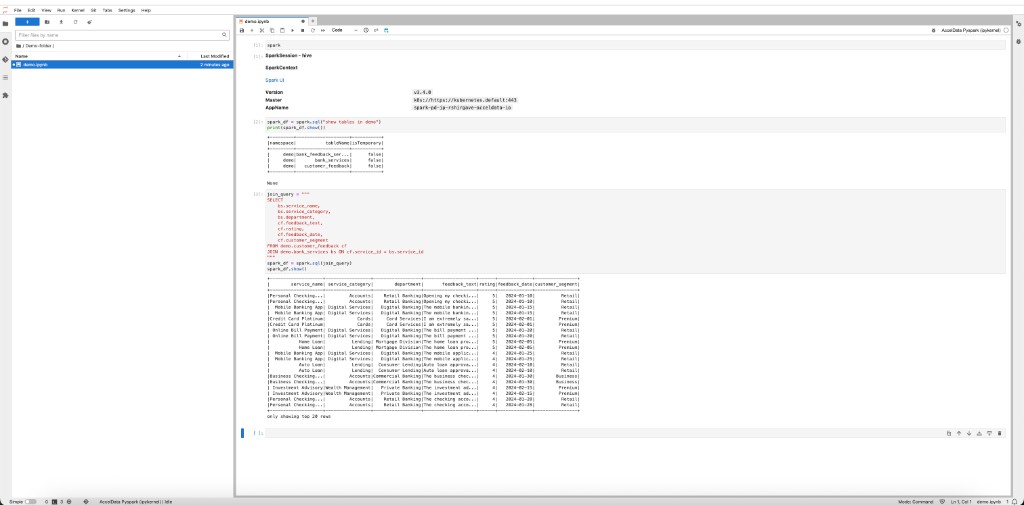
In the JupyterLab Launcher, click AccelData Pyspark to open a new notebook.
In the first cell, enter a Spark SQL query and press Shift + Enter:
Configuration Reference
Parameter | Description | Default |
|---|---|---|
Request CPU / Memory | Resources requested for the session container. | 1 CPU / 1G |
Limit CPU / Memory | Maximum resources the session container can use. | 1 CPU / 2G |
Data Store | Pre-configured xDP Data Store to attach for data access. | None |
Enable Dynamic Allocation | Spark dynamically scales executors. Set Min, Max, and Initial Executors. | Off |
Jupyter Driver Image | Custom Docker image for the session. | System default |
Image Pull Secrets | Kubernetes secret for private registry authentication. | None |
Image Pull Policy | Always, IfNotPresent, or Never. | IfNotPresent |
File to Mount | Mount files or directories into the session container. | None |
Environment Variables | Key-value pairs injected into the session container. | None |
Best Practices
- Always use Data Store dependencies to connect to data sources — avoids hardcoded credentials and enables centralized access governance.
- Shut down sessions when done from the JupyterHub control panel to release cluster resources.
- Version your notebooks — use the integrated Terminal to commit to a Git repository regularly.
- Start with small resources (1 CPU, 2G Memory) and relaunch with more if the workload requires it.