
ODP Stack Upgrade
This document provides a complete walkthrough of the process for upgrading your stack using Ambari.
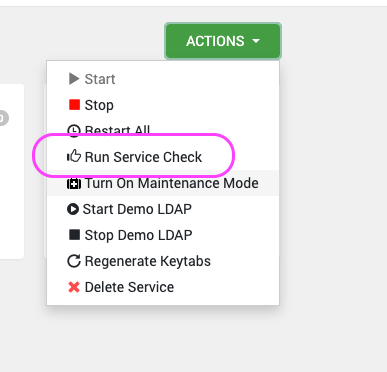
Run Service check for All Services
Perform the sanity test for each service.
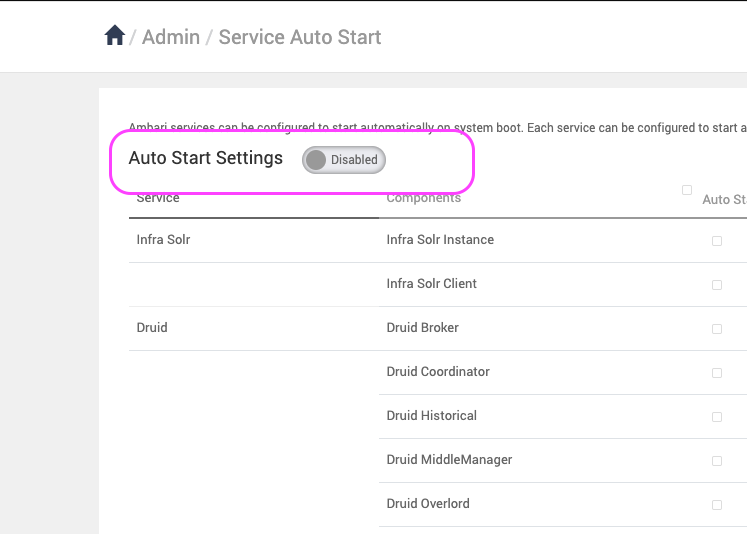
Disable the Service Auto Restart
To prevent services from restarting automatically during the upgrade, disable the service auto-restart option in Ambari.
Back Up Databases
Before proceeding with the upgrade, ensure that all backend databases are backed up. Since MySQL is used as the backend database in this case, run the following commands to create the backups:
mkdir /tmp/ODP-server_db_bckp/
cd /tmp/ODP-server_db_bckp/
# for ambari
mysqldump --databases ambari > /tmp/ODP-server_db_bckp/ambari_mysql_bckp.sql
# for hive
mysqldump --databases hive > /tmp/ODP-server_db_bckp/hive_mysql_bckp.sql
# for rangerkms
mysqldump --databases rangerkms > /tmp/ODP-server_db_bckp/rangerkms_mysql_bckp.sql
# for rangerkms
mysqldump --databases ranger > /tmp/ODP-server_db_bckp/ranger_mysql_bckp.sql
# please take backup for all required services
Add VDF File from Ambari UI
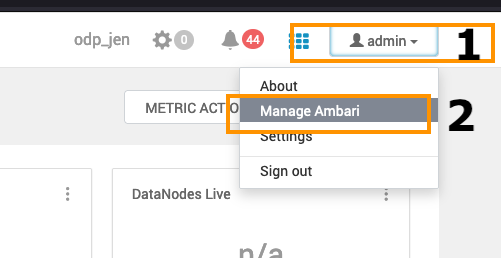
- Navigate to the Admin section on the top right and click the Manage Ambari option in the menu.
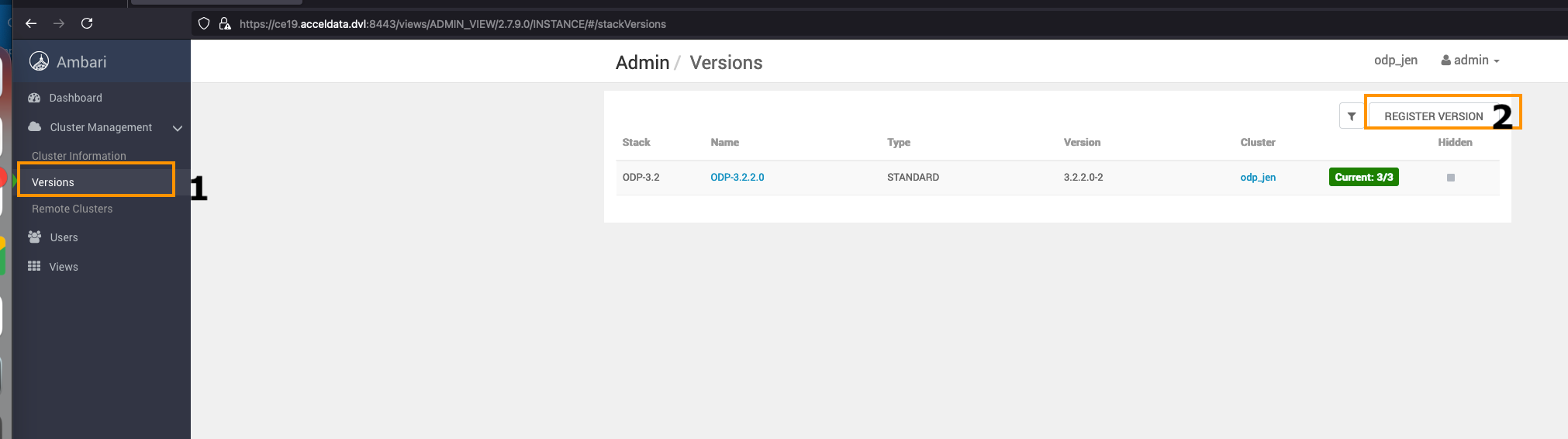
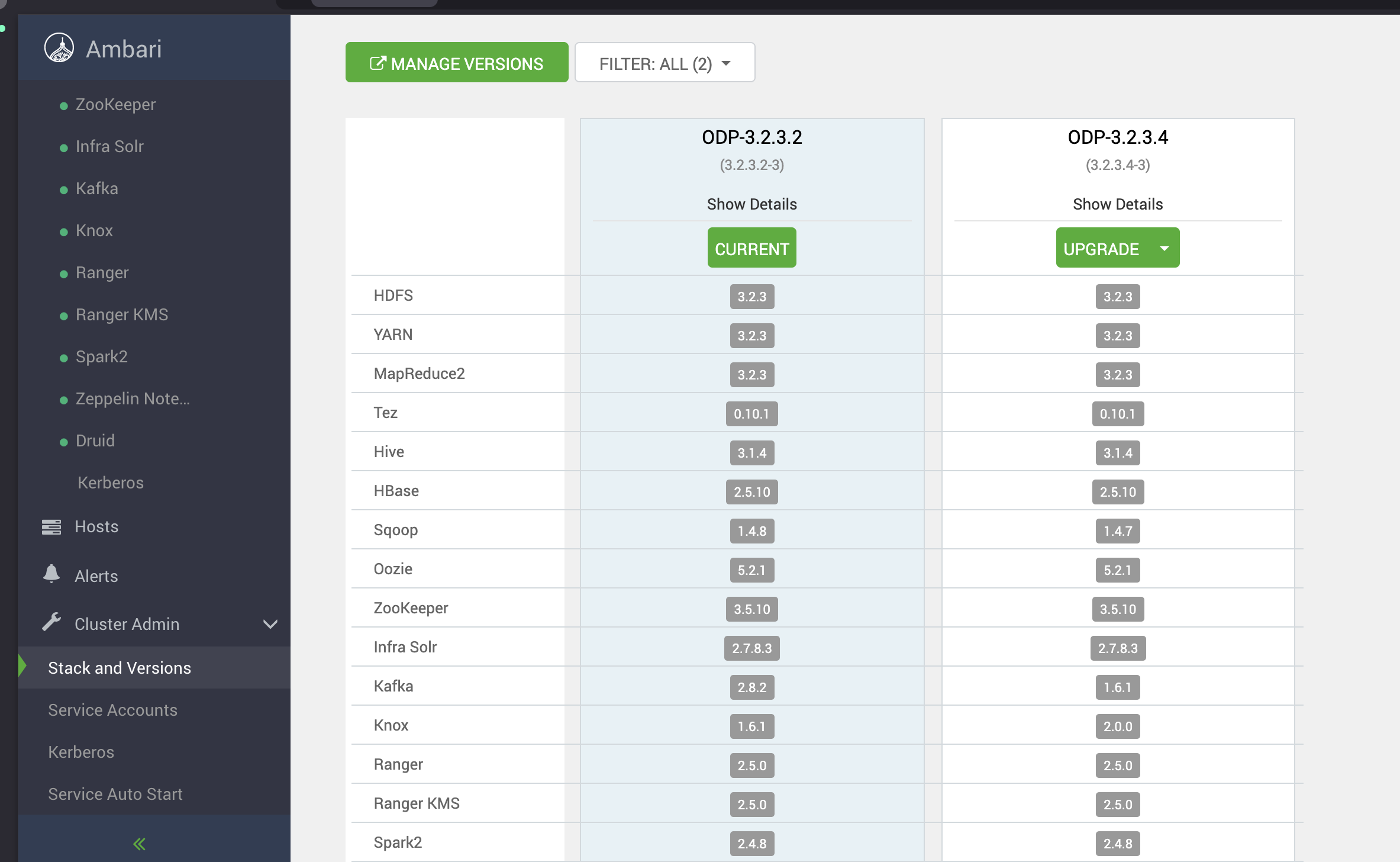
- Navigate to the Versions option on the left side and click REGISTER VERSION to add a new ODP Release.
The sample VDF file is available in the ODP VDF Repositories section on the Accessing Acceldata Repositories page.
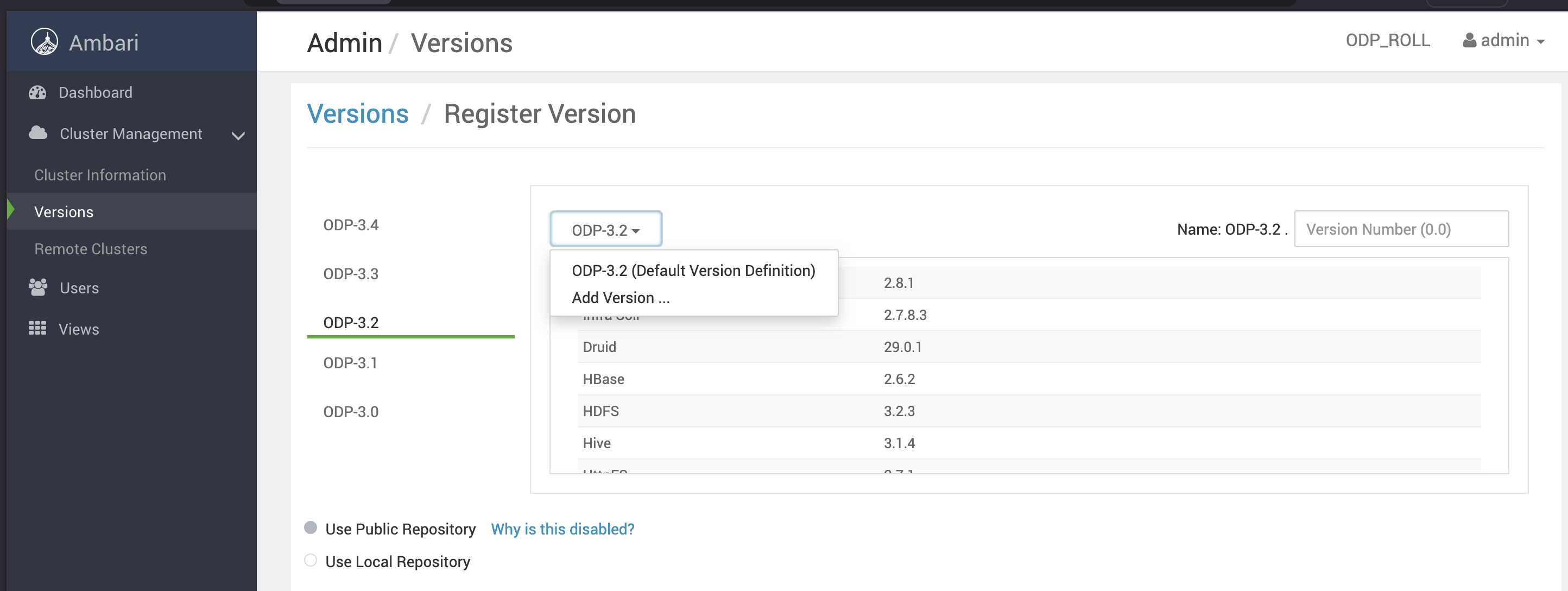
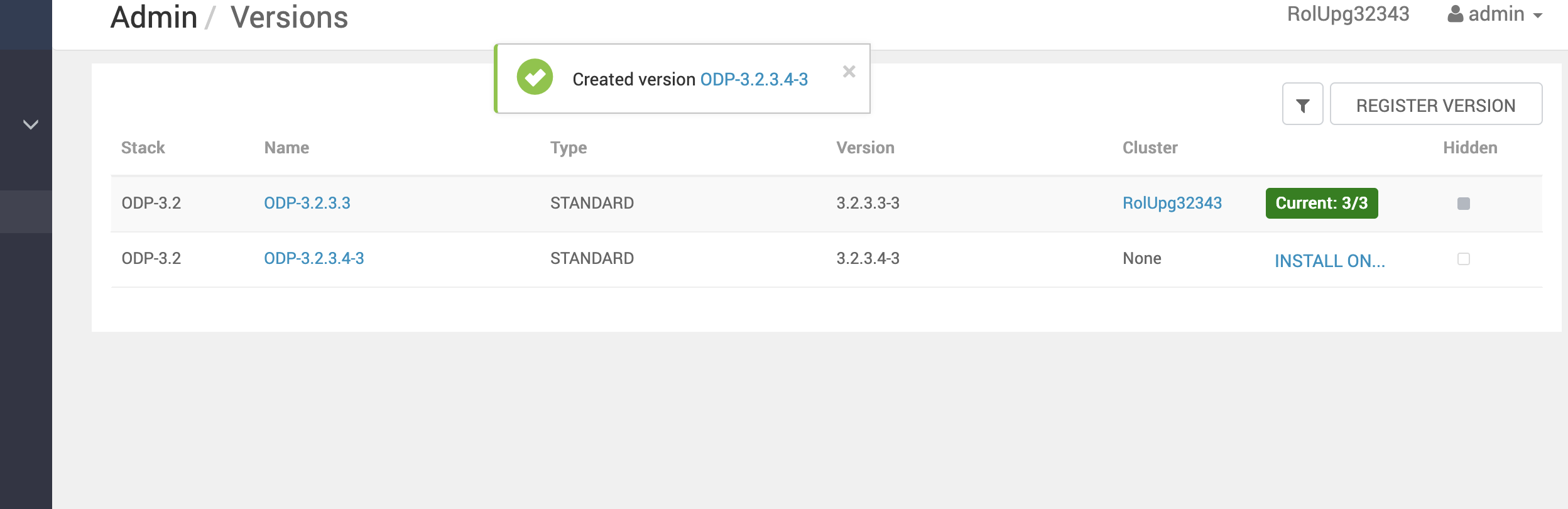
The sample VDF file is available in the ODP VDF Repositories section on the Accessing Acceldata Repositories page.
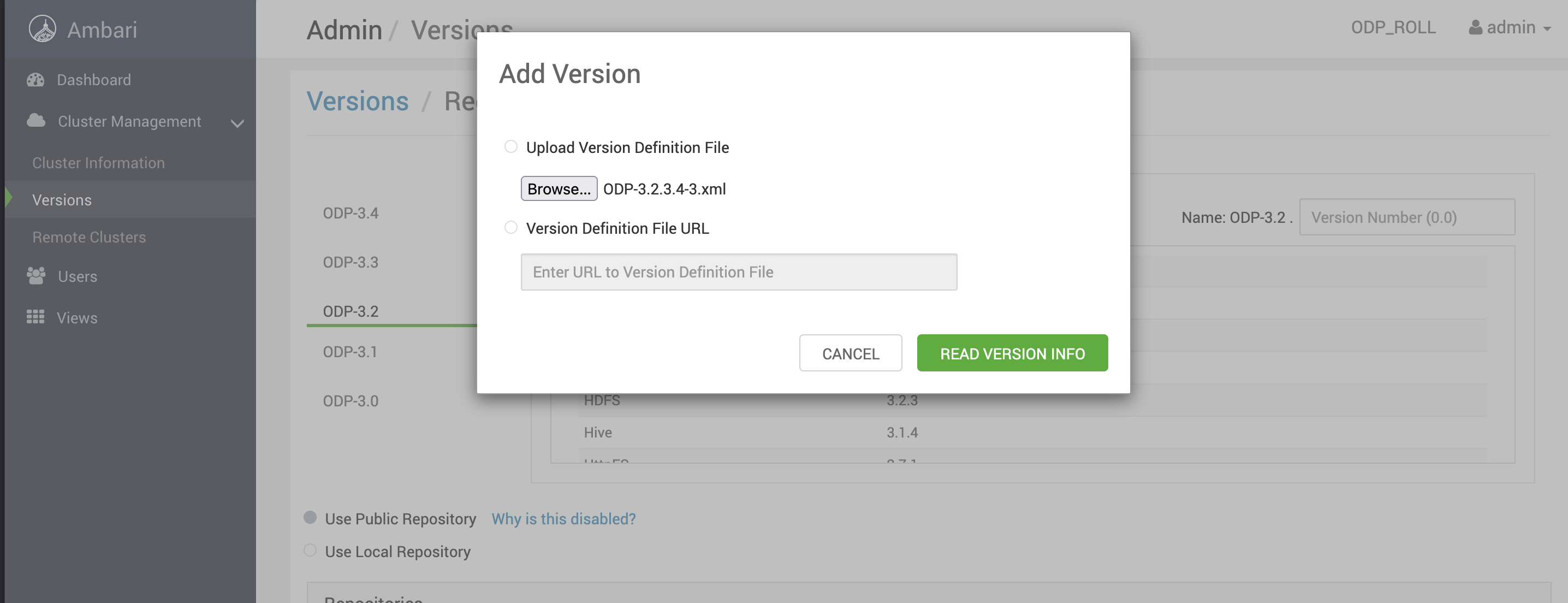
Info
The above provided base URLs are only for reference. For the actual URLs, access the VDF file from the Accessing Acceldata Repositories page.
- Save the repository details.
- Install the packages.
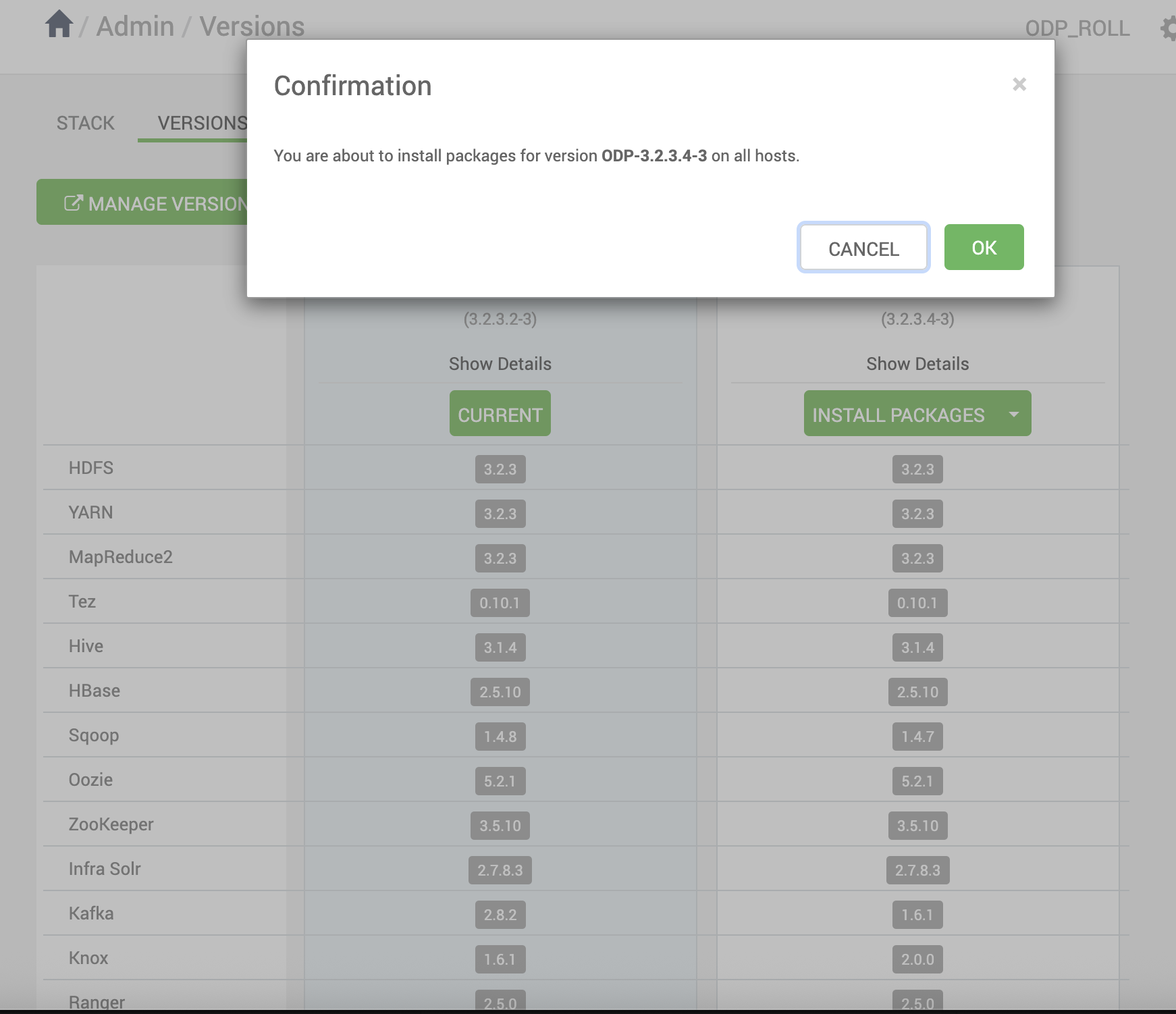
- Verify the status.
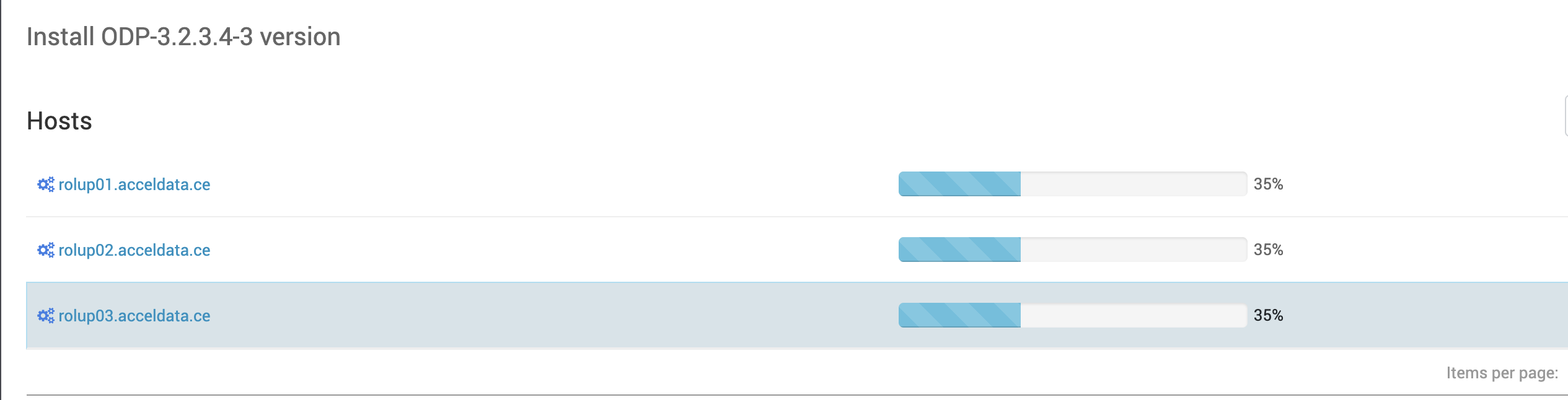
- After the packages are installed, click Upgrade and choose the upgrade mode you want to proceed with.
Next Step
After completing the service checks, you can proceed with the ODP upgrade based on your choice: Rolling Upgrade or Express Upgrade.