
ODP Stack Upgrade
This page describes the steps to perform an ODP stack upgrade using Rolling or Express upgrade via Ambari.
Info
Consider the versions shown in the screenshot as a reference only. During the upgrade, you can verify the target version you’re upgrading to.
Pre-Upgrade Steps
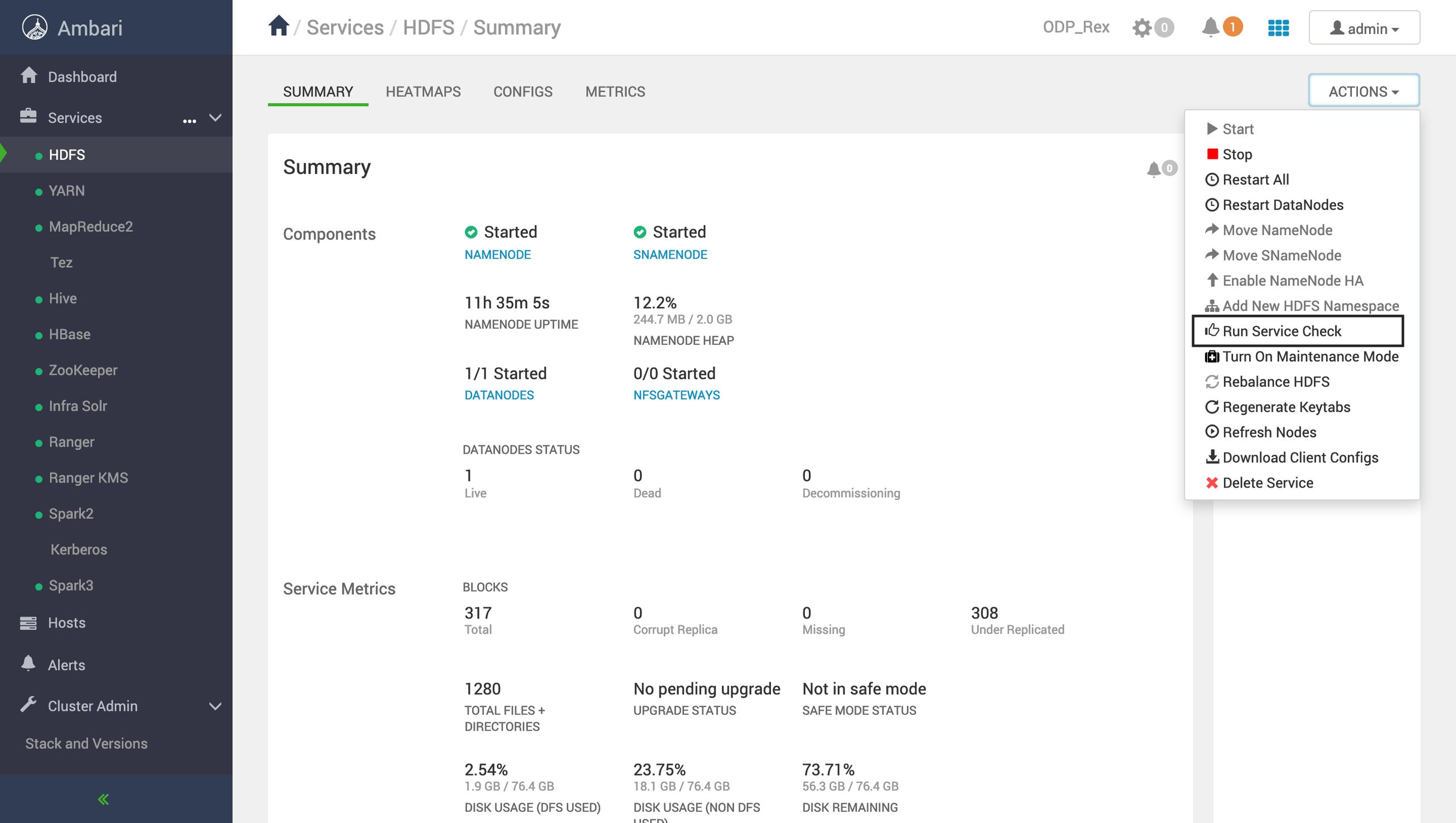
- Navigate to Ambari UI → Actions → Service Check.
- Run service checks for all installed services
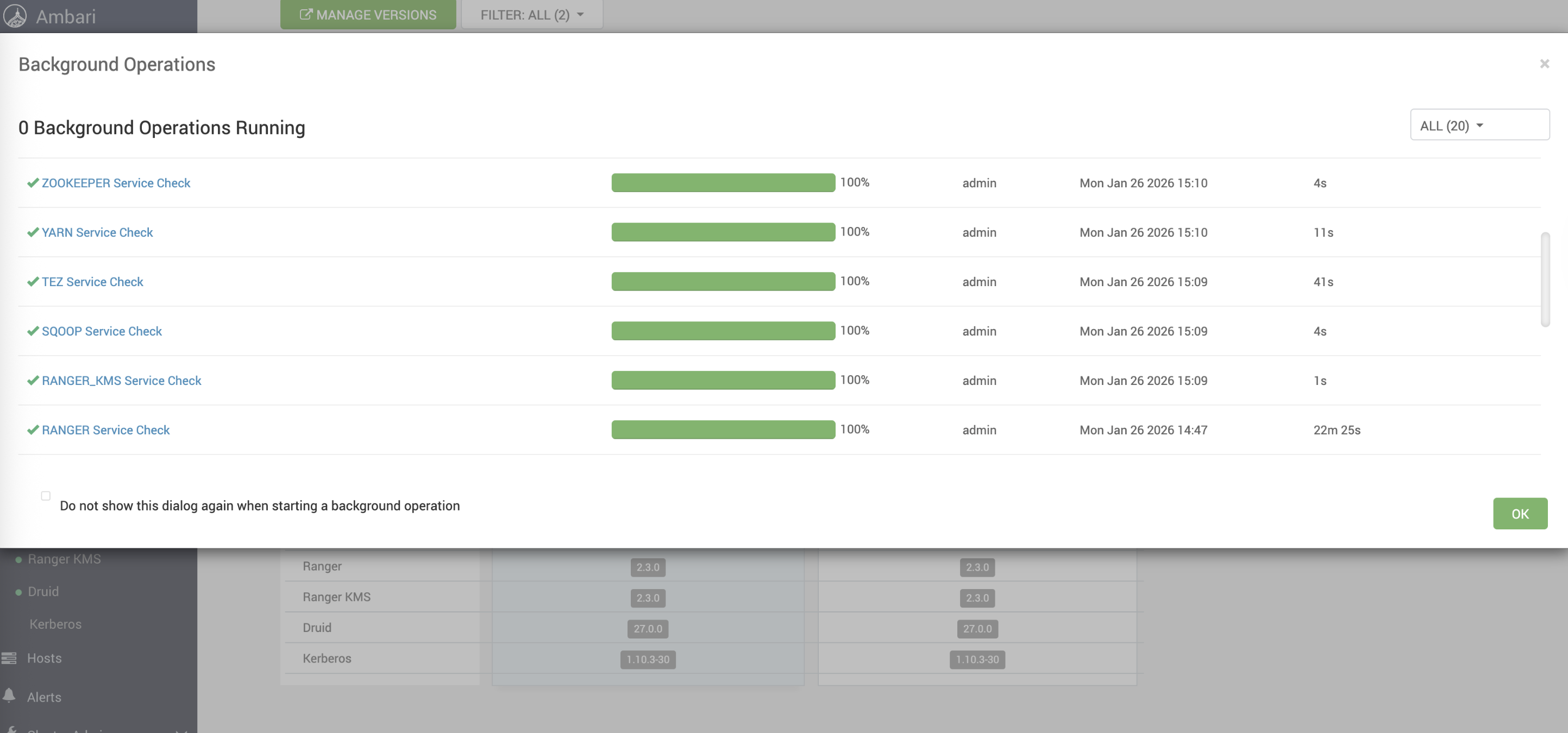
- Ensure:
- All checks completed successfully
- Status shows SUCCESS
For example:
For example, the success status must be shown as follows.
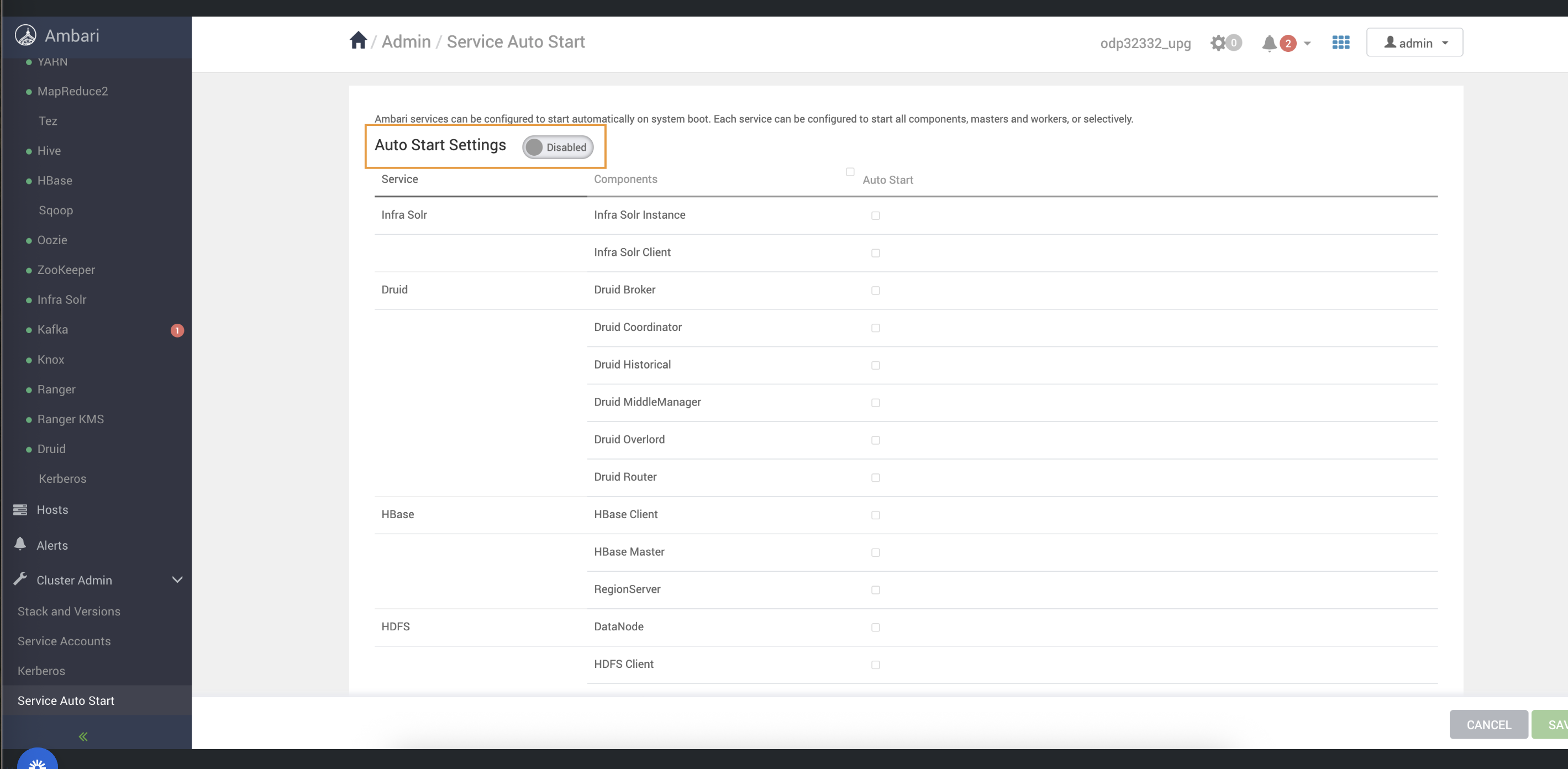
- Disable Service Auto-Start
Register a New ODP Version and Upload the VDF File
- Download the VDF file here: Link.
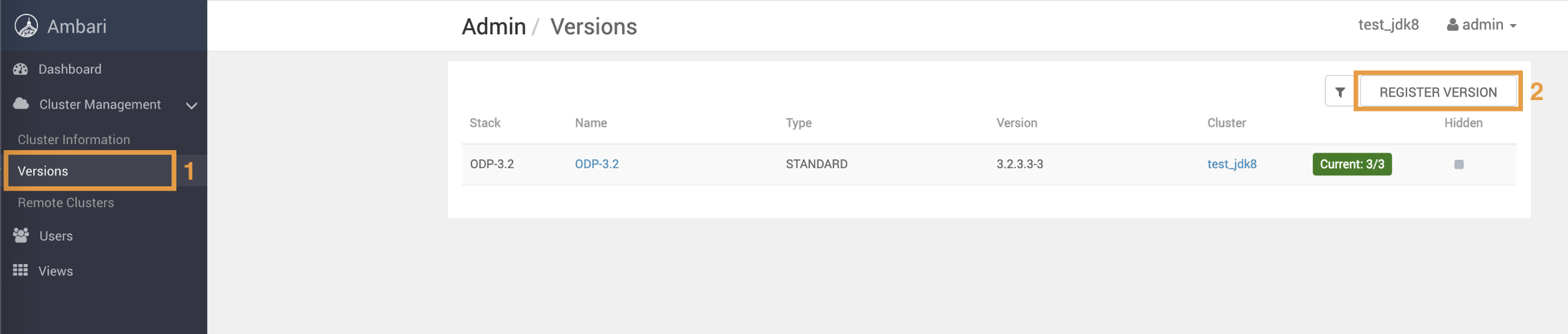
- Go to Admin > Manage Ambari. An Admin / Cluster Information page opens.
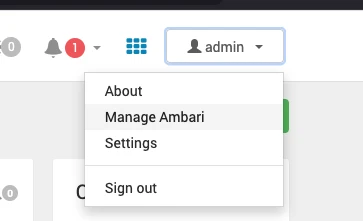
- From the left pane, select Versions. An Admin / Versions page opens.
- On the Admin / Versions page, click Register Version. The Versions / Register Versions page opens.
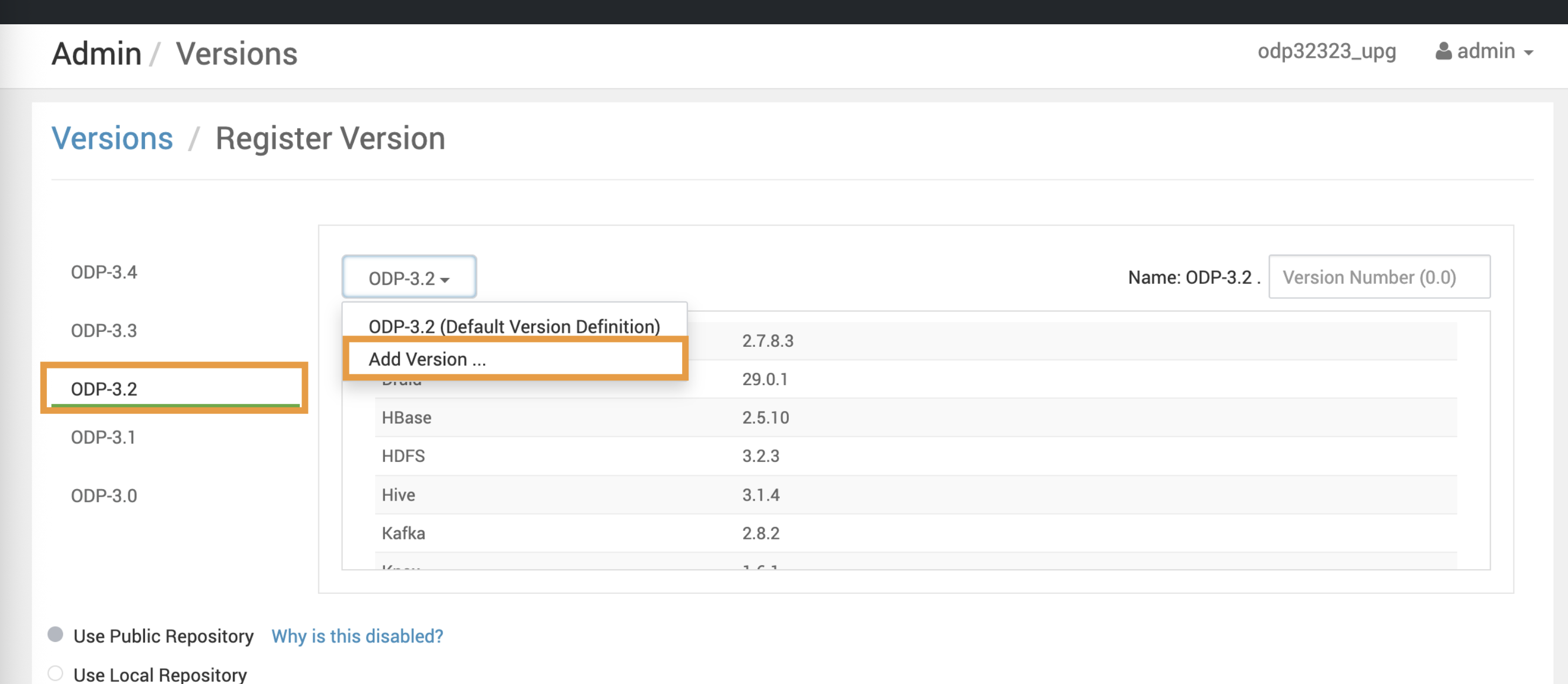
- On the Versions / Register Versions page, click ODP-x-x and select Add Version.
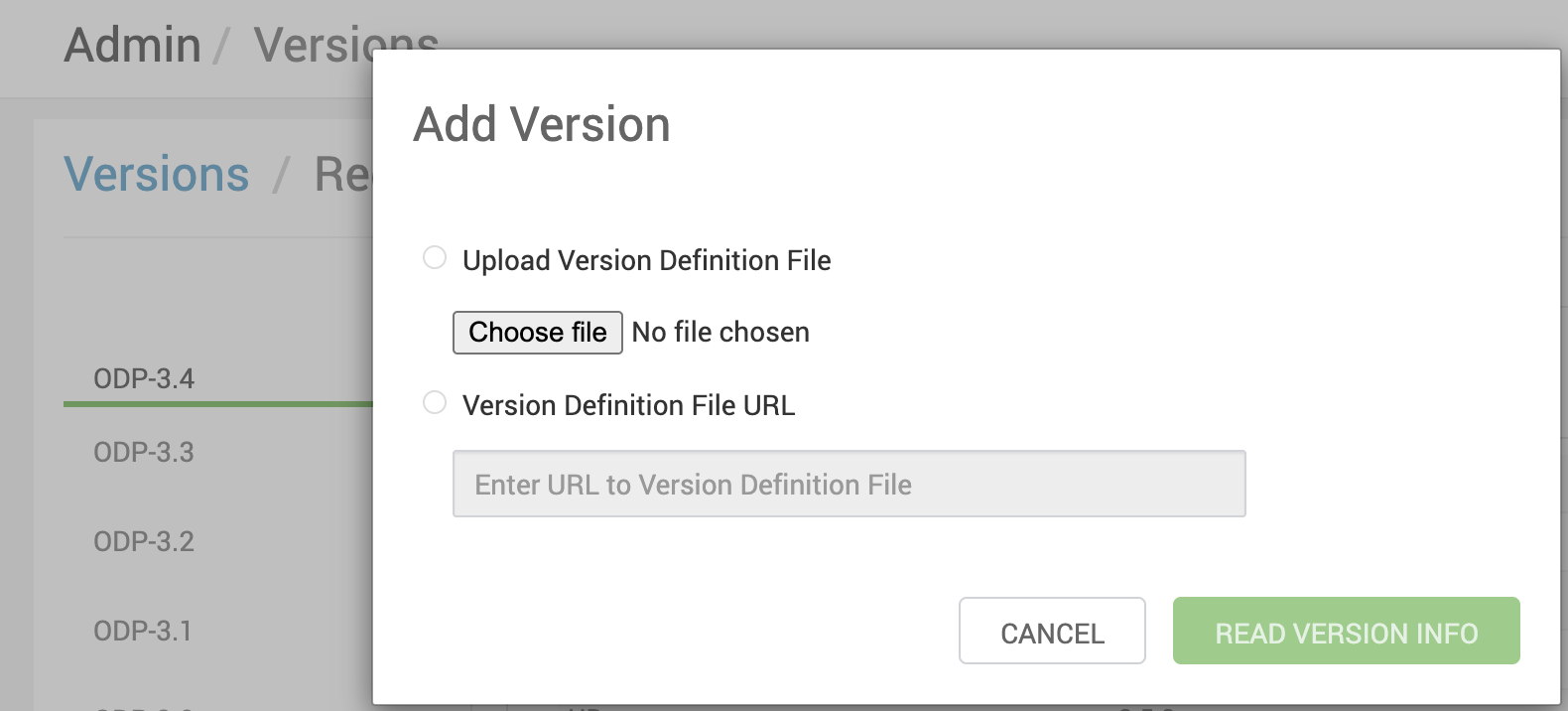
- Upload the VDF file to register the upgraded ODP version.
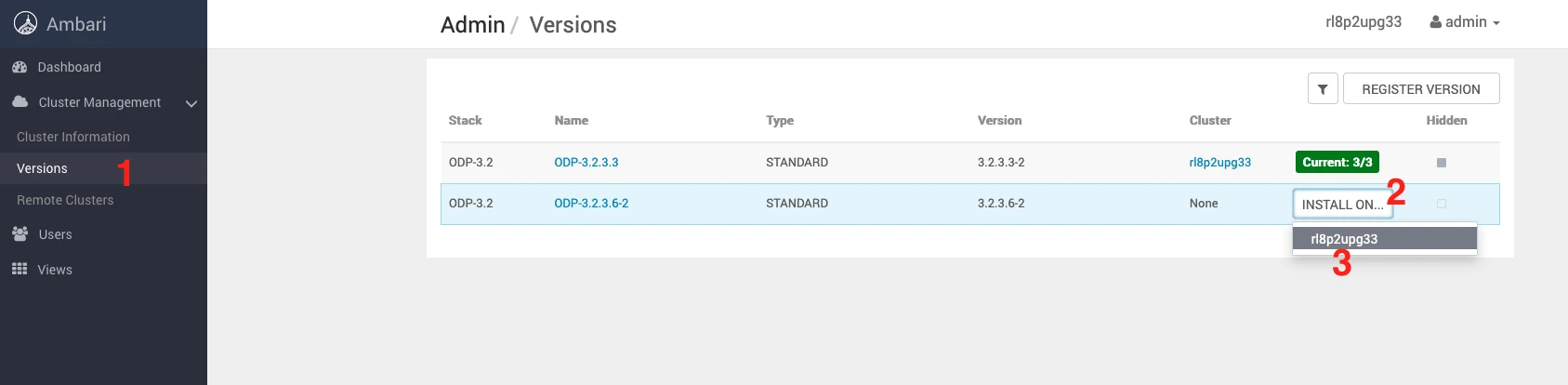
- After a successful upload, the new version appears in the Admin / Versions page.
- Then, select Installation On > <cluster_name>.
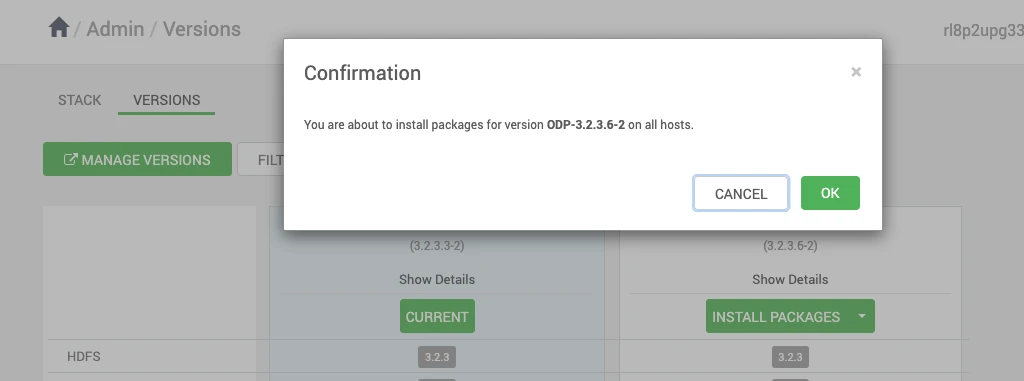
- Click OK to confirm the ODP package to install.
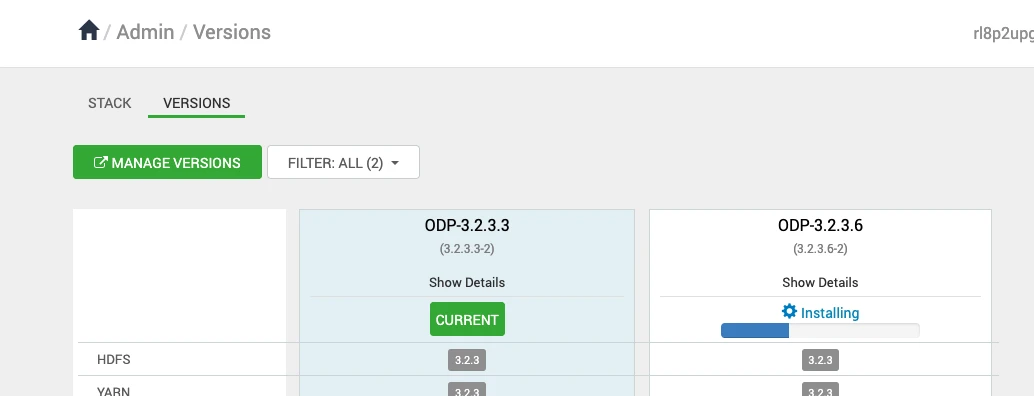
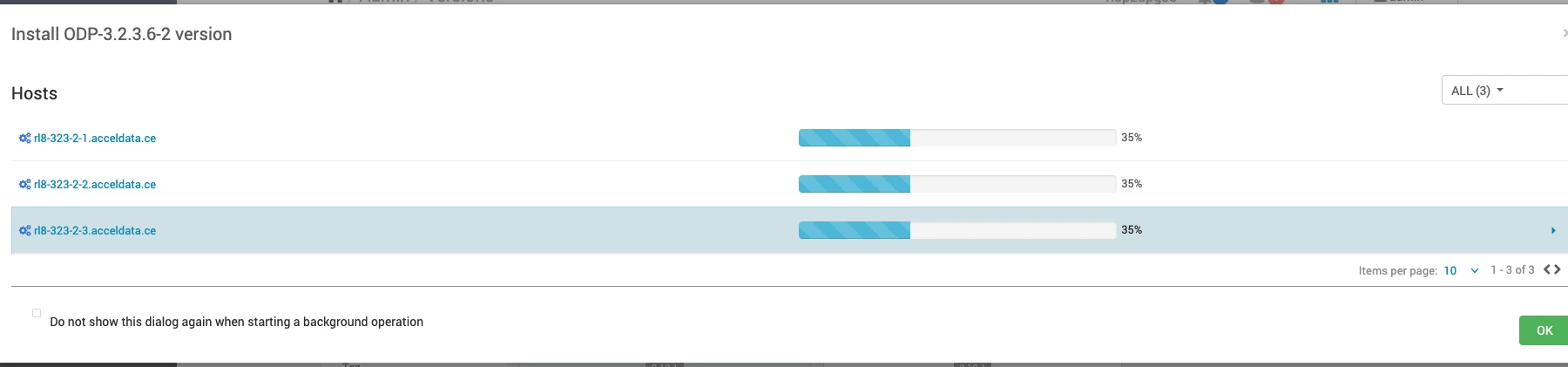
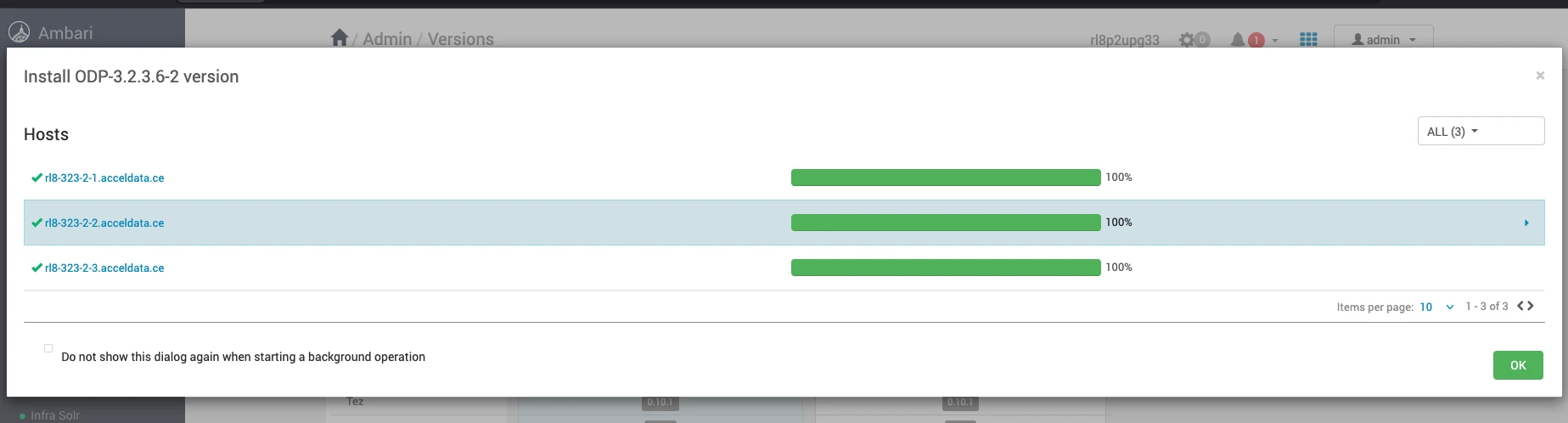
- Monitor the progress of the ODP installation package from the UI.
Upgrade Steps
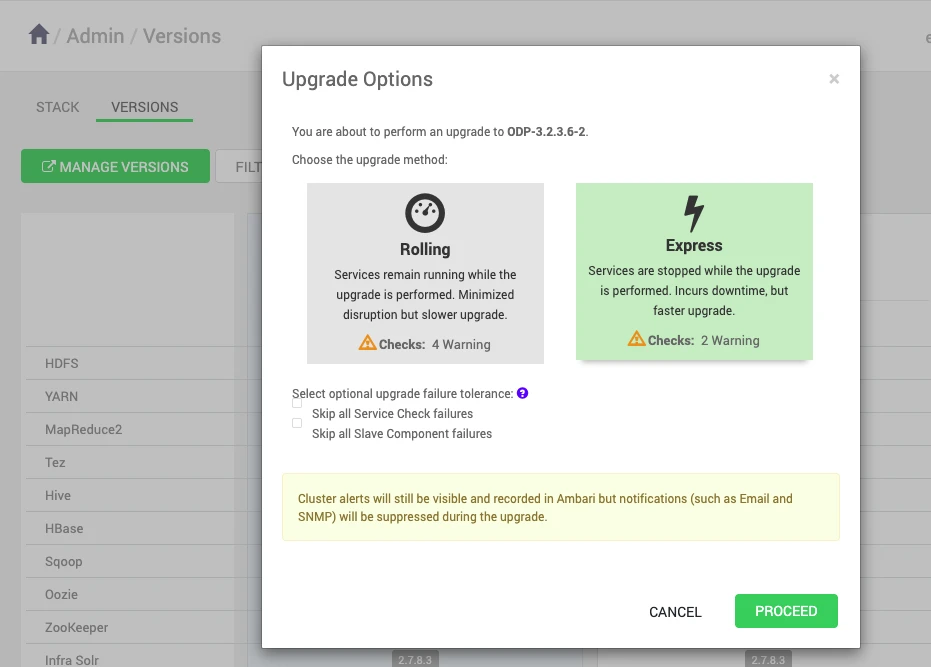
- In the Ambari UI, navigate to the Stack and Versions page and click Upgrade.
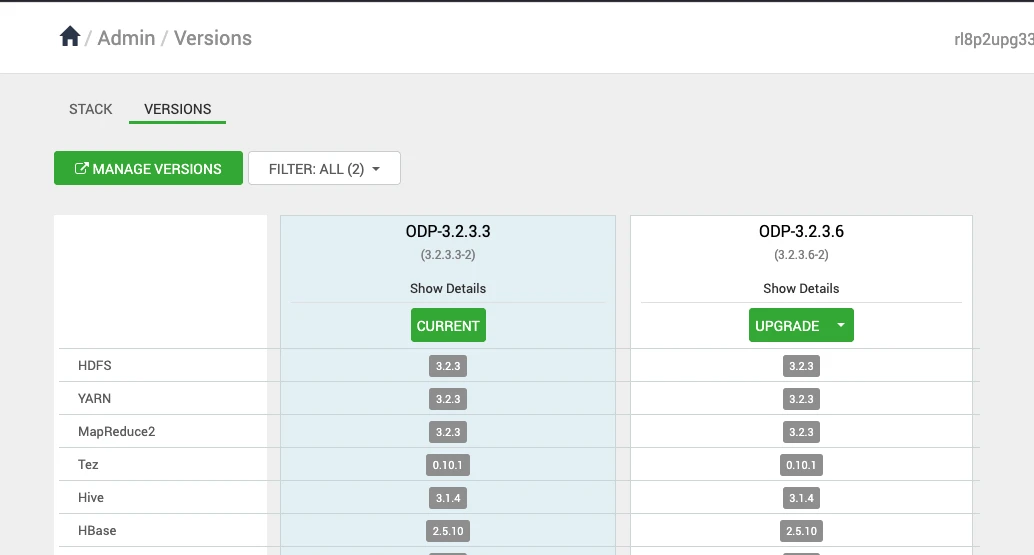
- Upon selecting the Upgrade option:
- The Rolling and Express options appear on the screen.
- Select Rolling/Express and click Proceed.
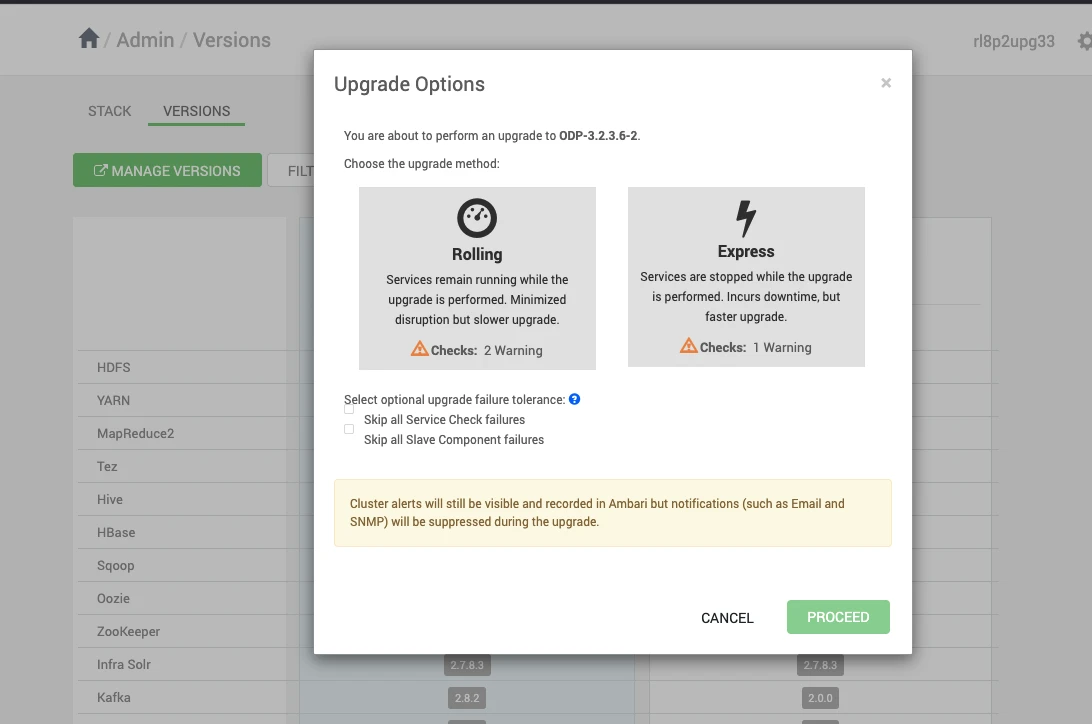
Rolling Upgrade
- If you want to select the Rolling upgrade, select Rolling from the Upgrade Options page and click Proceed.
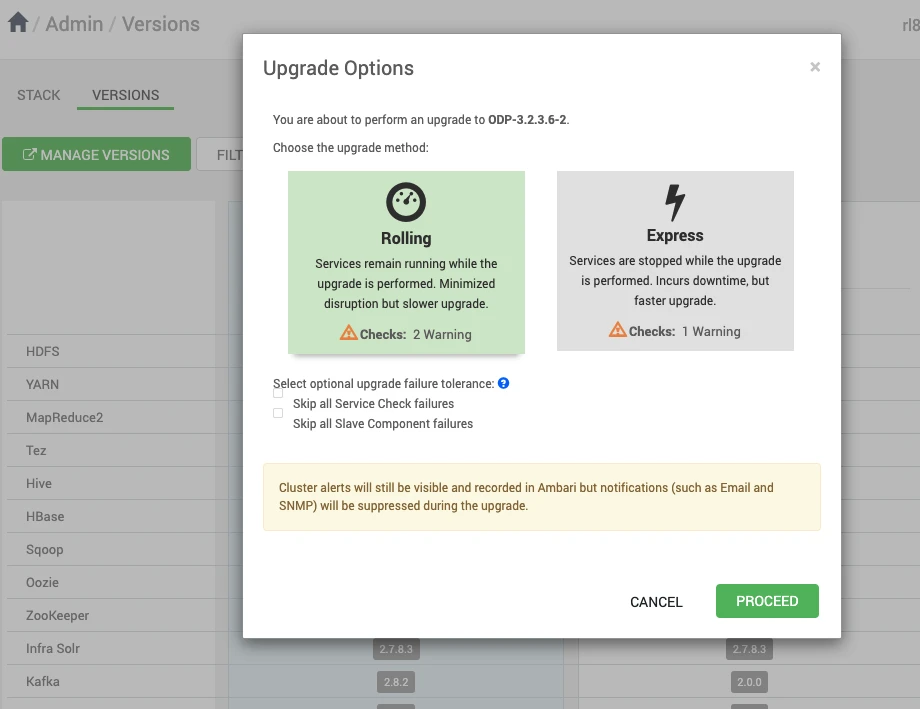
- Click OK to proceed with the upgrade.
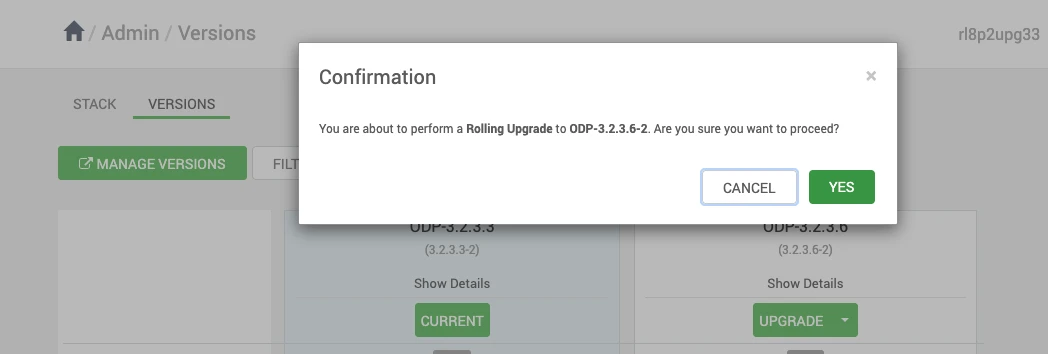
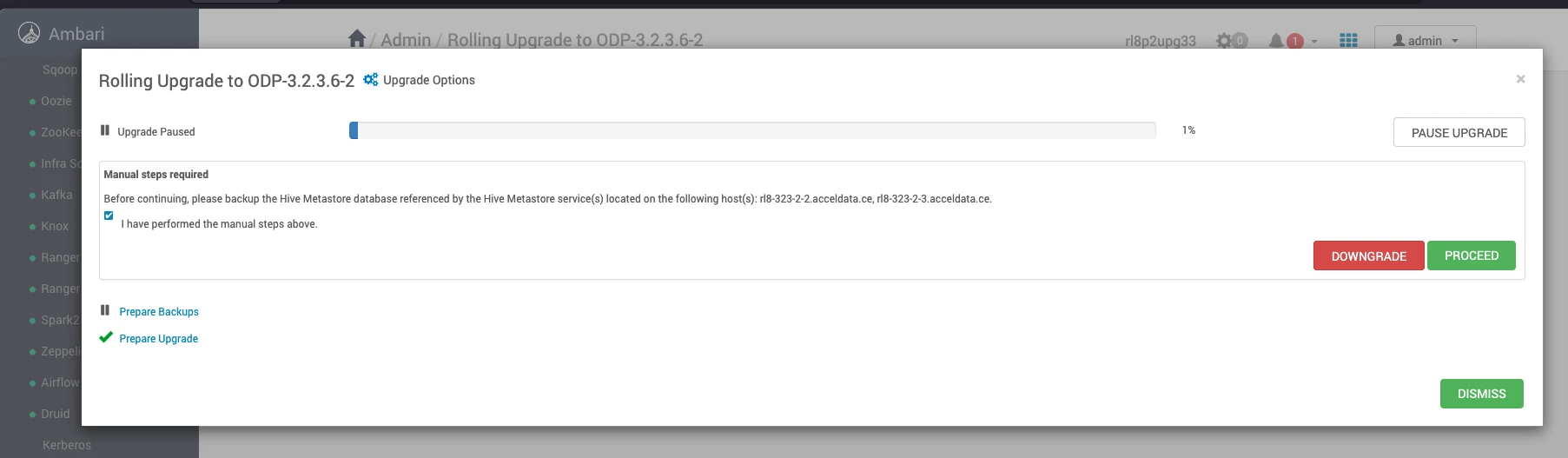
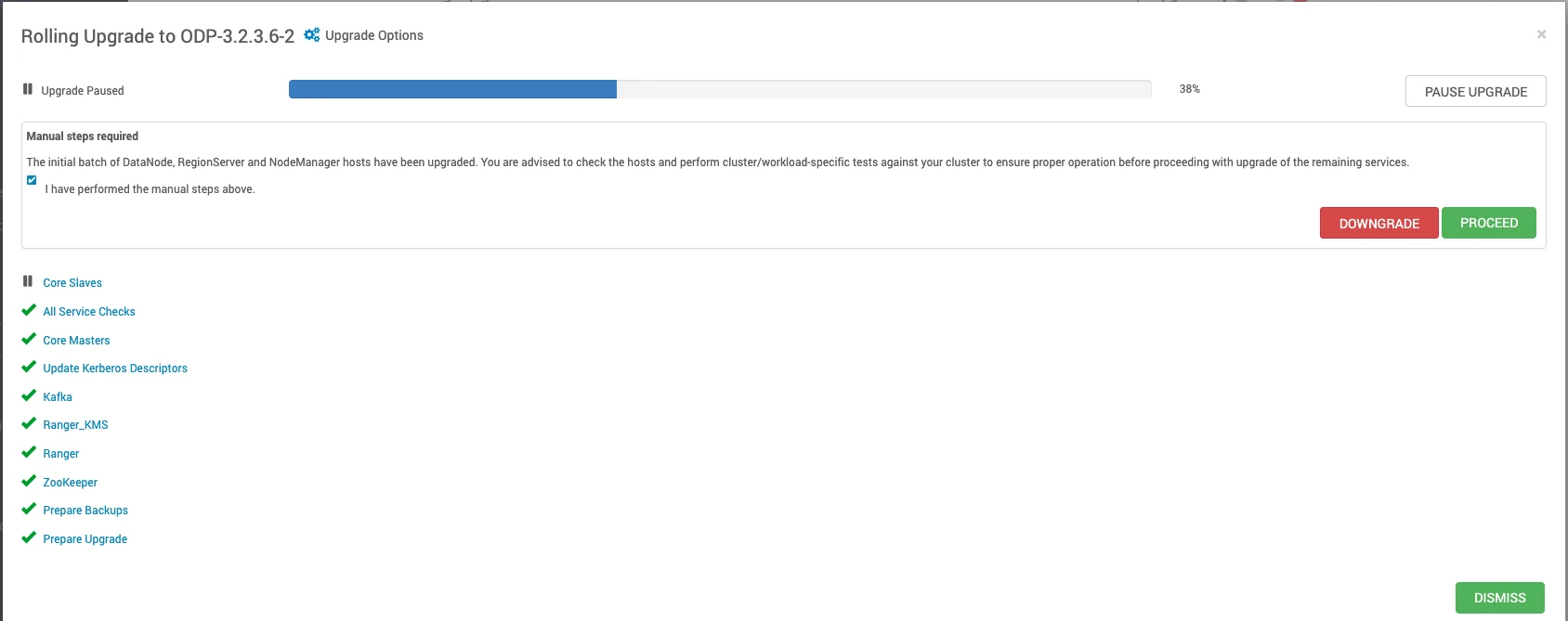
- You can verify the progress of the rolling upgrade from the UI.
Database Backups
Info
Make sure to take all the Database backups before proceeding with next step
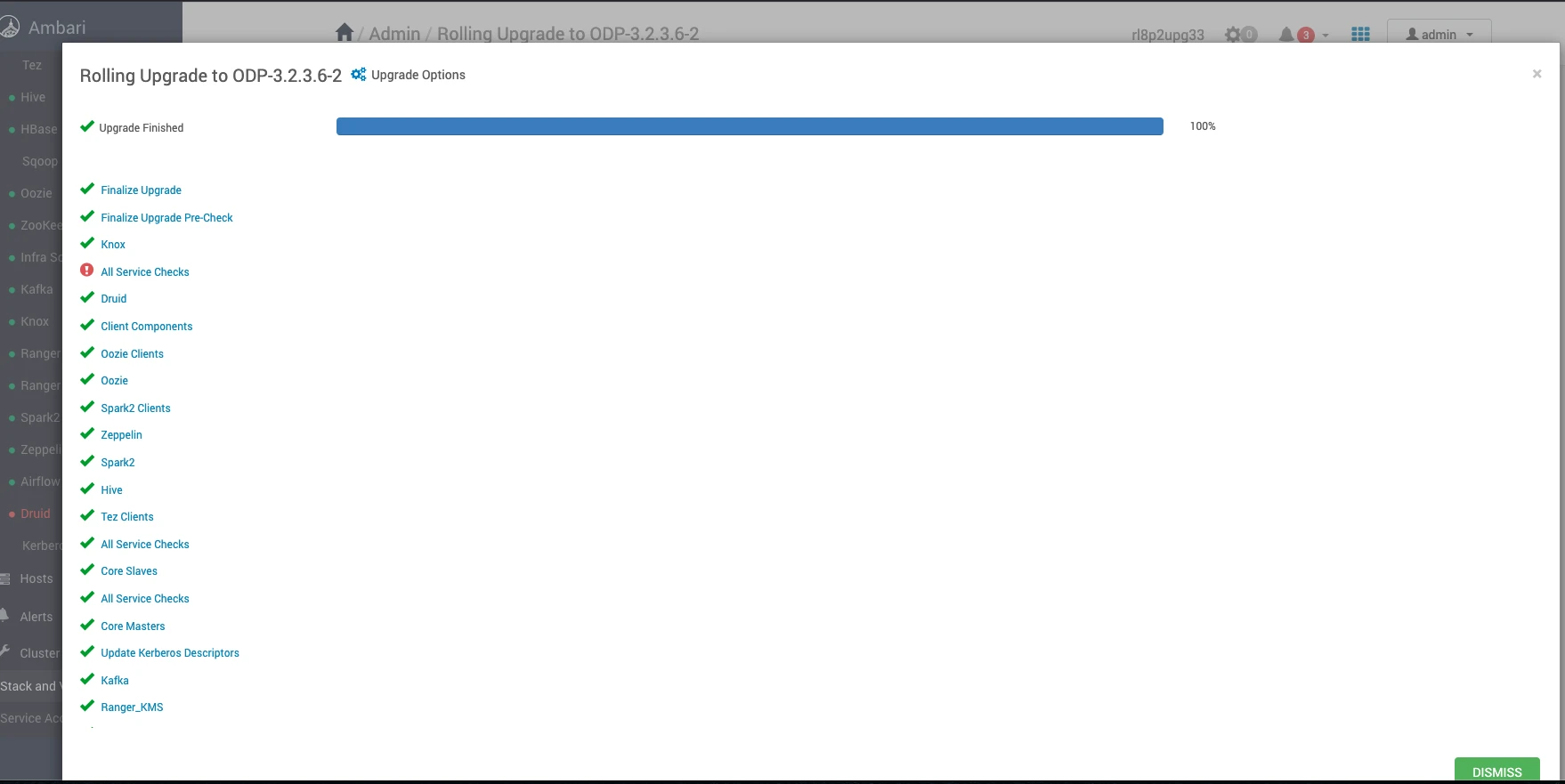
Verify the Upgrade
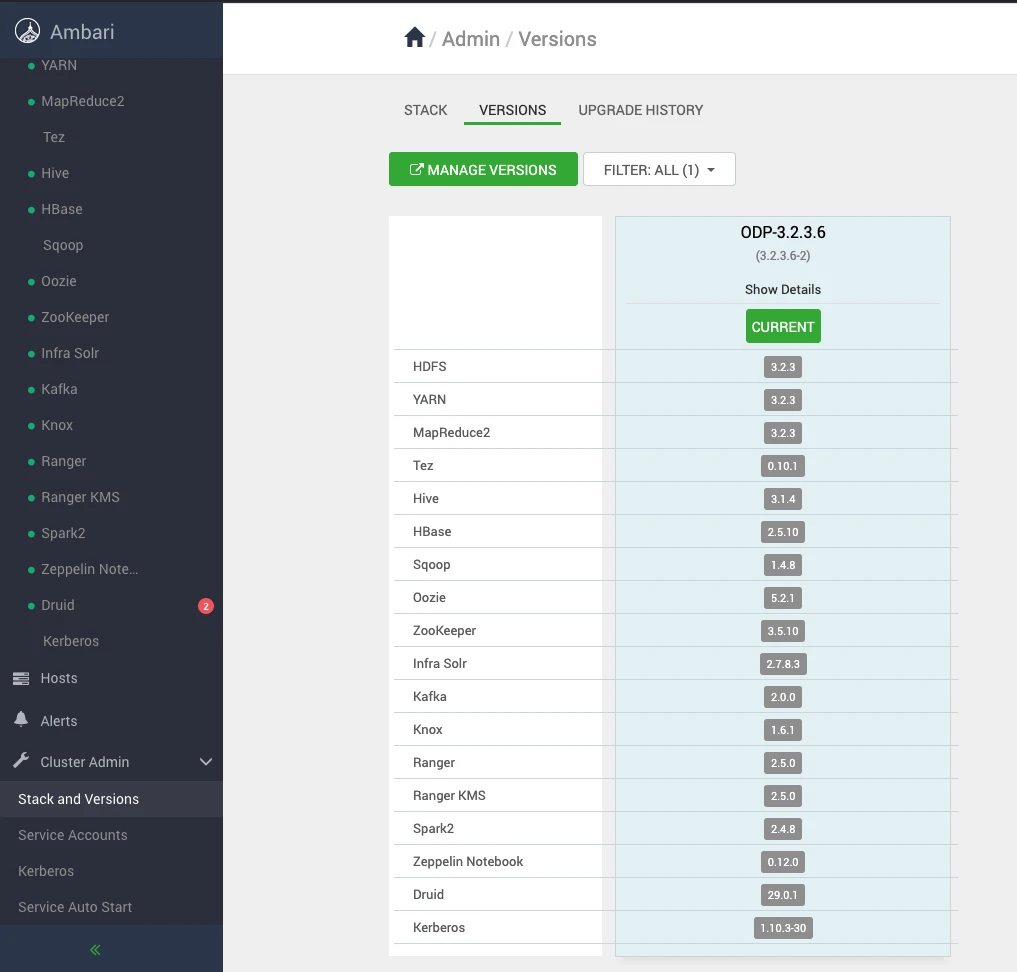
Upgrade History
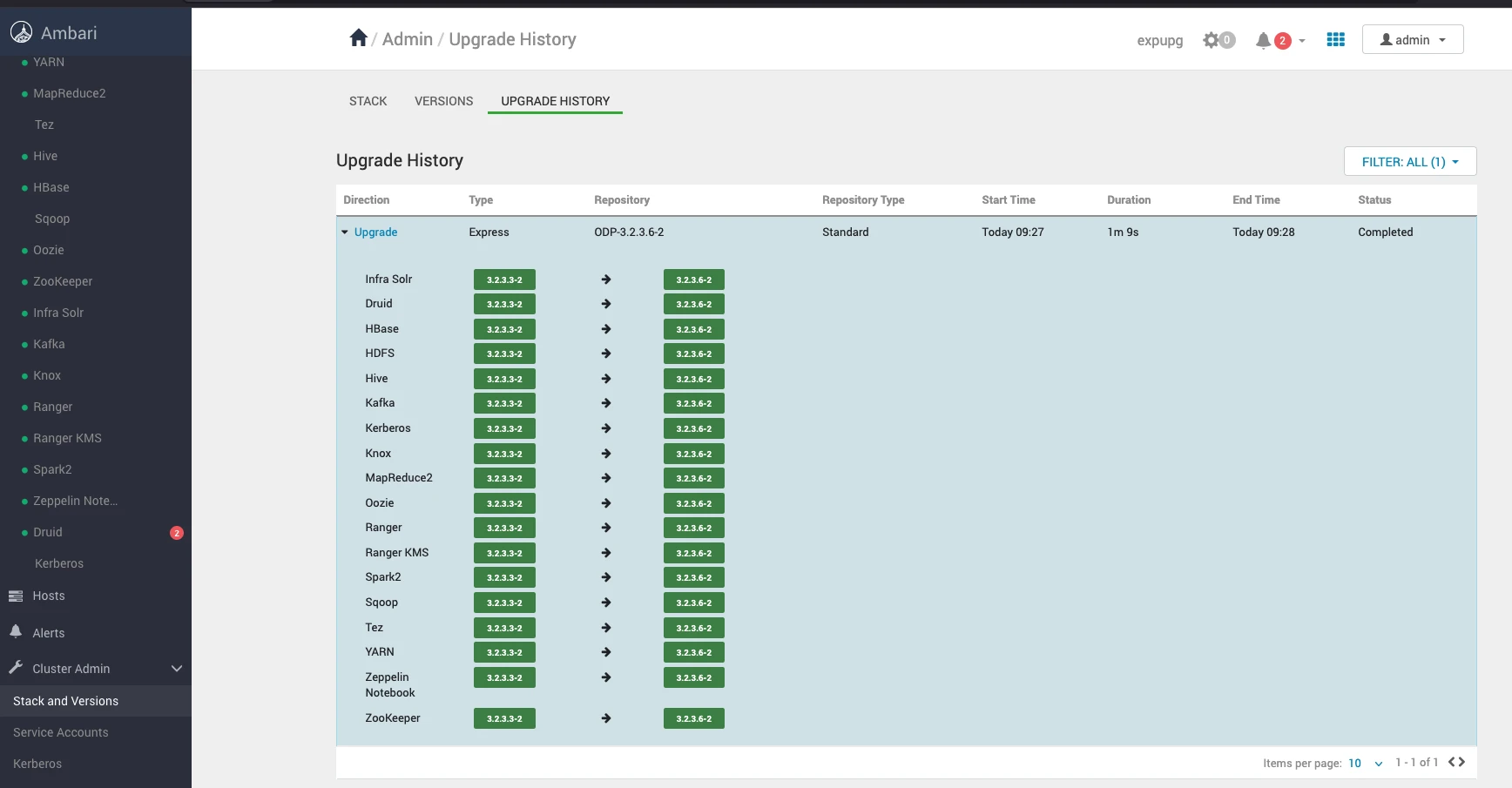
Express Upgrade
- If you want to select the Express upgrade, select the Express from the Upgrade Options and click Proceed.
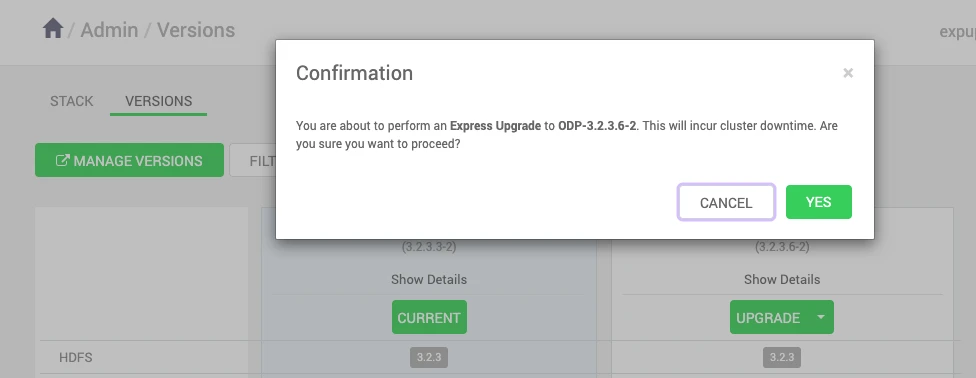
- Click OK to proceed with the upgrade.
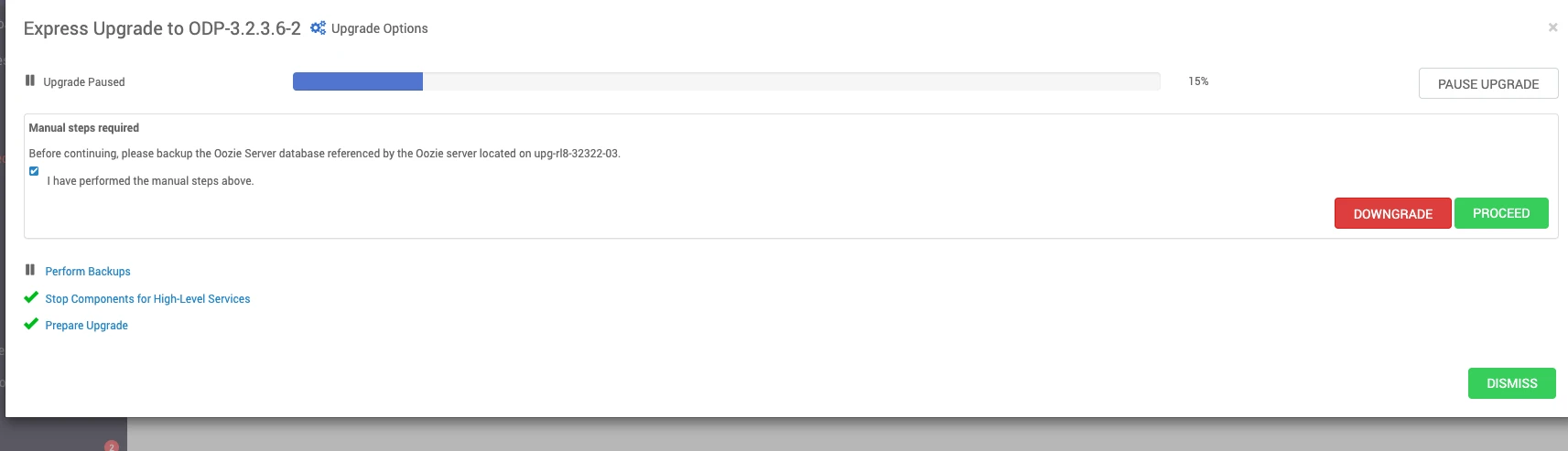
- You can verify the progress of the express upgrade from the UI.
Database Backups
Info
Make sure to take all the Database backups before proceeding with next step
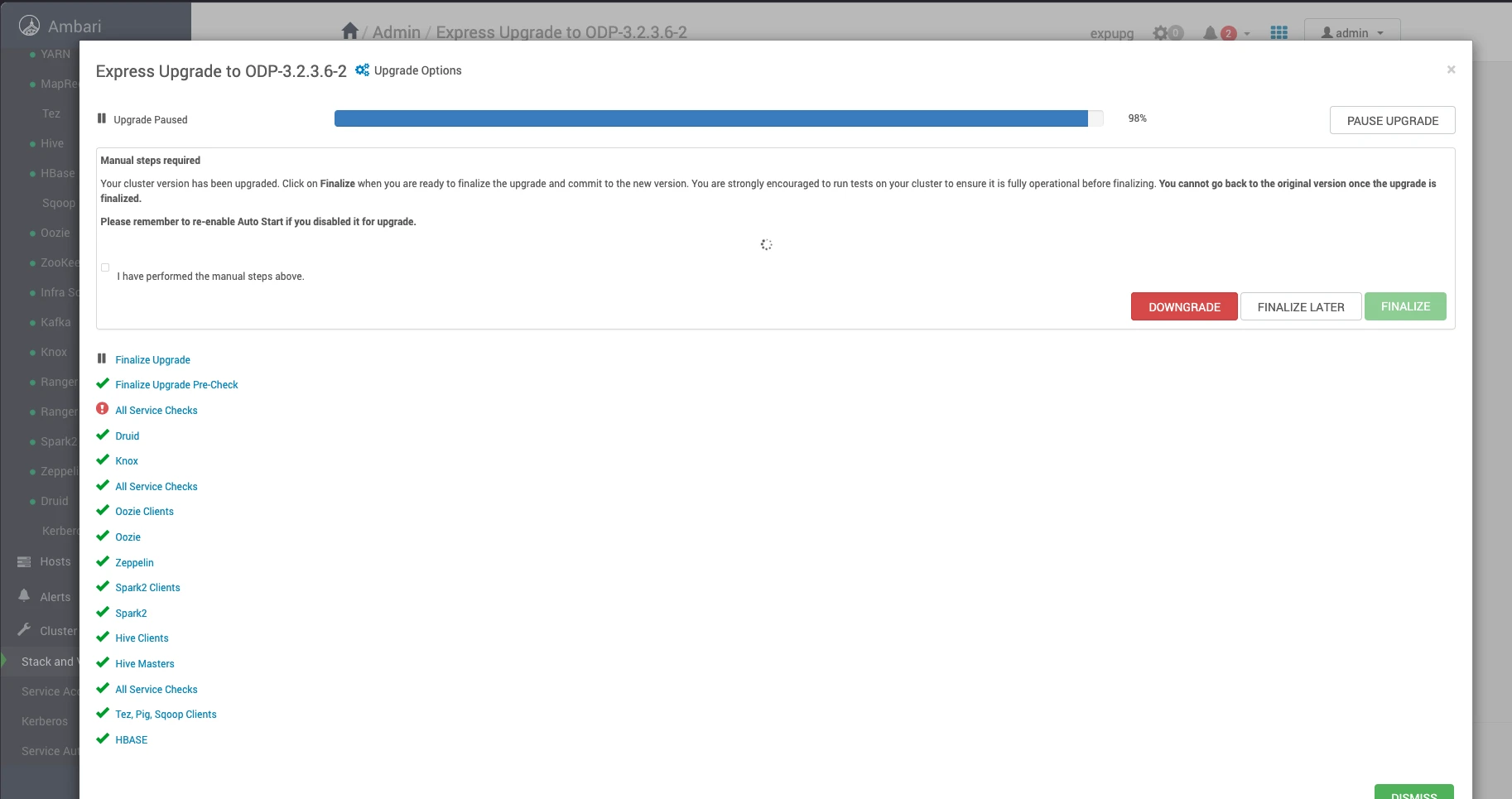
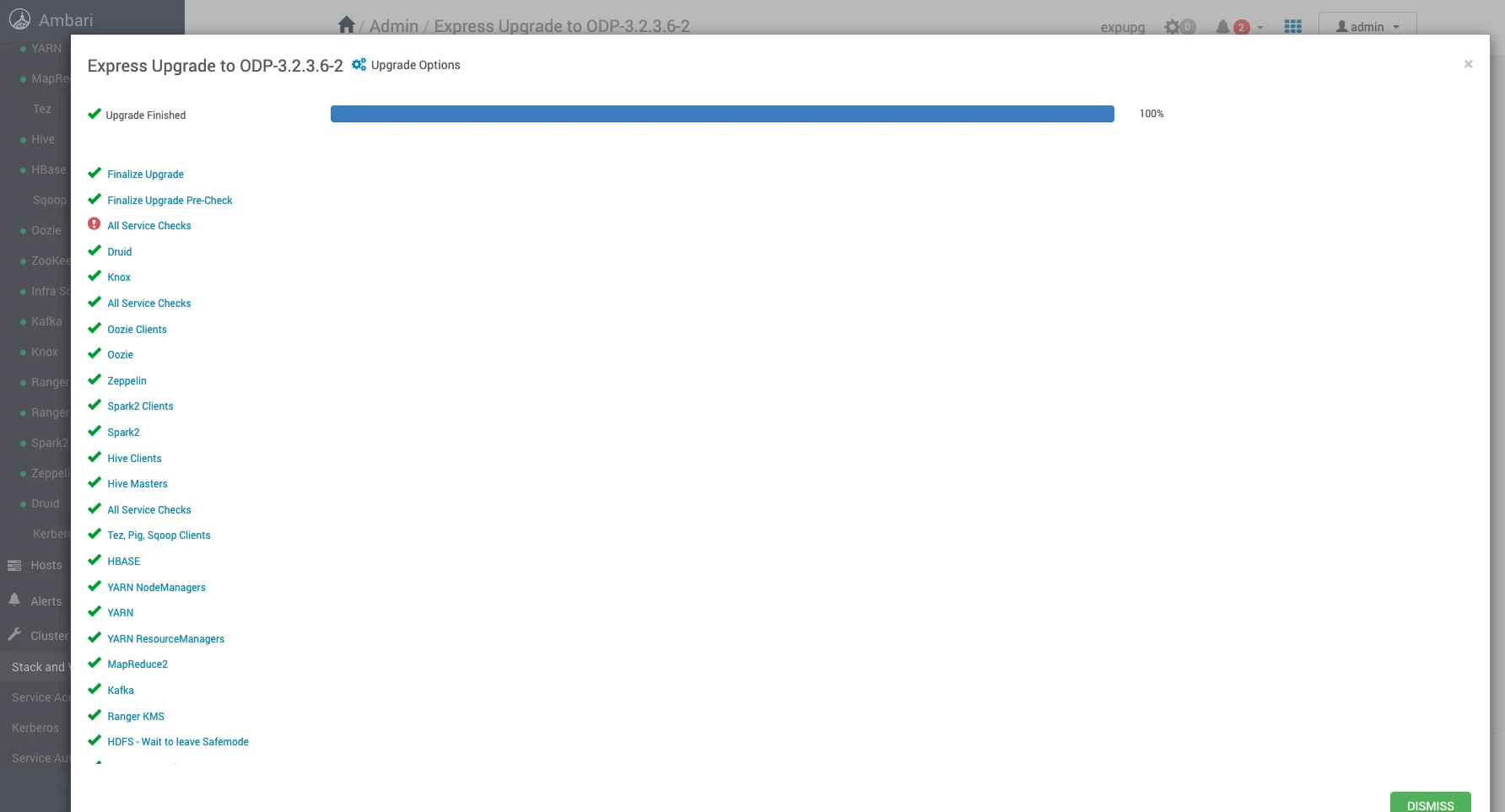
Verify the Upgrade
Upgrade History