Configure ODP with Ceph S3 Ceph Using S3A
This document covers how to configure ODP to use Ceph RGW Object Storage via Hadoop S3A connector for Hadoop, Hive, Spark3, Impala, and Trino, and how to troubleshoot common issues.
Integrate the ODP with Ceph RGW Object Storage over the S3A protocol to optimize data management on open-source object storage. This setup uses Hadoop’s native S3A connector and requires no additional plugins.
Info
For Ceph erasure coding (EC), Ceph uses Jerasure by default, but also allows other accelerator plugins such as ISA-L. Choose the accelerator that best fits your EC deployment.
For details, see the pages below:
- Prerequisites
- Create Ceph/IAM User
- Configuration
- Ceph with Ranger S3 Plugin
- Quick Connection Test
- Troubleshooting
Prerequisites
- Ceph RGW endpoint URL and valid access/secret keys.
- Network connectivity from ODP components to the Ceph RGW endpoint (HTTP/HTTPS).
- Administrative access to Hadoop, Hive, and Trino configuration directories.
Create Ceph/IAM User
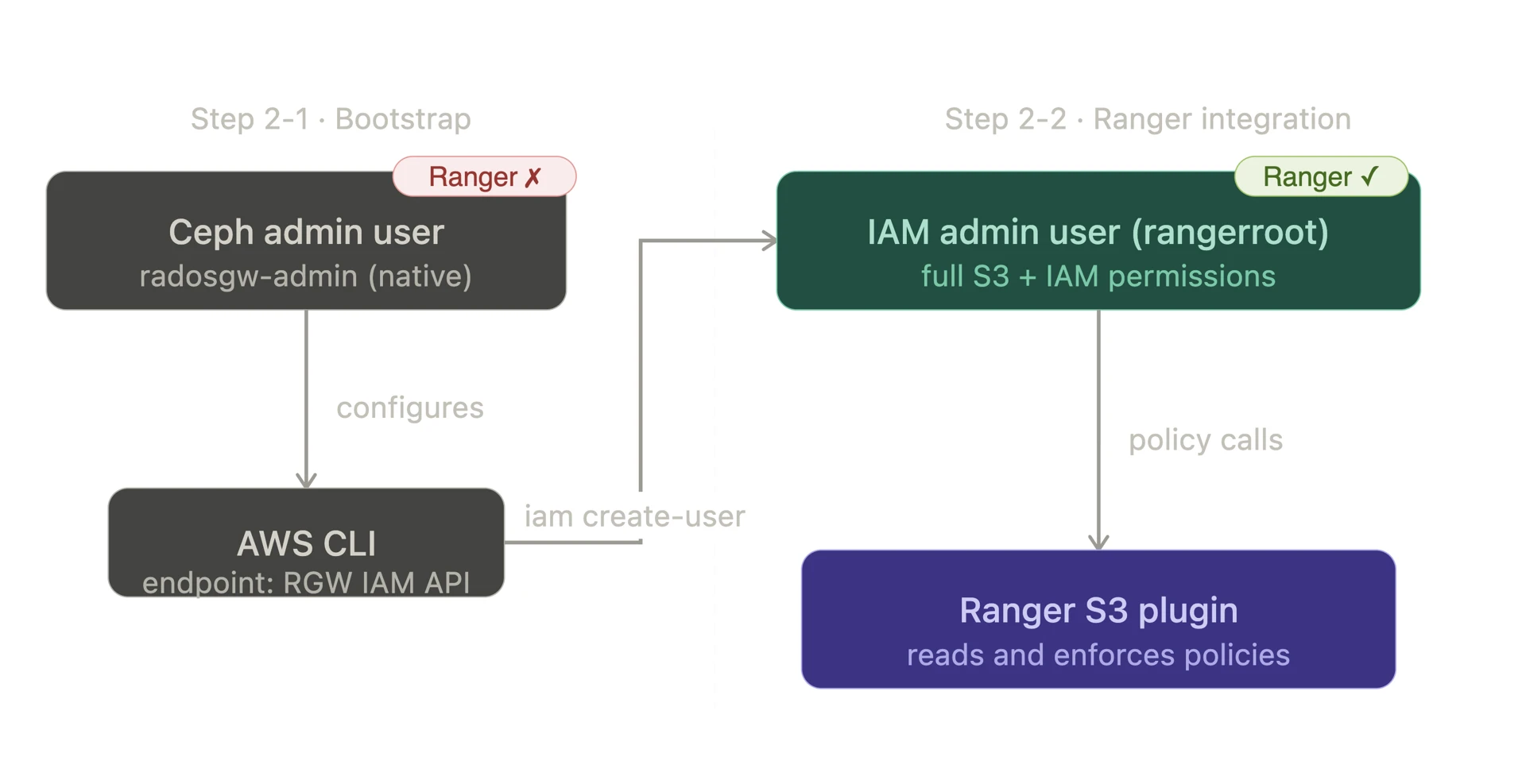
- For ODP-Ceph integration, we have two distinct user types - Ceph native user and IAM user.
- Both user types are required:
- The Ceph native user bootstraps access
- The IAM user enables Ranger policy enforcement
- Understanding the difference is important before proceeding.
User Type | Created via | Used to | Recognized by Ranger |
|---|---|---|---|
Ceph Native User | radosgw-admin user create | Bootstrap initial IAM API access | ❌ No |
IAM User | iam create-user (AWS CLI) | Ranger policy enforcement via RGW IAM API | ✅ Yes |
Create Ceph RGW Admin User
- Create a new IAM account
cephadm shell -- radosgw-admin account create --account-name=ranger-account
# Result:
{
"id": "RGW14102304245748501",
...
}
- Create a Ceph admin user with IAM account
cephadm shell -- radosgw-admin user create \
--uid=admin \
--display-name="Admin-User" \ # Spaces not allowed in display name, use hyphens
--account-id=RGW14102304245748501 \ # Use id generated from the previous step
--account-root \
--gen-access-key \
--gen-secret
# Result:
{
"keys": [
{
"user": "admin",
"access_key": "Q2Z4NJ0JM3T97OQ9RYEW",
"secret_key": "8dIT59a2nFBVvOW416WkLDkkjOx2cEAWbApdWpqs",
...
}
],
...
}
Info
Make sure to copy and store both the Access Key ID and Secret Access Key in a secure location.
- Register the Ceph admin user to the AWS CLI.
# Exit from Cephadm
exit
aws configure
AWS Access Key ID [None]: Q2Z4NJ0JM3T97OQ9RYEW # access-key
AWS Secret Access Key [None]: 8dIT59a2nFBVvOW416WkLDkkjOx2cEAWbApdWpqs # secret-key
Default region name [None]: us-east-1
Default output format [None]: json
Create IAM Admin User
- Create IAM admin user in AWS CLI
# 1. Create IAM admin user
aws --endpoint-url http://10.100.11.14:8070 iam create-user --user-name rangerroot
{
"User": {
"Path": "/",
"UserName": "rangerroot",
"UserId": "e0d8051e-9880-493f-ba44-65872d9faad9",
"Arn": "arn:aws:iam::RGW14102304245748501:user/rangerroot",
"CreateDate": "2026-02-23T22:03:52.632461Z"
}
}
# 2. Generate access/secret key for IAM account root user
aws --endpoint-url http://10.100.11.14:8070 iam create-access-key --user-name rangerroot
{
"AccessKey": {
"UserName": "rangerroot",
"AccessKeyId": "OVOMP7METUAZD371QZER",
"Status": "Active",
"SecretAccessKey": "tsjjA06L54xVUDzaCDZm4pMUEFFOgithi6GzbXZV",
"CreateDate": "2026-02-23T22:04:30.444562Z"
}
}
# 3. Verify the list of IAM users
aws --endpoint-url http://10.100.11.14:8070 iam list-users
Info
Make sure to copy and store both the Access Key ID and Secret Access Key in a secure location.
- Assign S3/IAM permissions to IAM admin user
# 1. Create a policy JSON file (allowing both s3/iam all permissions)
cat > /tmp/s3-full-policy.json << 'EOF'
{
"Version": "2012-10-17",
"Statement": [
{
"Effect": "Allow",
"Action": "s3:*",
"Resource": "*"
},
{
"Effect": "Allow",
"Action": "iam:*",
"Resource": "*"
}
]
}
EOF
# 2. Assign the policy to the IAM account admin user
aws --endpoint-url http://<ip-address>:<rgw-port> iam put-user-policy \
--user-name <iam-username> \
--policy-name S3FullAccess \
--policy-document file:///tmp/s3-full-policy.json
Configuration
To access data in a Ceph S3 bucket, apply the following configuration changes.
Hadoop Configuration for HDFS/Spark3/Impala
- Add configurations in HDFS → Configs → Advanced → Custom core-site
Property | Value |
|---|---|
fs.s3a.access.key | <AWS-access-key> |
fs.s3a.secret.key | <AWS-secret-key> |
fs.s3a.endpoint | |
fs.s3a.aws.credentials.provider | org.apache.hadoop.fs.s3a.SimpleAWSCredentialsProvider |
fs.s3a.impl | org.apache.hadoop.fs.s3a.S3AFileSystem |
fs.s3a.path.style.access | true |
fs.s3a.connection.ssl.enabled | false |
- Add configurations in MapReduce → Configs → Advanced → Custom mapred-site
Property | Value |
|---|---|
fs.s3a.impl | org.apache.hadoop.fs.s3a.S3AFileSystem |
Hive Configuration
- Reference: Configure Apache Hive with S3A (applies only to 3.3.6.1-101) - Acceldata Open Source Data Platform
- Create .jceks credentials using access/secret keys
hadoop credential create fs.s3a.access.key \
-value <access_key> \
-provider jceks://hdfs@<ActiveNameNode>:<port>/user/backup/s3.jceks
hadoop credential create fs.s3a.secret.key \
-value <secret_key> \
-provider jceks://hdfs@<ActiveNameNode>:<port>/user/backup/s3.jceks
- Add the following property at Hive → Config → Custom hive-site
hive.security.authorization.sqlstd.confwhitelist.append=
fs\.s3a\.endpoint|fs\.s3a\.path\.style\.access|fs\.s3a\.security\.credential\.provider\.path|fs\.s3a\.bucket\..*\.security\.credential\.provider\.path
- Set the session-level configurations on CLI
beeline
set fs.s3a.security.credential.provider.path=jceks://hdfs@<ActiveNameNode>:<port>/user/backup/s3.jceks;
set metaconf:fs.s3a.security.credential.provider.path=jceks://hdfs@<ActiveNameNode>:<port>/user/backup/s3.jceks;
Trino Configuration
- Add configurations in Trino → Configs → Advanced → Advanced trino-hive → Hive Config
hive.s3.aws-access-key=<AWS_ACCESS_KEY_ID>
hive.s3.aws-secret-key=<AWS_SECRET_KEY_ID>
hive.s3.endpoint=<CEPH_RGW_ENDPOINT>
hive.s3.path-style-access=true
hive.s3.ssl.enabled=false
Info
Trino uses its own S3 client (TrinoS3FileSystem), not Hadoop S3A (S3AFileSystem). The S3 credentials and endpoint must be configured in hive.properties to configure Trino.
Ceph with Ranger S3 Plugin
- The ODP Ranger S3 plugin manages policies through IAM; create required IAM users before setting up the plugin.
- Create an IAM admin user and grant Ceph S3 access permissions.
- For detailed setup instructions, see: https://docs.acceldata.io/odp/documentation/ranger-implementation
Quick Connection Test
- Create a test bucket.
aws --endpoint-url <CEPH_RGW_ENDPOINT> s3 mb s3://test-bucket
- Upload a test file to the bucket via HDFS.
hdfs dfs -put /tmp/test.txt s3a://test-bucket/hdfs/test.txt
- Check the test file uploaded on the Ceph cluster.
aws --endpoint-url <CEPH_RGW_ENDPOINT> s3 ls s3://test-bucket/hdfs/
Info
You should be able to see the test.txt file in the Ceph bucket
Troubleshooting
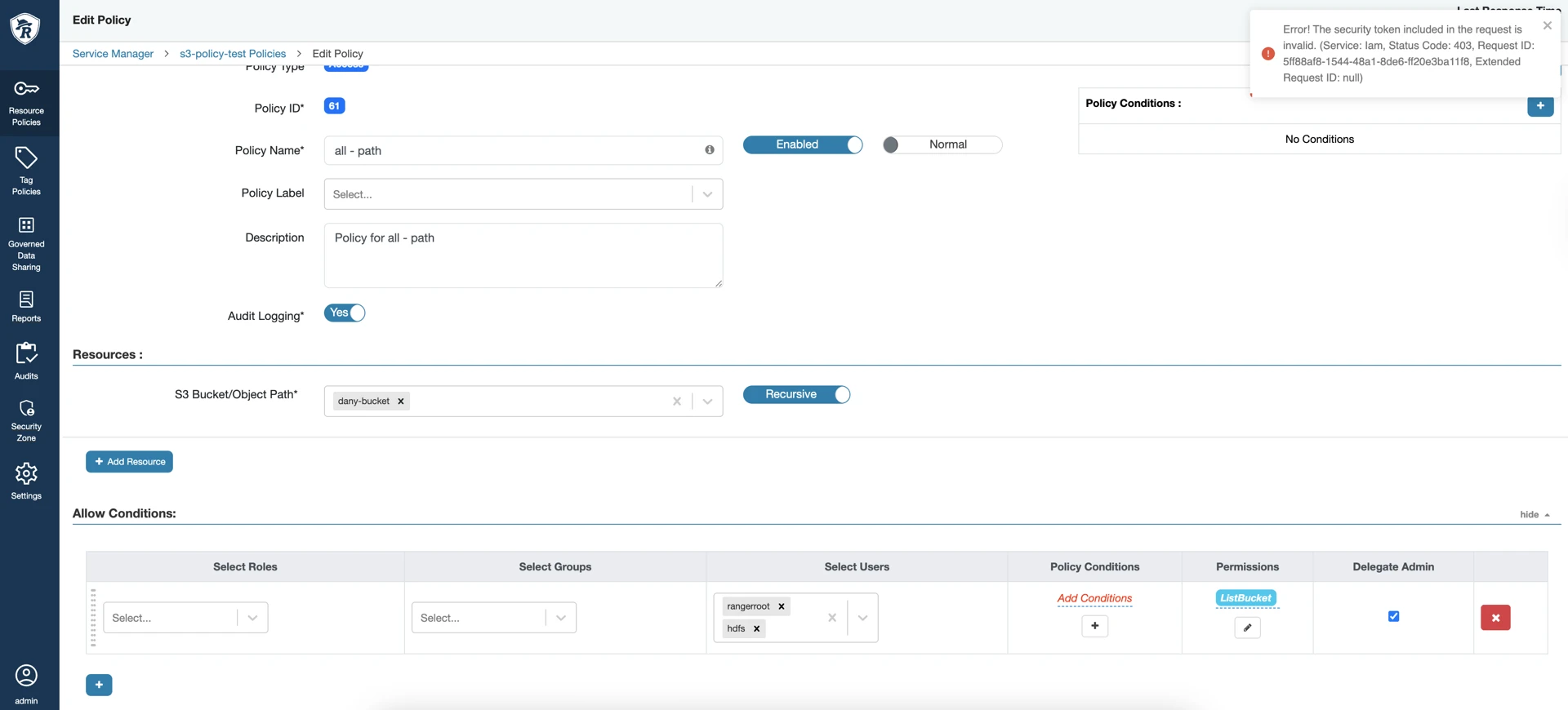
If Ranger policy creation against Ceph fails with an IAM token error, verify the following settings.
Ranger Policy Creation for Ceph Fails with “IAM Invalid Token” Error