
Configure Trino with Hue
The steps for configuring Trino with Hue depend on your ODP version.
ODP 3.3.6.5-1 and later
Starting with ODP 3.3.6.5-1, you can configure Trino integration directly from the Hue mpack.
If Trino is already installed in the cluster:
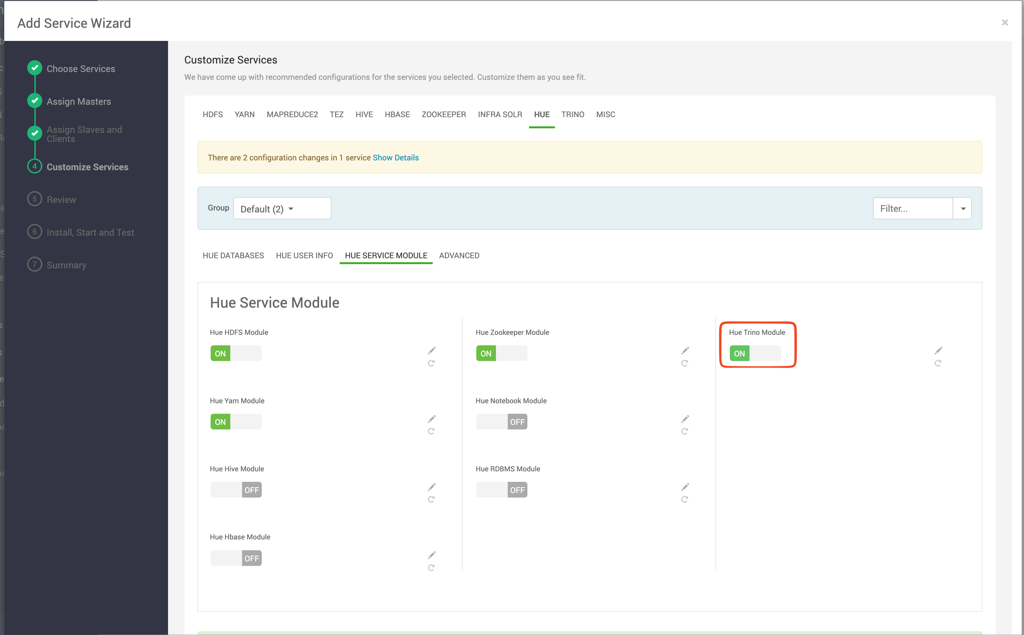
- In the Ambari UI, go to the Hue configuration page.
- Enable the Trino module.
- Configure authentication as required.
Kerberos
If you use Kerberos authentication, no additional configuration is required.
LDAP
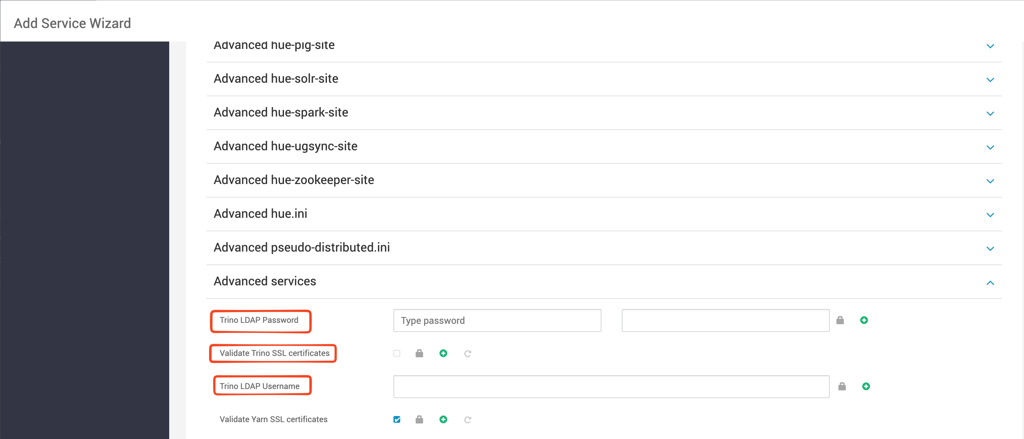
If you use LDAP authentication, configure:
- Trino LDAP Username
- Trino LDAP Password
Configure SSL certificate validation
By default, Validate Trino SSL certificates is enabled.
To disable SSL certificate validation, clear Validate Trino SSL certificates.
ODP releases earlier than 3.3.6.5-1
For earlier releases, Hue supports Trino clusters configured with:
- LDAP authentication
- No authentication
To configure the connection, add the Trino interpreter under the existing [notebook] and [[interpreters]] sections in hue.ini:
[notebook]
[[interpreters]]
[[[trino]]]
name=Trino
interface=trino

# Cluster without authentication
# options='{"url": "http://<HOST>:<PORT>"}'

# Cluster using LDAP authentication
options='{
  "url": "http://localhost:8080",
  "auth_username": "",
  "auth_password": ""
}'
You can also use auth_password_script to specify a script that returns the password.
Note
In releases earlier than ODP 3.3.6.5-1, an upstream Hue issue limits Trino query results to 100 rows. Hue might also report a successful query as Failed. These issues are resolved in ODP 3.3.6.5-1.
Have a suggestion?