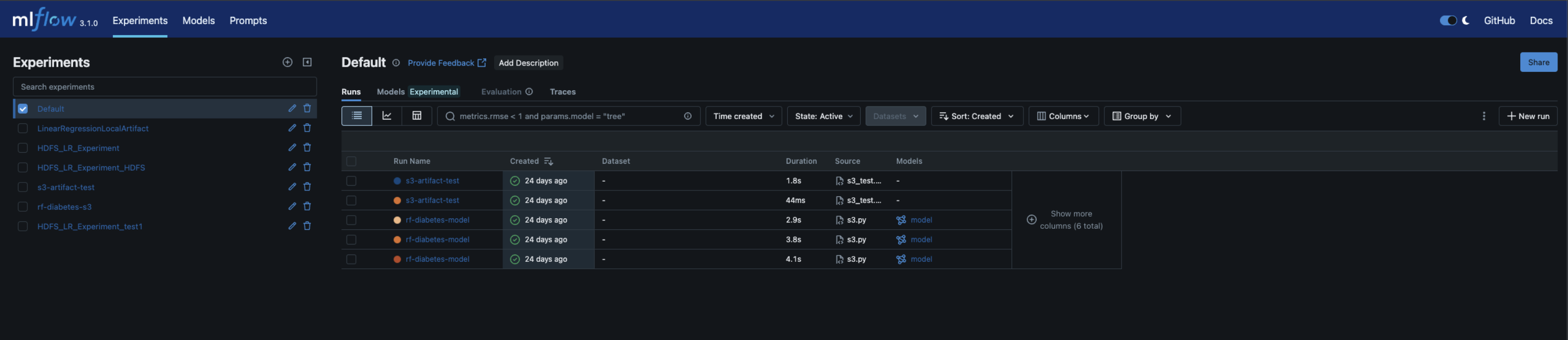
Install MLflow using Ambari Mpack
You can use the following steps to install MLflow using the Ambari UI.
Steps to install
- In the Ambari UI, navigate to Menu and click Services.
- In the Ambari Services view, click the ellipsis menu (⋯) in the top-right corner.
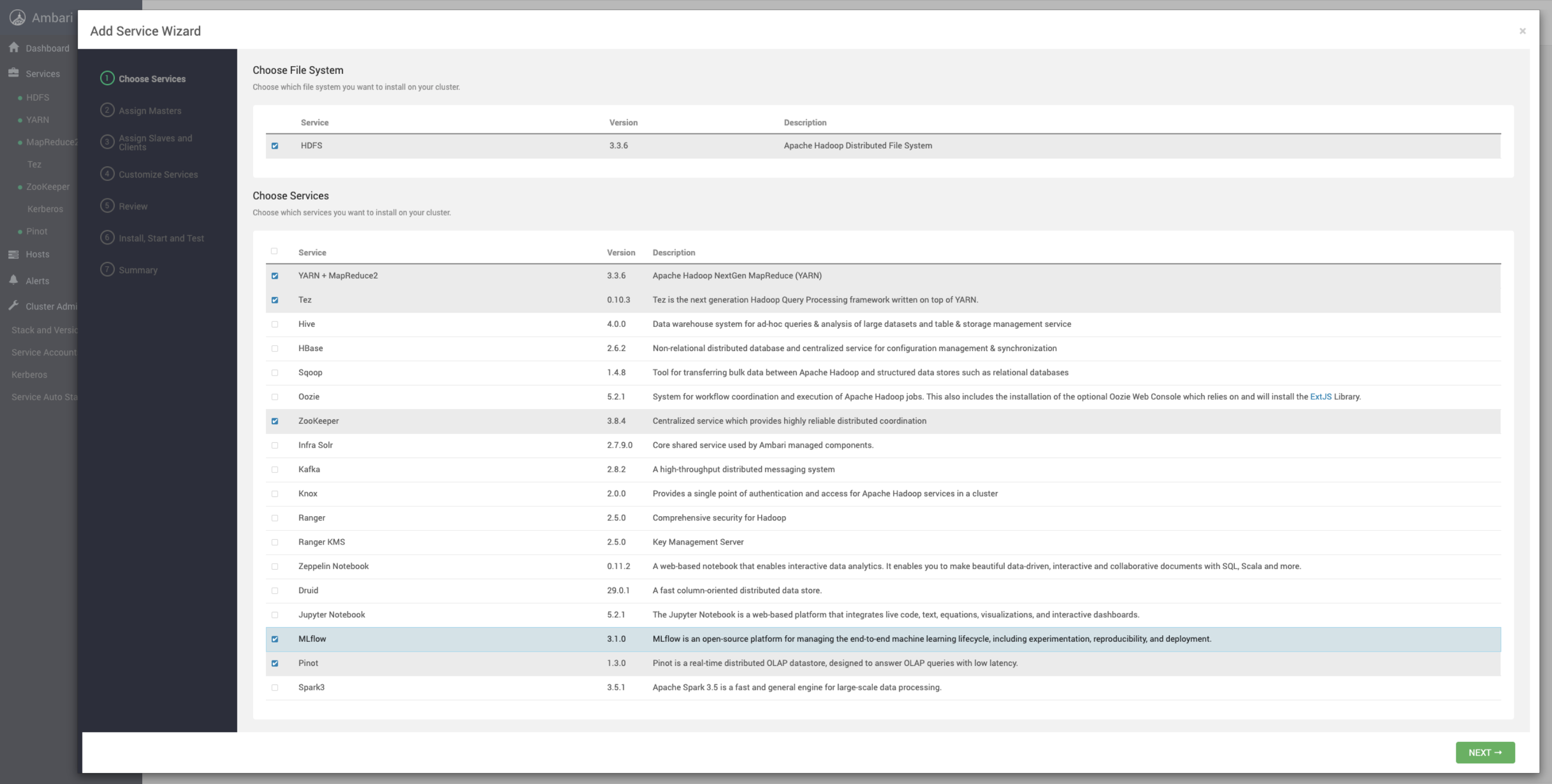
- Select Add Service. The list of services appears on the screen.
- Select MLflow and click Next.
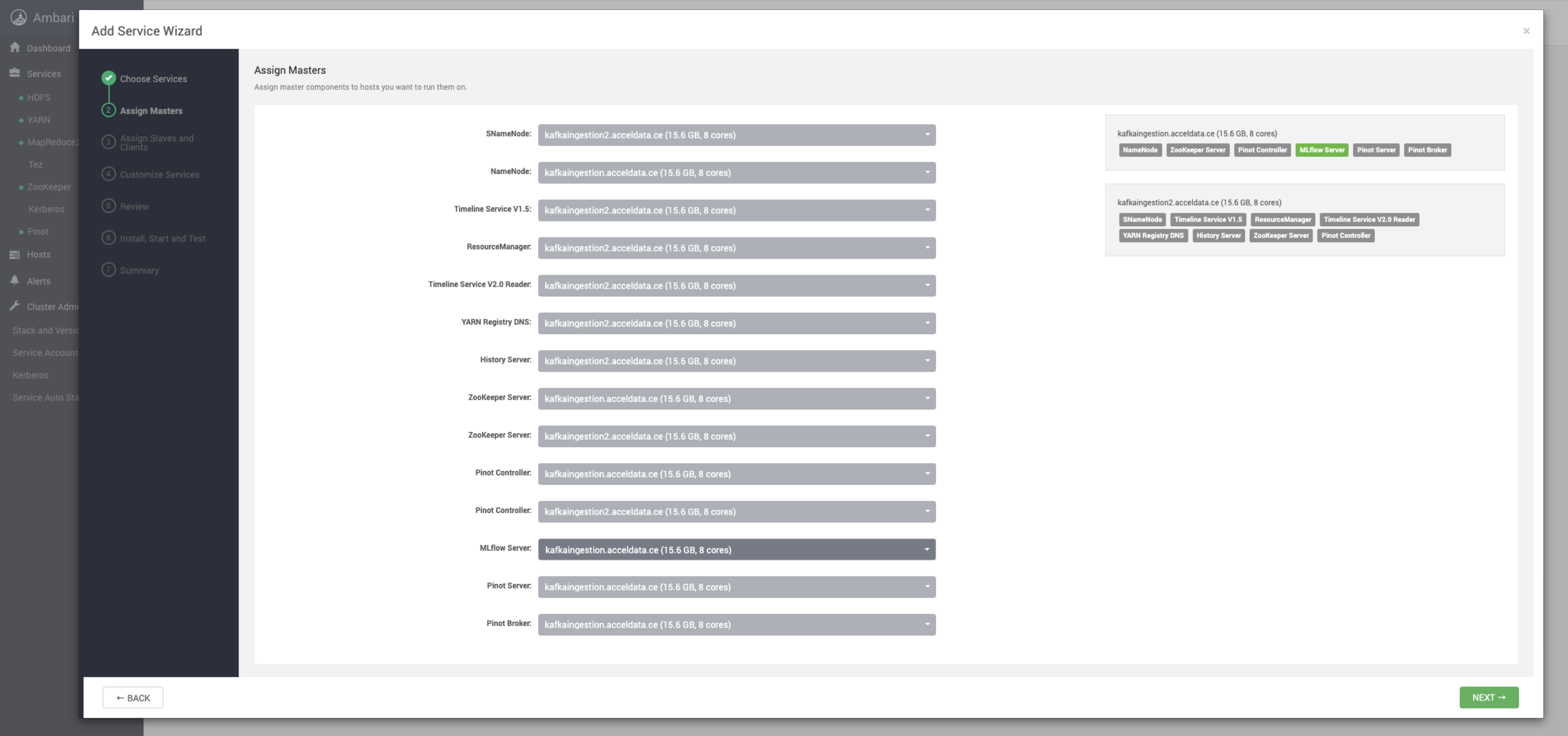
- In the Assign Masters page, select the MLflow server node from the drop-down and click Next.
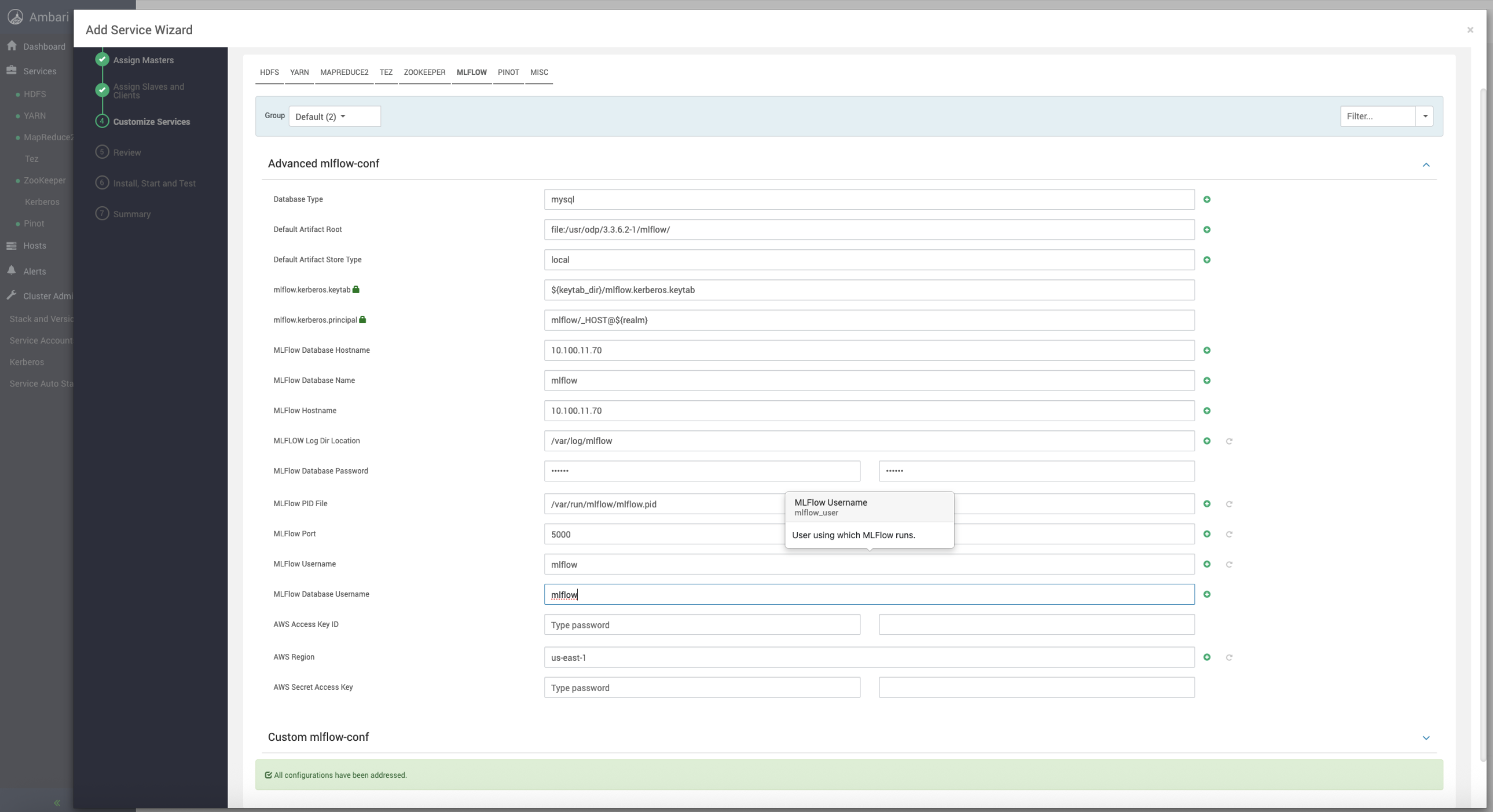
- In the Customize Services page, select MLFLOW, configure the details, and click Next.
- Review the details and click Next.
- Once the installation is complete, the service MLflow gets listed under Services.
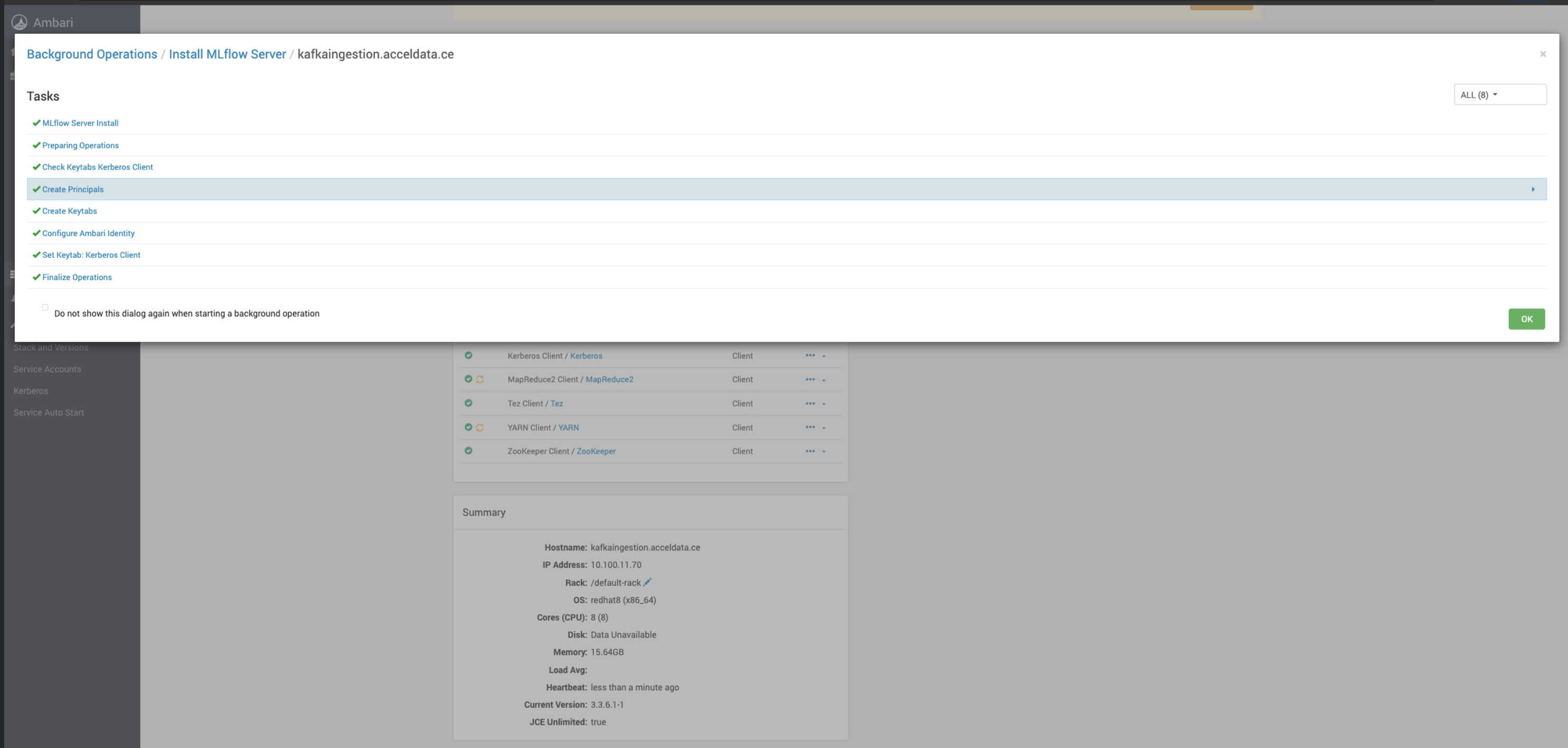
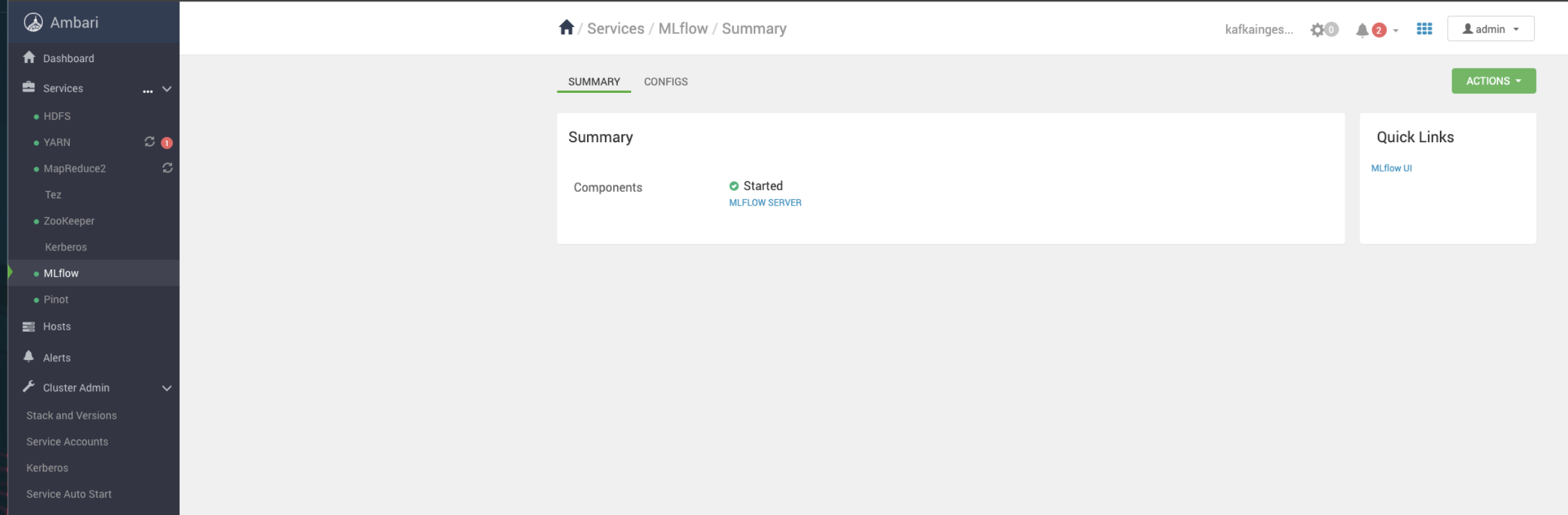
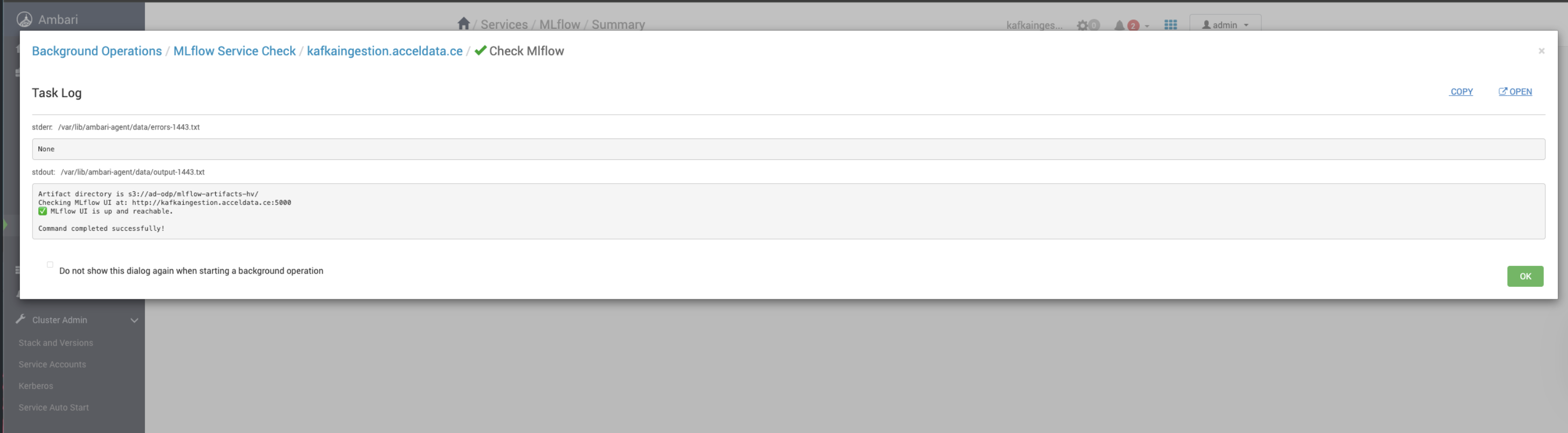
- Verify the UI.