
Obfuscating LDAP Bind Password for Druid
Remove the plain-text LDAP bind password from common.runtime.properties and replace it with a secure lookup mechanism using the Hadoop Credential Provider (JCEKS) and environment variables.
Scope
- Ambari-managed Druid
- LDAP authentication enabled for Druid
- Hadoop Credential Provider (JCEKS)
- Applies to production and non-production clusters
Prerequisites
- Root Access: Required to create keystores and manage file permissions
- Ambari Admin Access: Required to update Druid configurations
- Service Status: Ambari and Druid services must be running
- Hadoop CLI: Available on the node used to create credentials
Step 1: Create the Secure Keystore (JCEKS)
Store the LDAP bind password securely in an encrypted keystore.
1.1 Create the keystore directory (if missing)
mkdir -p /etc/security/credential/
1.2 Create credential alias
- Alias Name: druid.ldap.bind.password
- Provider Path: jceks://file/etc/security/credential/druid.jceks
hadoop credential create druid.ldap.bind.password \
-provider jceks://file/etc/security/credential/druid.jceks \
-value "YOUR_ACTUAL_LDAP_PASSWORD_HERE"
1.3 Verify credential creation
hadoop credential list \
-provider jceks://file/etc/security/credential/druid.jceks
Expected output (example):
Listing aliases for CredentialProvider: jceks://file/etc/security/credential/druid.jceks
druid.ldap.bind.password
druid.internal.client.password
druid.metadata.storage.connector.password
Step 2: Configure Ambari druid-env (Critical)
This step ensures Druid can securely retrieve the password at startup and expose it as an environment variable.
- Log in to Ambari UI
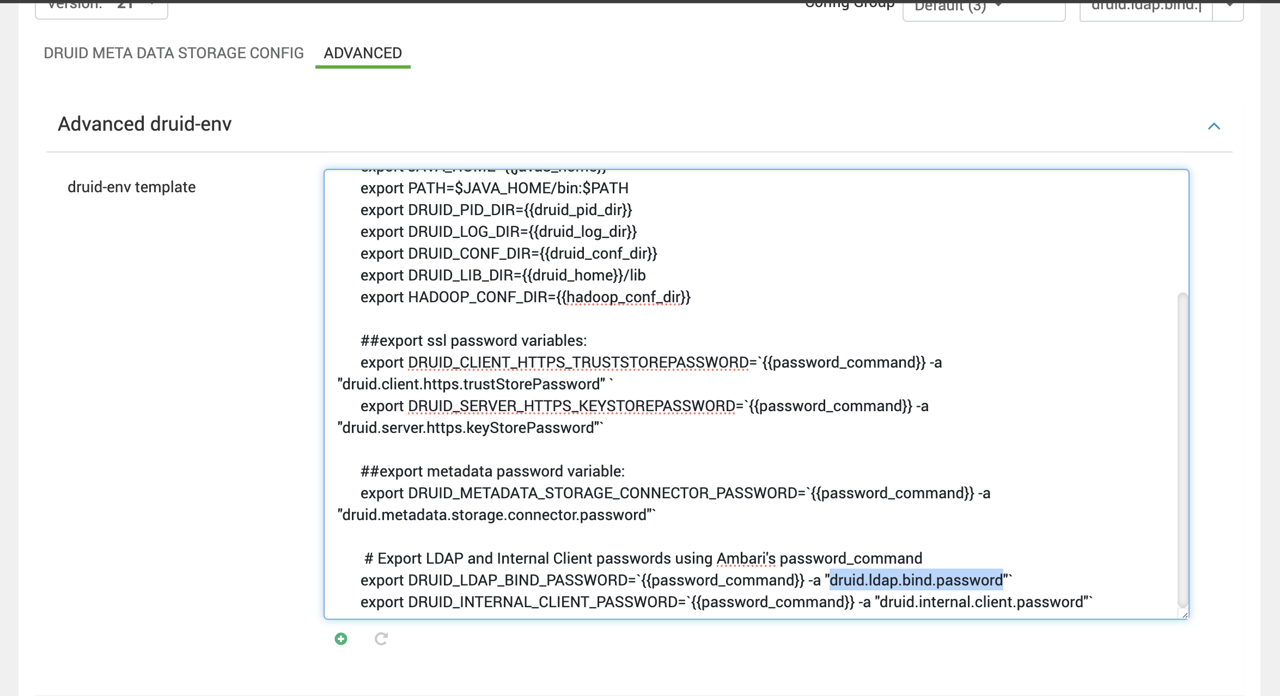
- Navigate to Druid → Configs → Advanced → Advanced druid-env
- Scroll to the druid-env template
- Add the following line at the end:
# Export LDAP Bind Password using Ambari Credential Store
export DRUID_LDAP_BIND_PASSWORD=`{{password_command}} -a "druid.ldap.bind.password"`
- Save the configuration
Here is a screenshot for your reference:
Step 3: Update Druid Runtime Properties
Configure Druid to use the environment variable instead of a plain-text password.
- Navigate to Druid → Configs → Advanced → Advanced druid-common-security.
- Locate the property:
druid.auth.authenticator.ldap.credentialsValidator.bindPassword
- Replace the existing plain-text value with:
druid.auth.authenticator.ldap.credentialsValidator.bindPassword={"type":"environment","variable":"DRUID_LDAP_BIND_PASSWORD"}
Here is a screenshot for your reference:
Step 4: Restart and Verify
4.1 Restart Services
Restart all Druid components via Ambari:
- Broker
- Coordinator
- Historical
- Overlord (if applicable)
4.2 Validation
- Log in to Druid UI using an LDAP user
- Confirm successful authentication
- Verify no plain-text password exists in:
- common.runtime.properties
- Ambari configs
- Check logs for errors:
/var/log/druid/*
Outcome
- LDAP bind password removed from all plain-text configurations
- Password securely stored in Hadoop Credential Store (JCEKS)
- Druid retrieves the password securely at runtime
- Fully compliant with MSTP security hardening standards