
Set up Trino Ranger (For 3.3.6.x-x or later)
To enable Ranger for Trino, ensure that Ranger is installed. Then navigate to Ambari UI → Trino → Advanced Config → Enable Ranger.
All other properties, such as HDFS and Solr audit settings, will be automatically populated based on the Ranger environment configuration.

Additional configurations to validate and update include settings related to SSL.
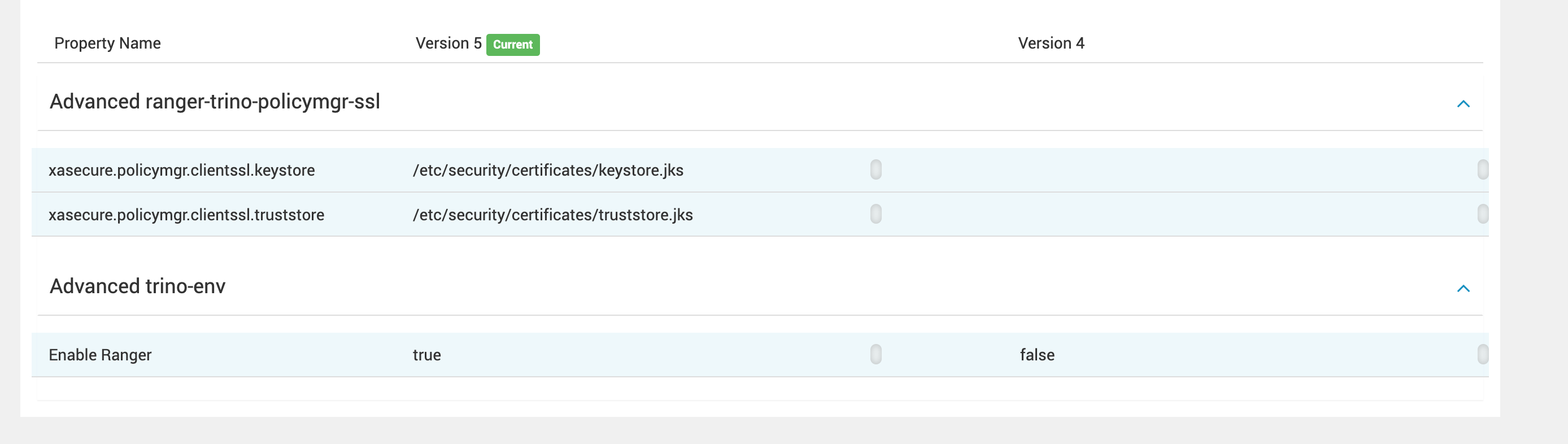
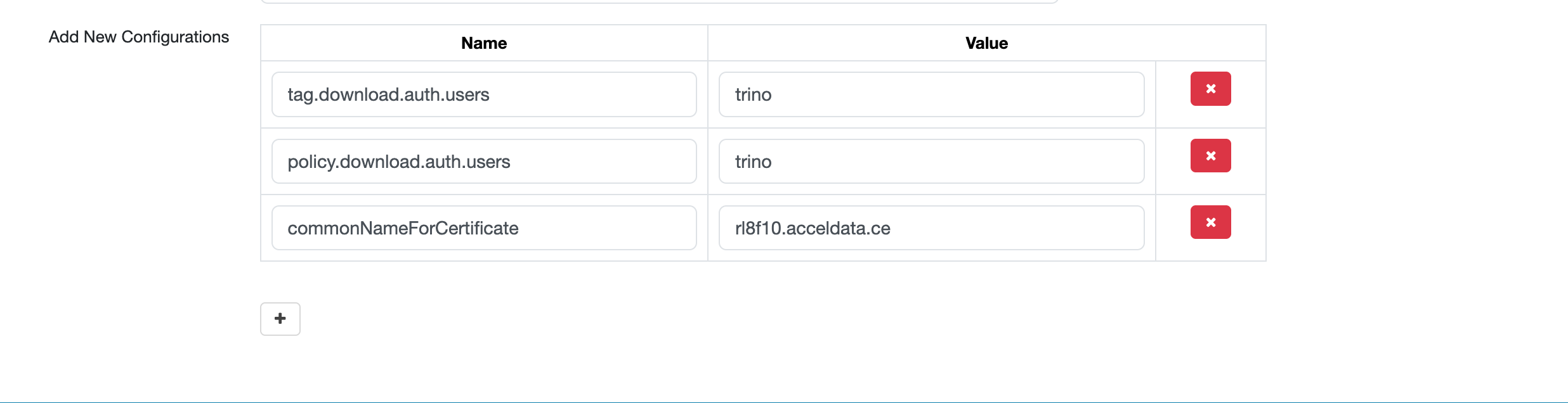
Check and update the following configurations under Ranger UI → Edit Trino Service:
- The commonNameForCertificate field is optional if Trino is configured with SSL.
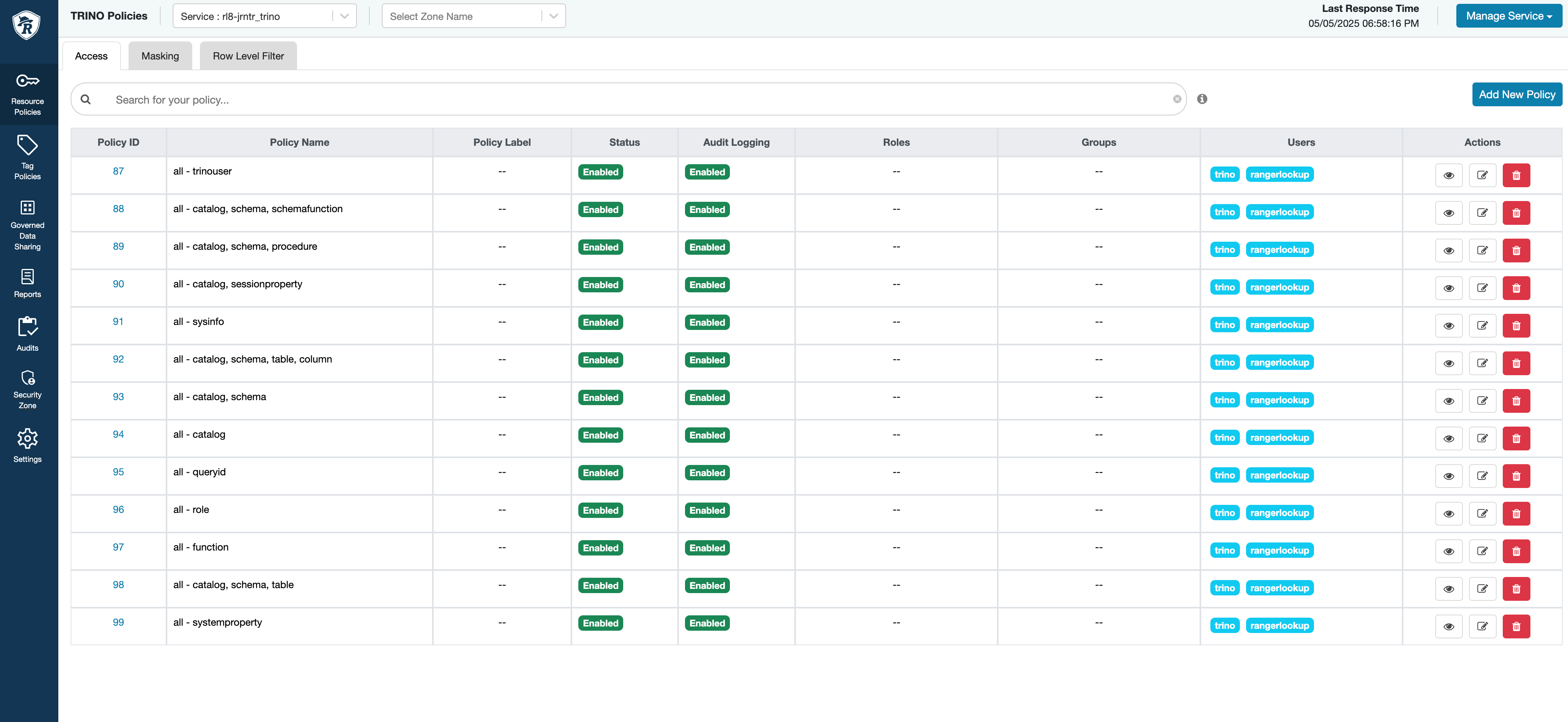
Check the list of default service policies.
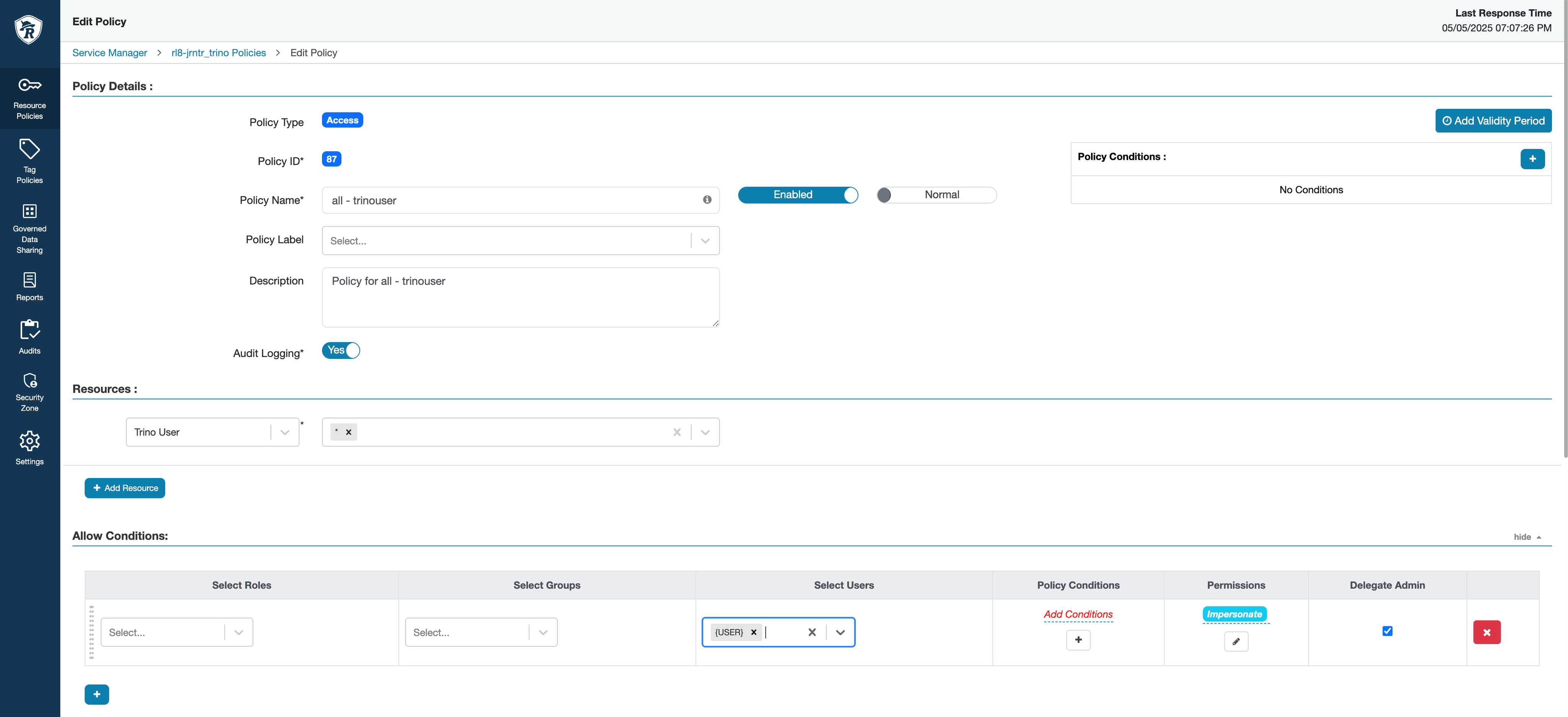
Update the all-trinouser policy in Ranger with the following allow conditions.
Add the user trino to the Solr audit user list via: Ambari UI → Infra Solr → Configs.

Execute the following certificate import operations to their respective truststore locations:
The default truststores for JDK 11 (3.3.6.x-x) are as follows:
- If Ranger is enabled with SSL, import Ranger’s certificate to Trino’s JDK-23’s truststore
- If Ranger is enabled with SSL, import Ranger’s certificate to default truststore
- If Trino is enabled with SSL, import all node’s certificates to Ranger’s JDK truststore location
- If Trino is enabled with SSL, import all node’s certificates to default truststore location
- Import Ambari is SSL enabled, import its certificate to Ranger’s JDK truststore location
- Import Ambari is SSL enabled, import its certificate to default truststore