Stack Upgrade
In this document, you are provided with complete walk through required for the process of upgrading your stack using Ambari, a comprehensive Hadoop management and monitoring tool.
Note
While the screenshots below depict ODP-3.2.2.0, the same steps are applicable for the current version 3.2.3.1-3.
VDF Registration and Package Installation
Perform the following steps for registering or adding a specific VDF (Version Definition File) file to your cluster management tool (e.g., Ambari).
- Navigate to Stack And Version > Manage Versions > select ok > Register Version.
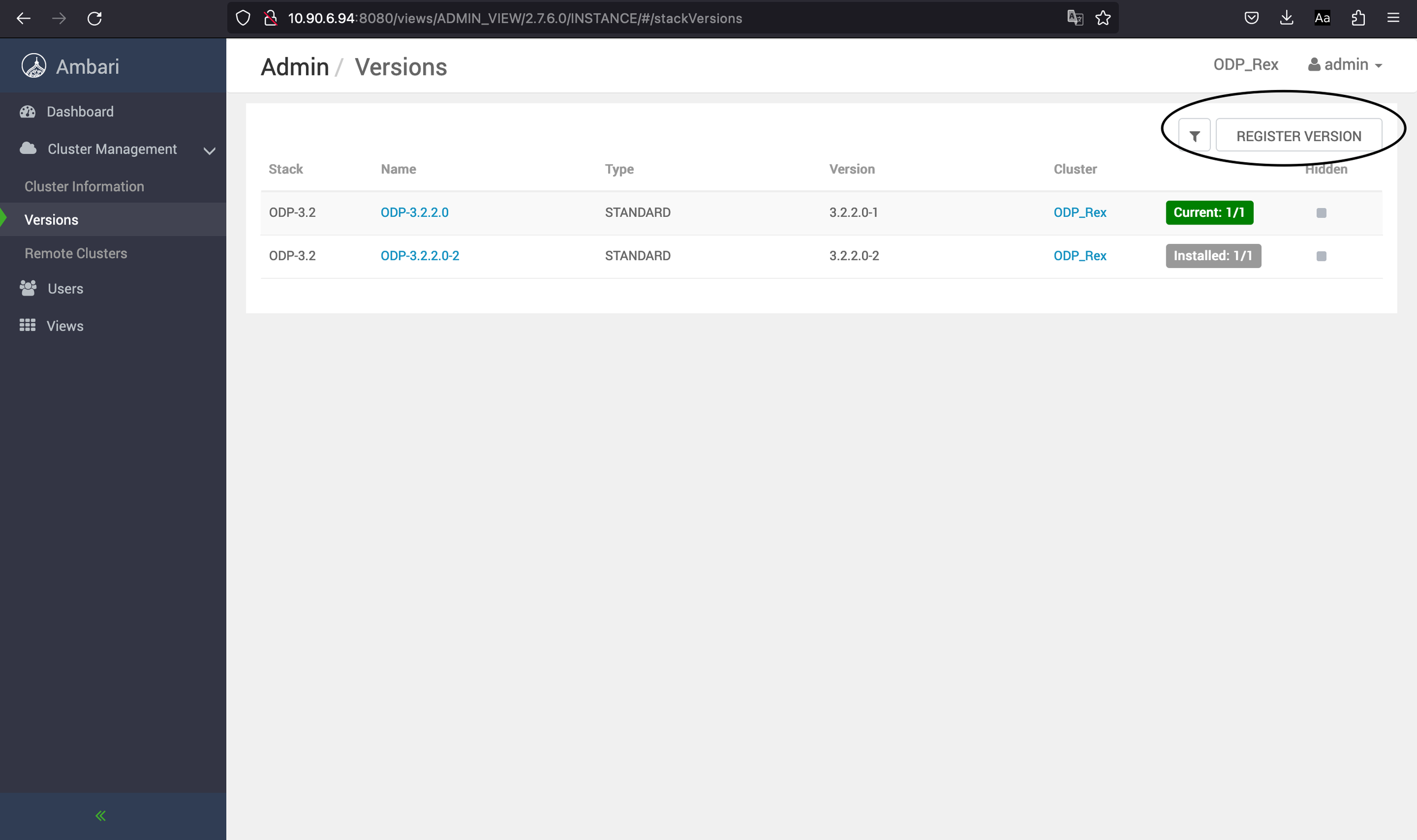
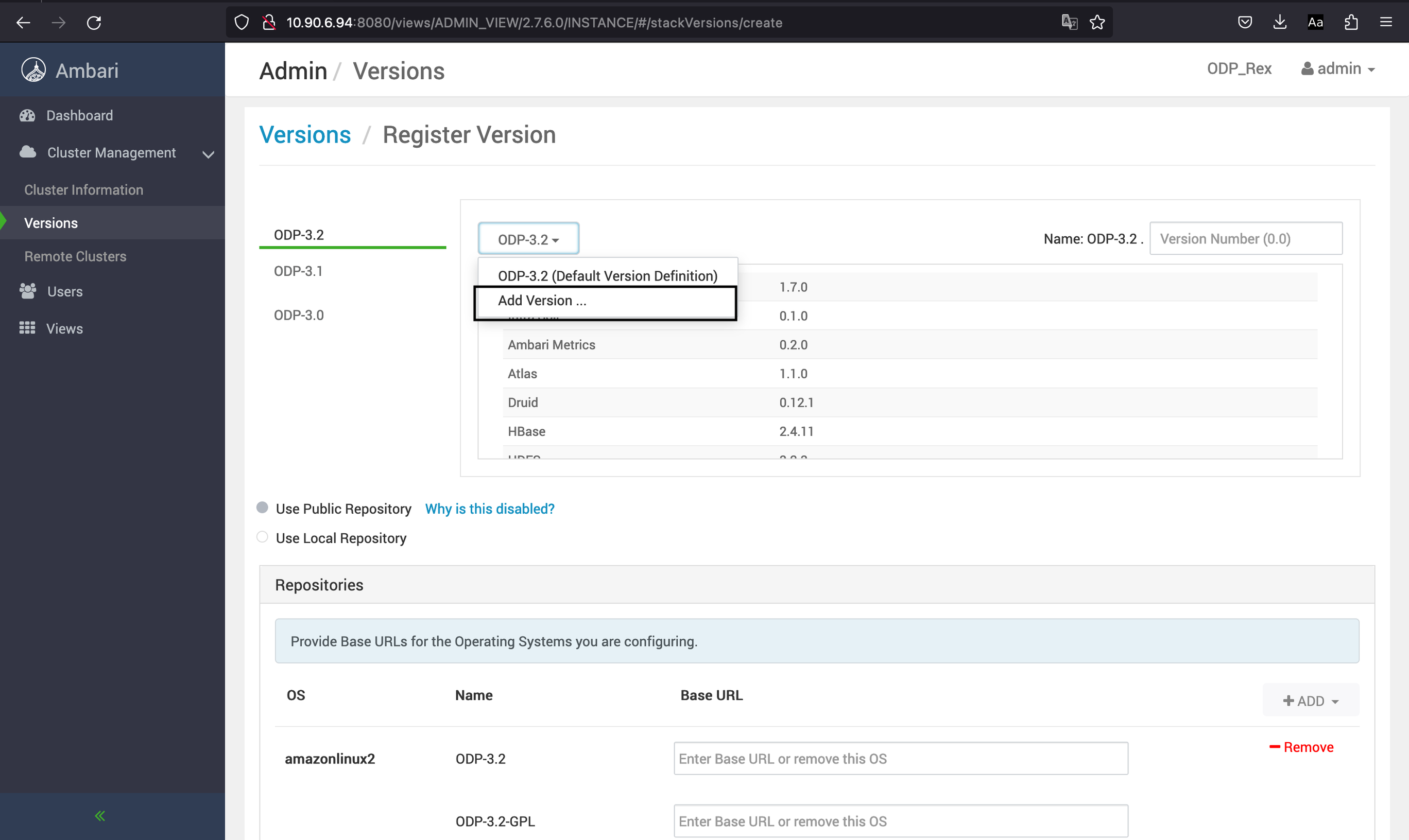
- Click Add Version on the Version page.
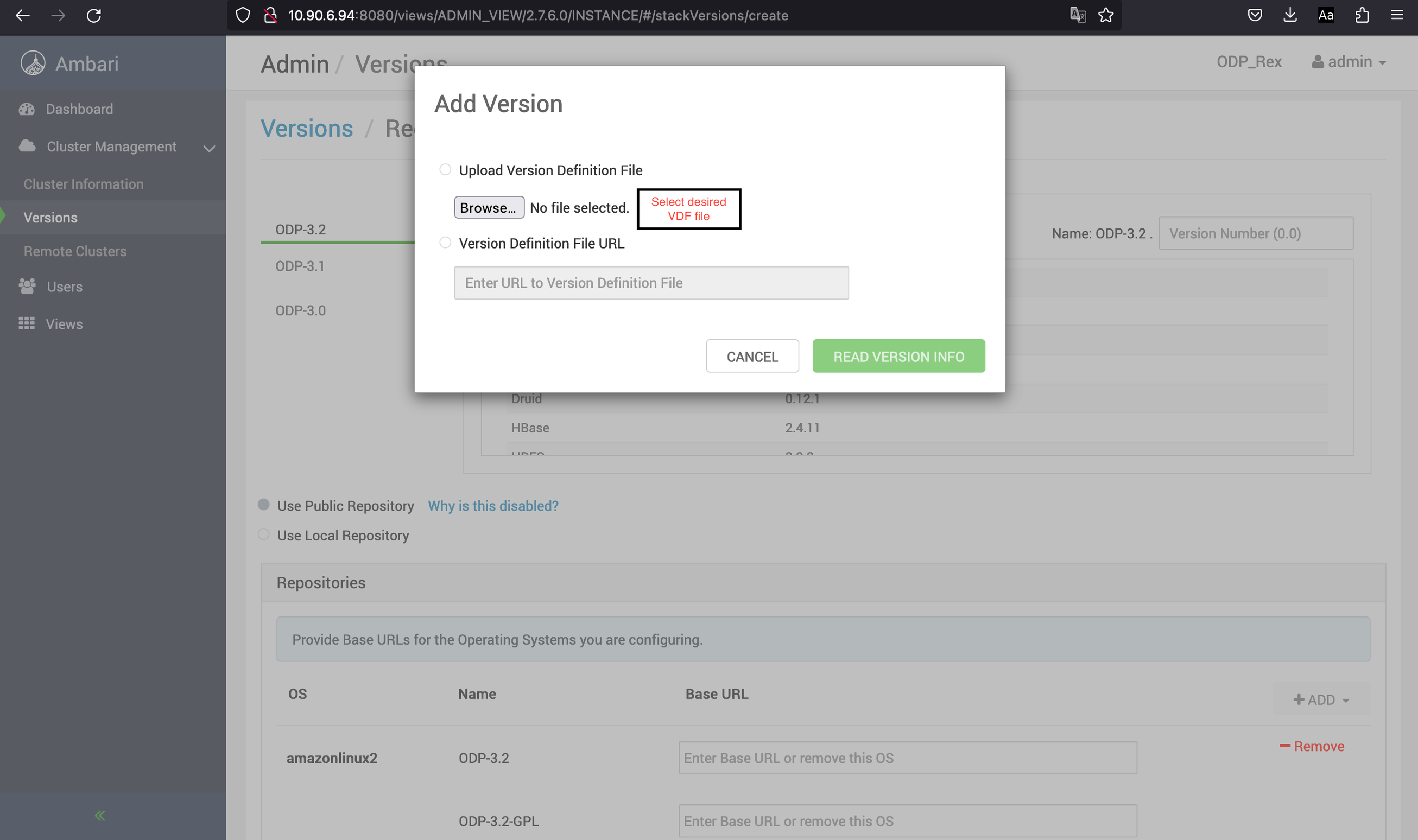
- On clicking Add Version, you can now browse and select the desired Stack VDF file for addition.
Sample VDF file (see odp_sample_vdf_._xml)
This sample VDF includes repository information for different operating system families including redhat7 and redhat8. You may configure for any operating system as per requirement.
Info
When using VDF file, ensure that you specify the correct repository URL between the <baseurl> tags and validate the downloaded VDF to ensure it is in the correct format.
- Check the repository URLs under the Repositories section. It can be public as per VDF or it can be modified to use local repository URLs.
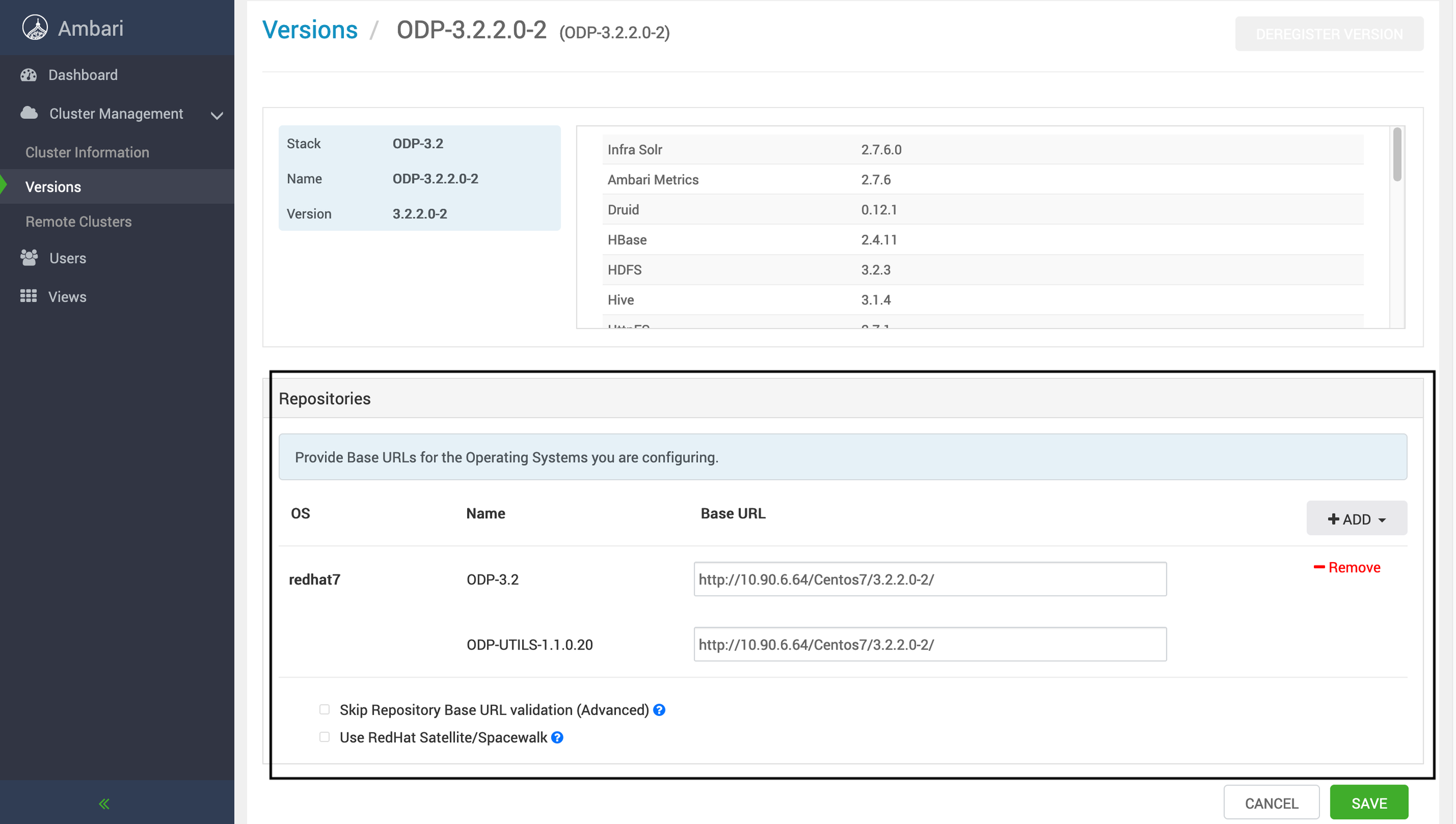
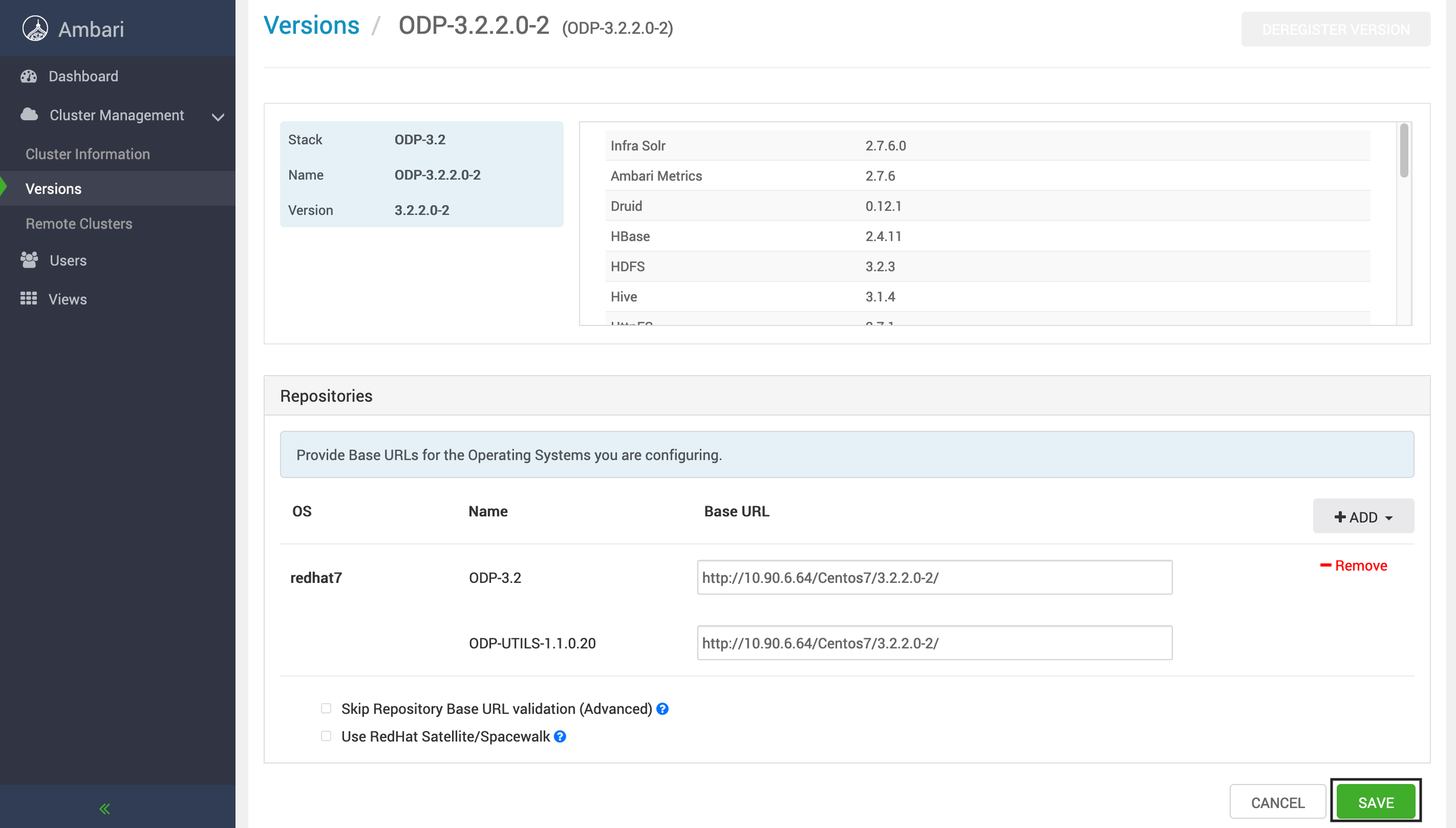
- Validate the information and click Save.
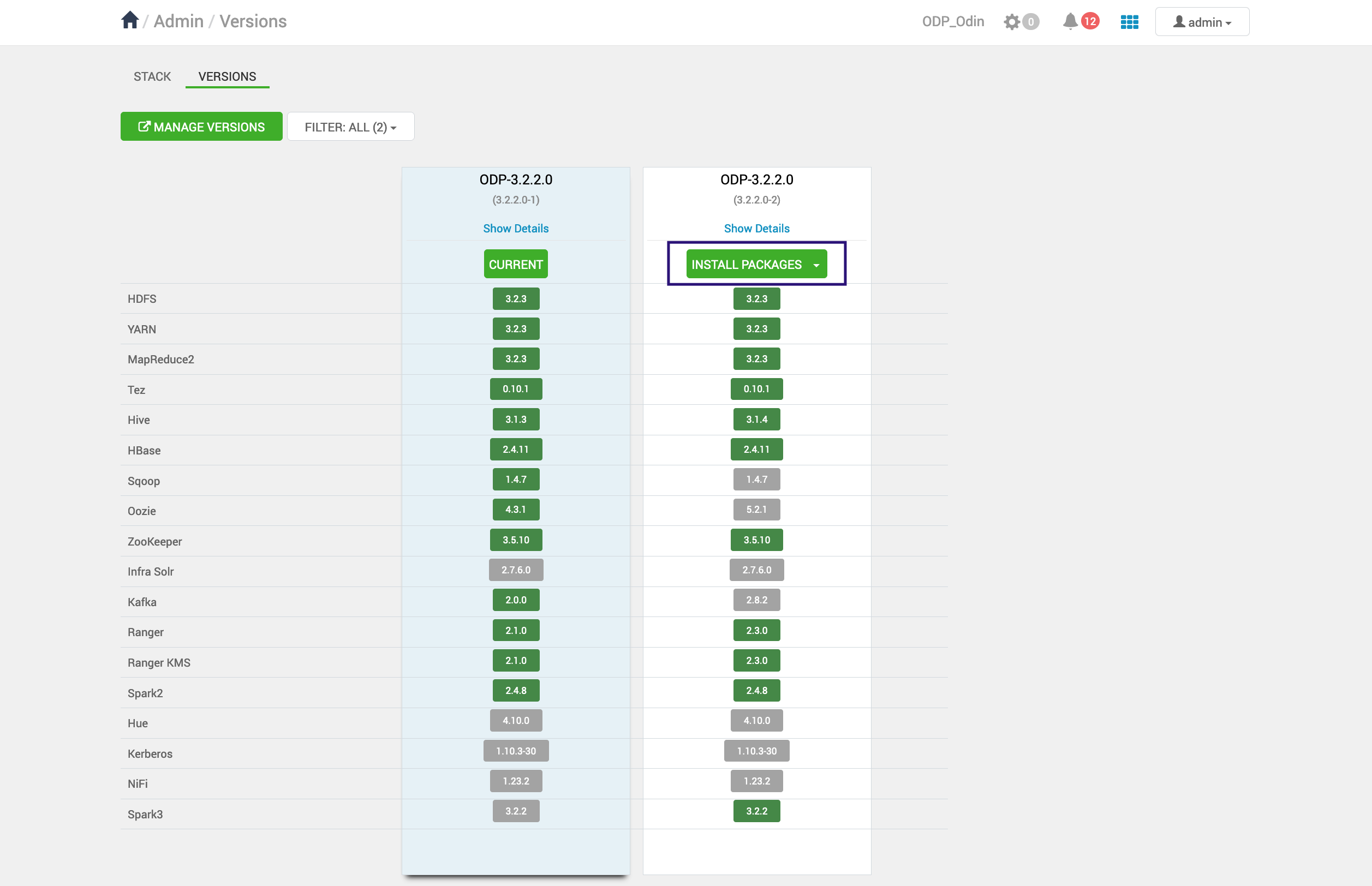
- Navigate to the Stack & Versions page.
Note
The screenshots provided below are for reference purposes only. Ensure to verify and select the version that meets your requirements.
- Click Install Packages.
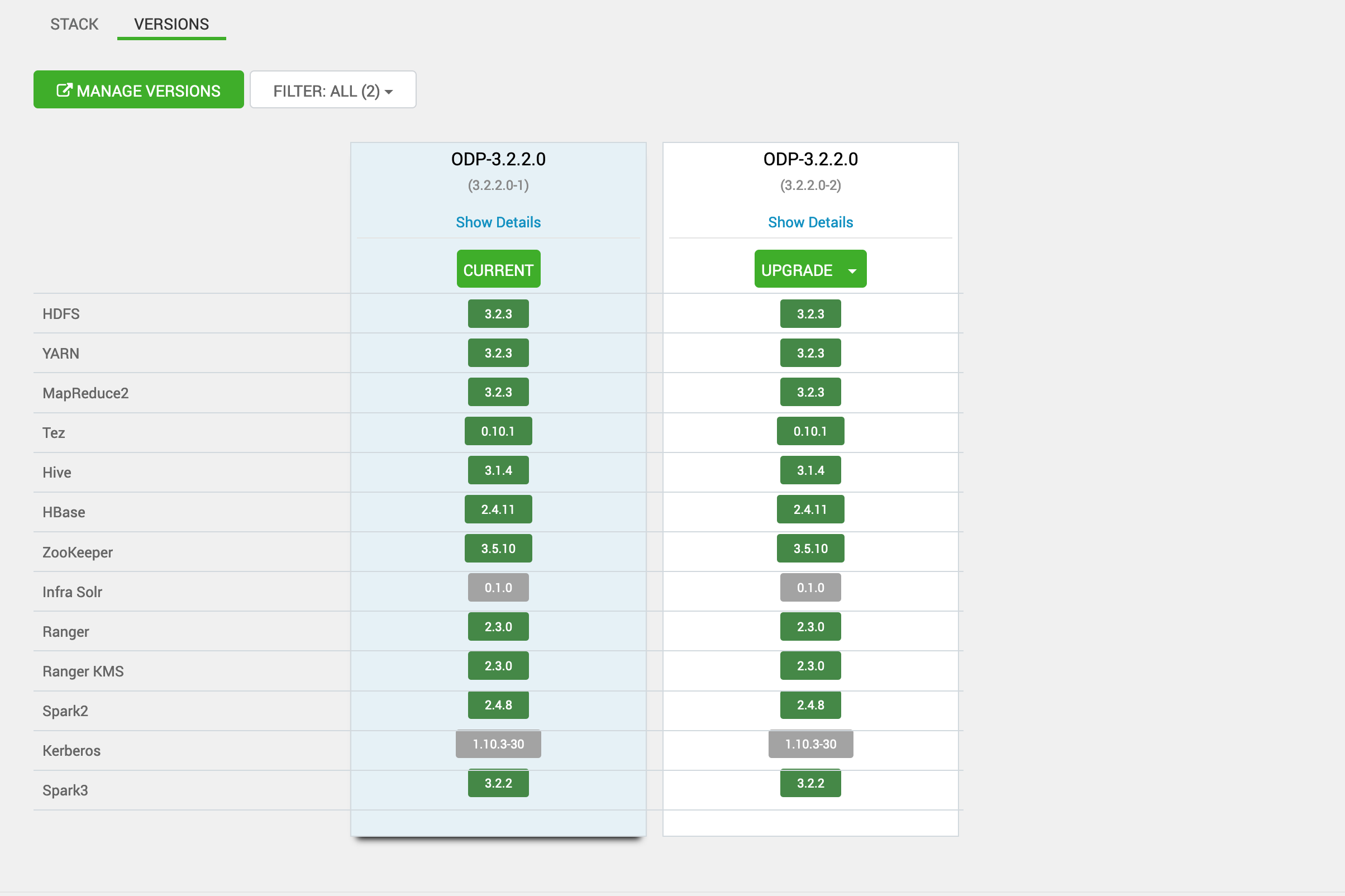
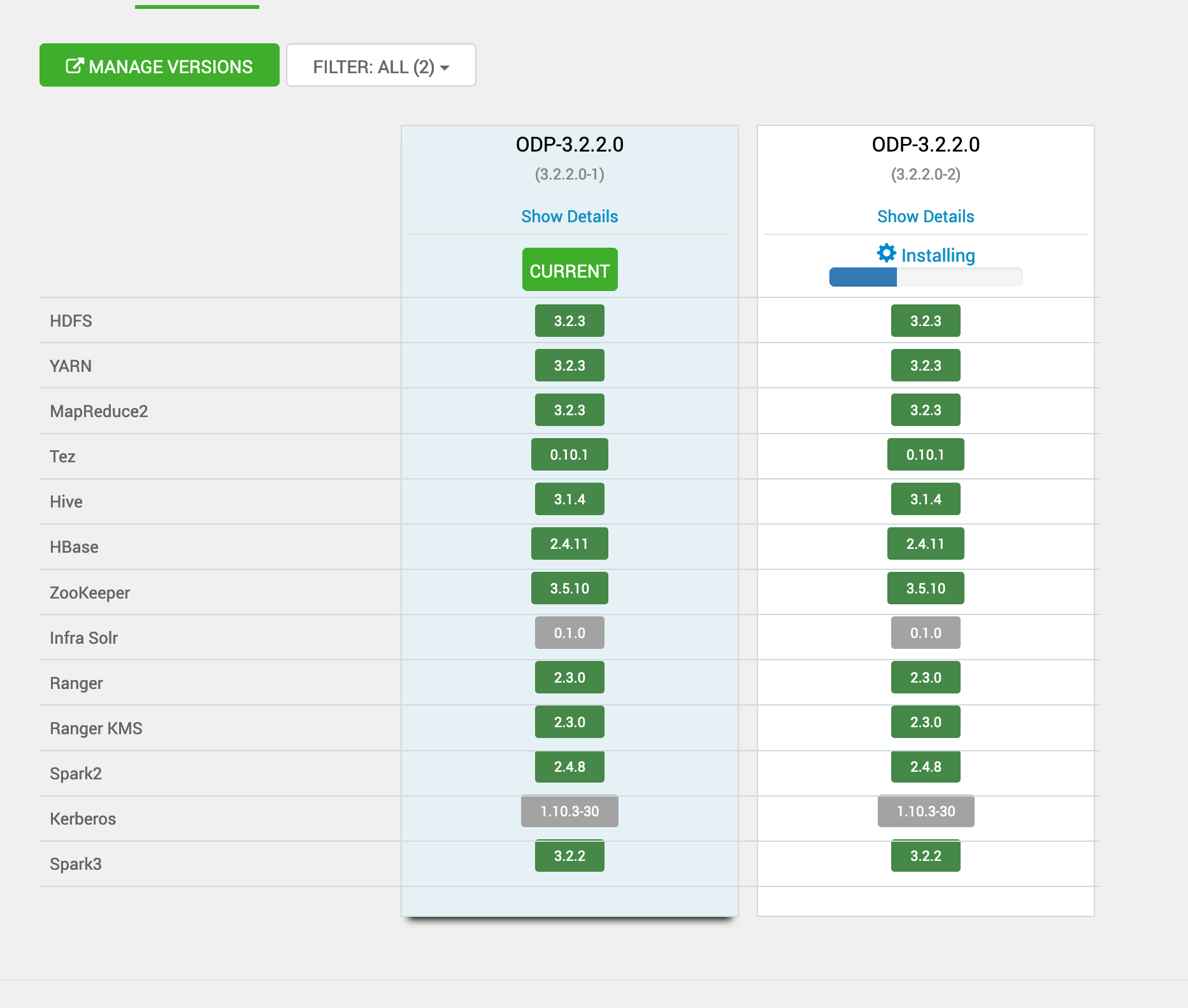
Its state must change to installing as shown in the below screenshot:
After installation, you must choose the upgrade option, and you will see a UI similar to the image below: